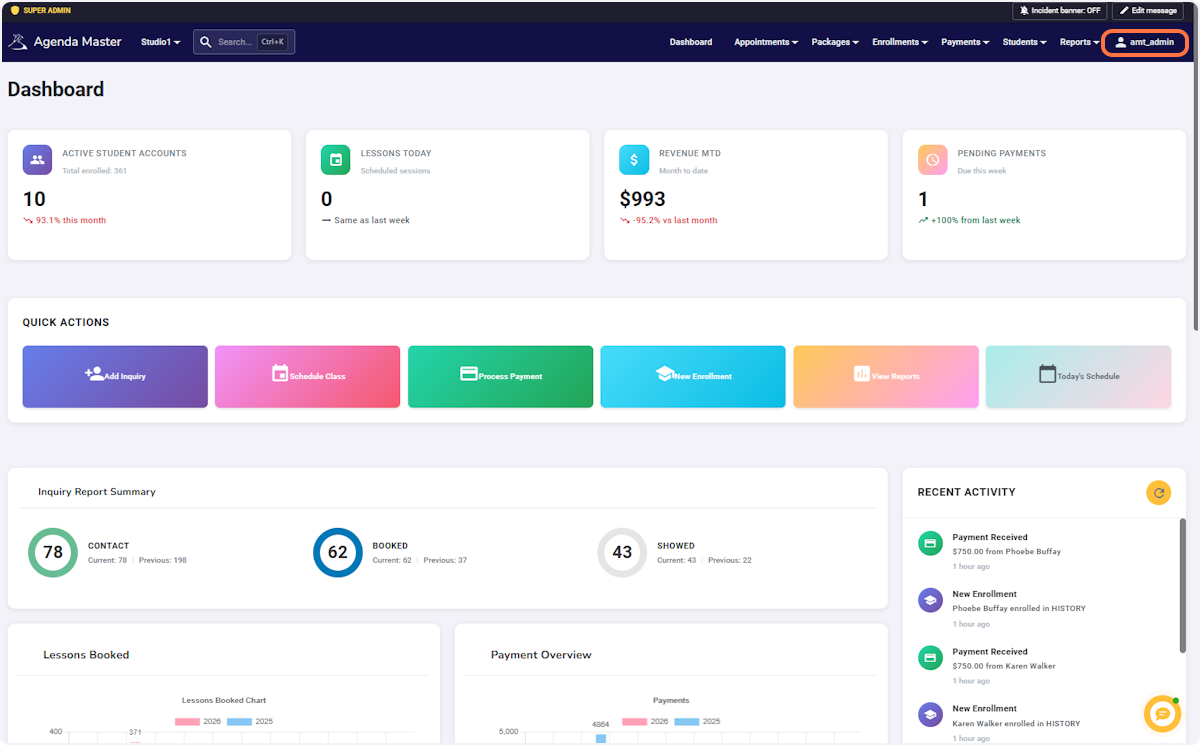
Click on your User Name #
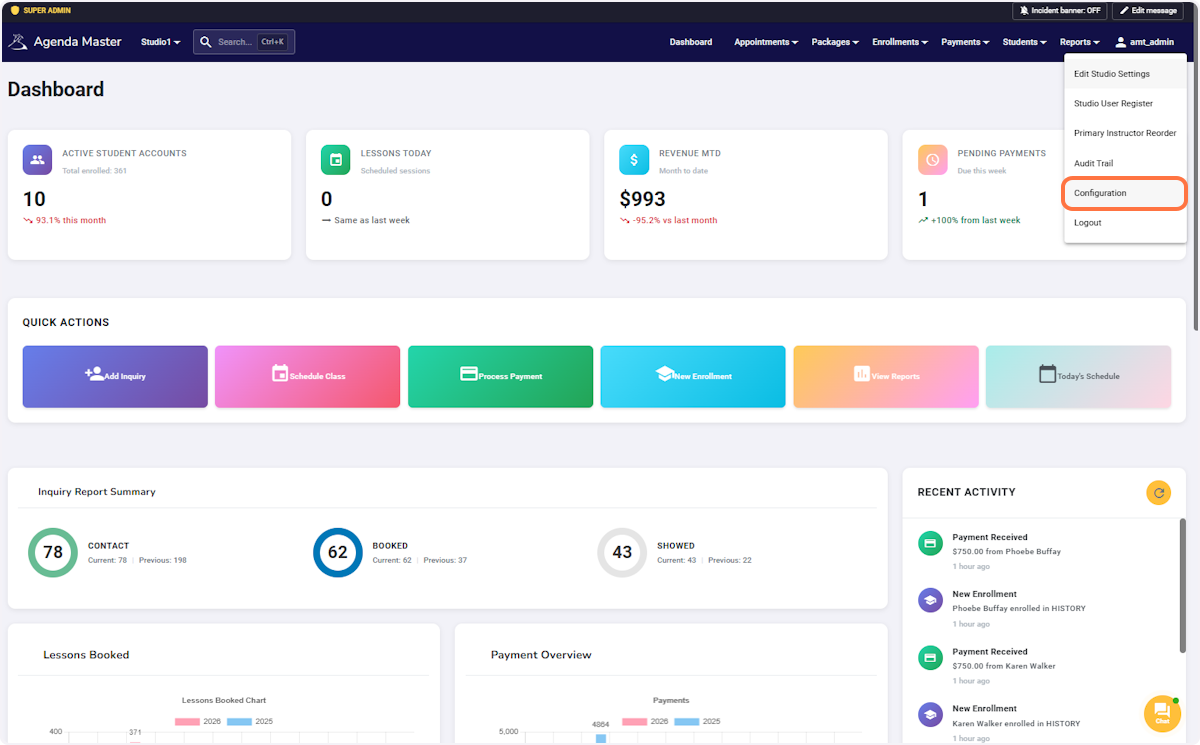
Click on Configuration #
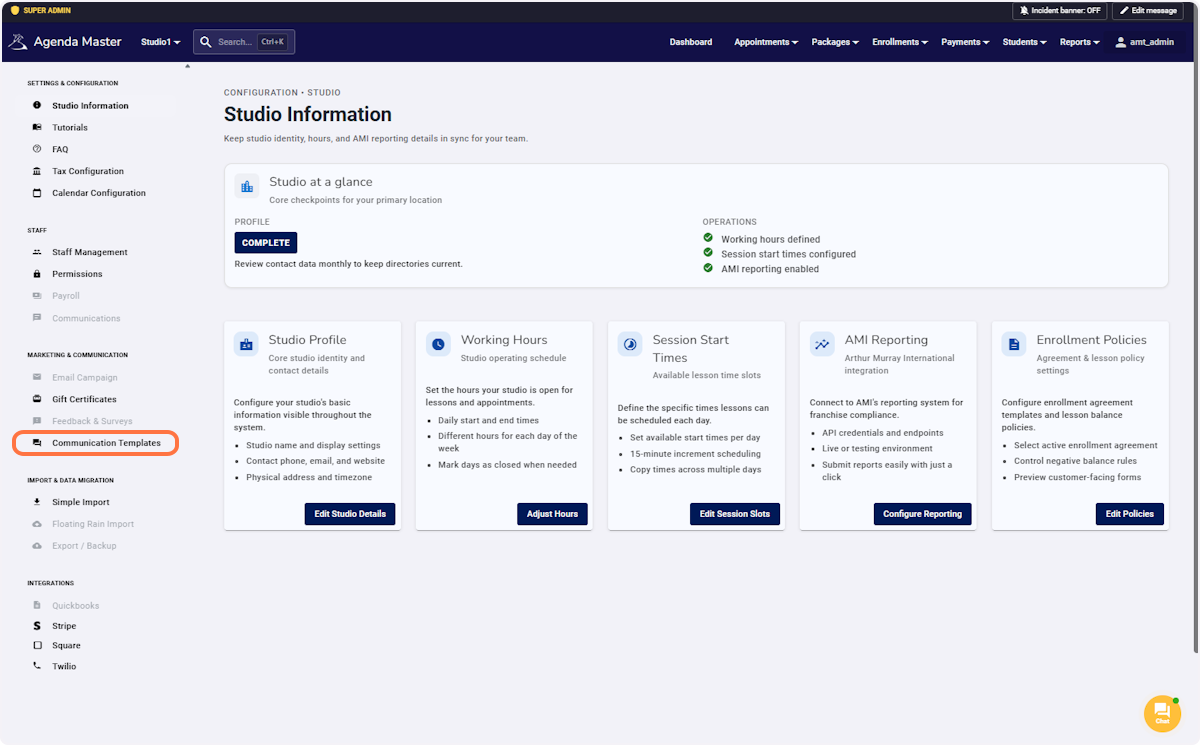
Click on Communication Templates #
A. Click on Email #
B. Click on Lesson Reminder #
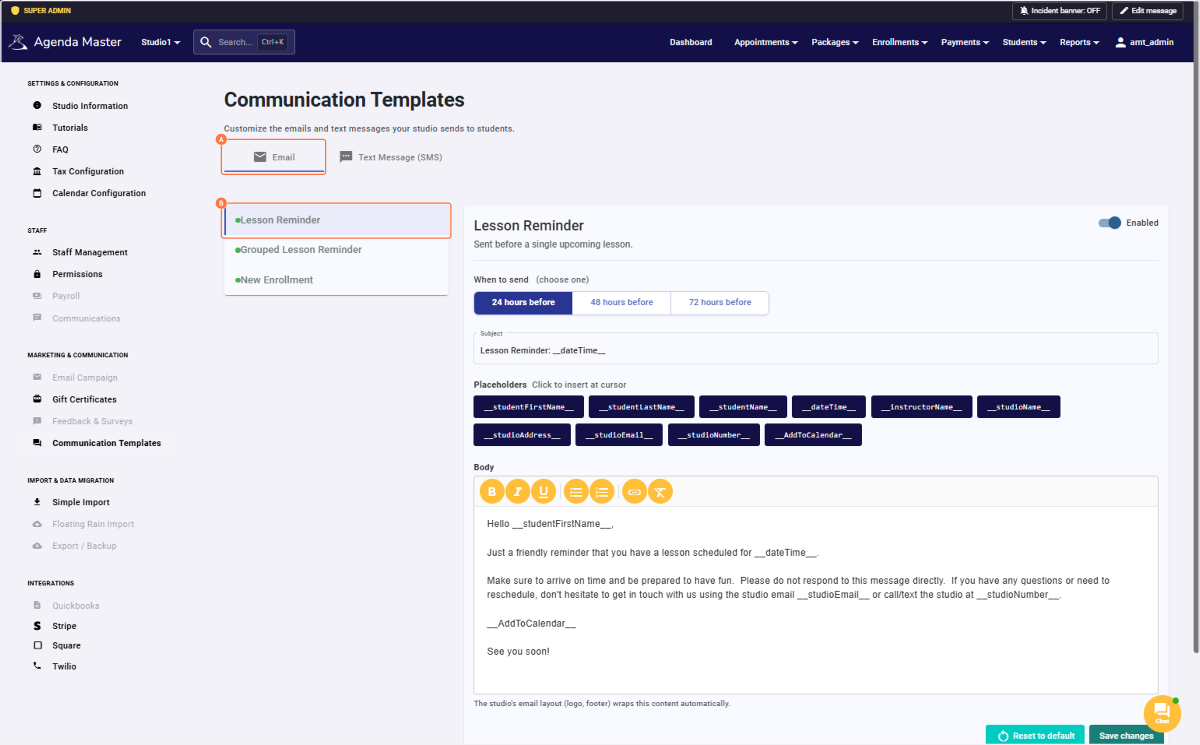
Go through SINGLE Lesson Reminder Information. #
a – First toggle the switch to ENABLE the reminders.
b – Choose ONE reminder time that you want sent out. (24/48/72 hours BEFORE the lesson.
c – Rewrite the script if you’d like. Use the Placeholders to personalize the message.
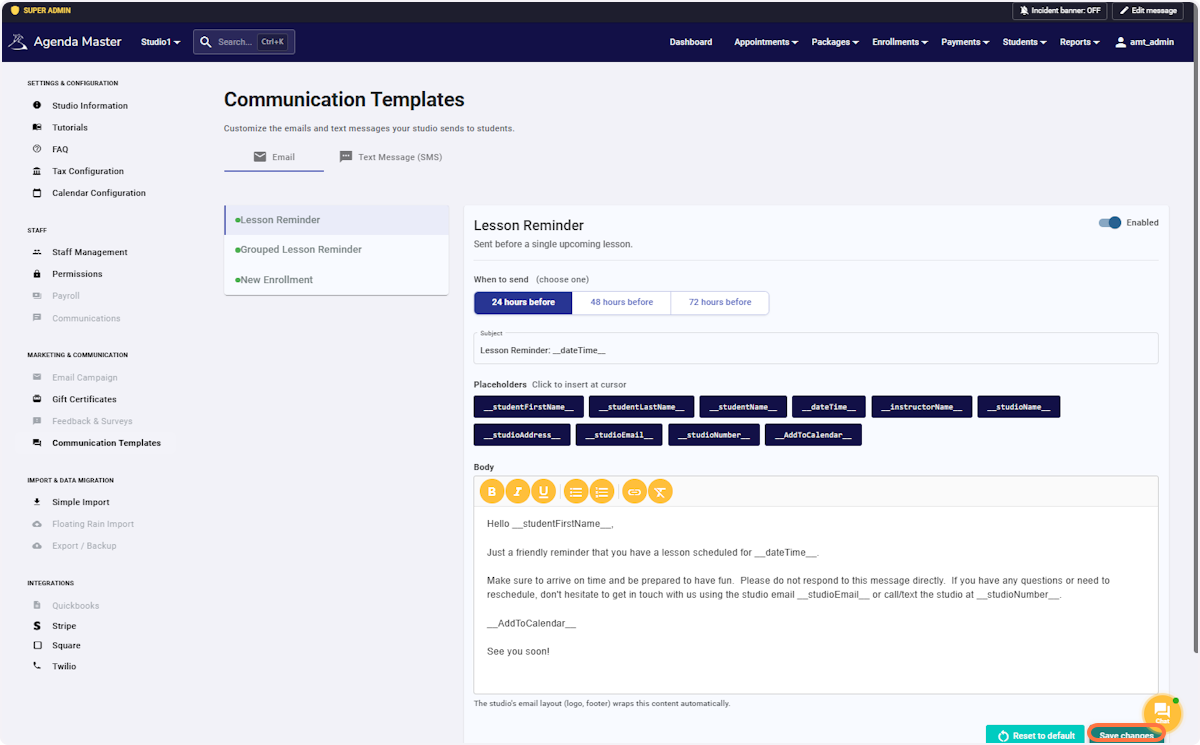
Click on Save changes #
A. Click on Grouped Lesson Reminder #
B. Go through MULTI Lesson Reminder Information. #
a – First toggle the switch to ENABLE the reminders.
b – Rewrite the script if you’d like. Use the Placeholders to personalize the message.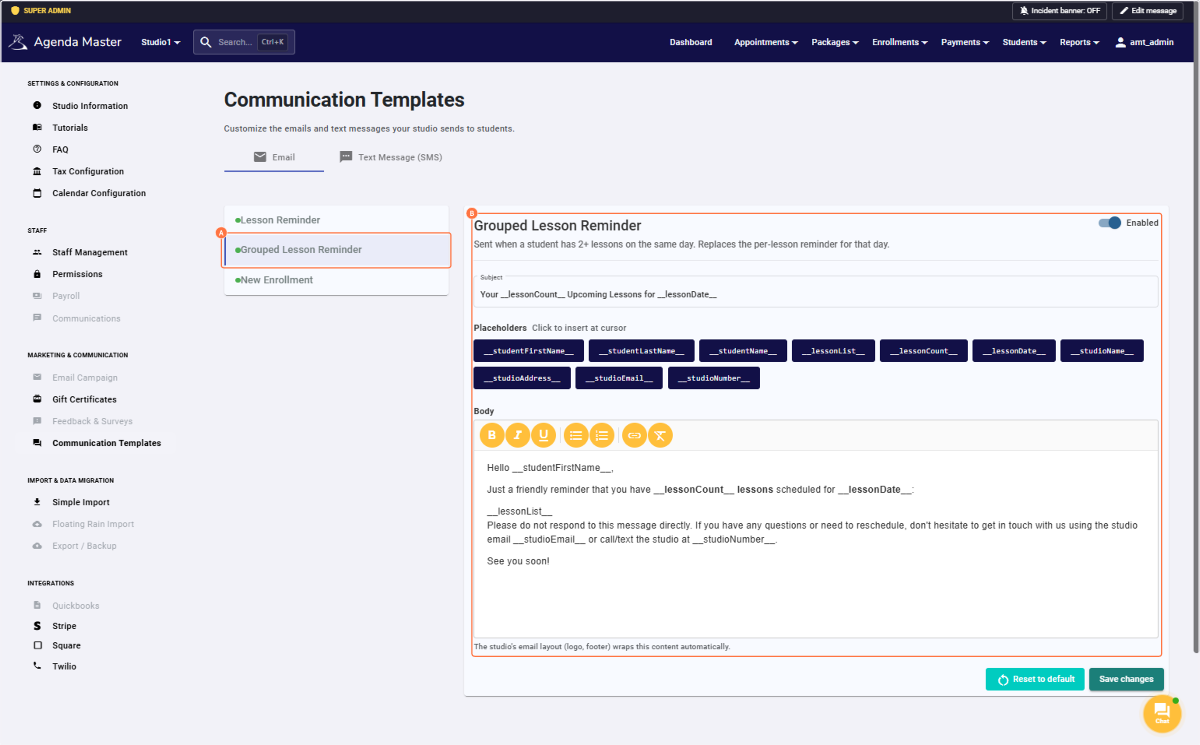
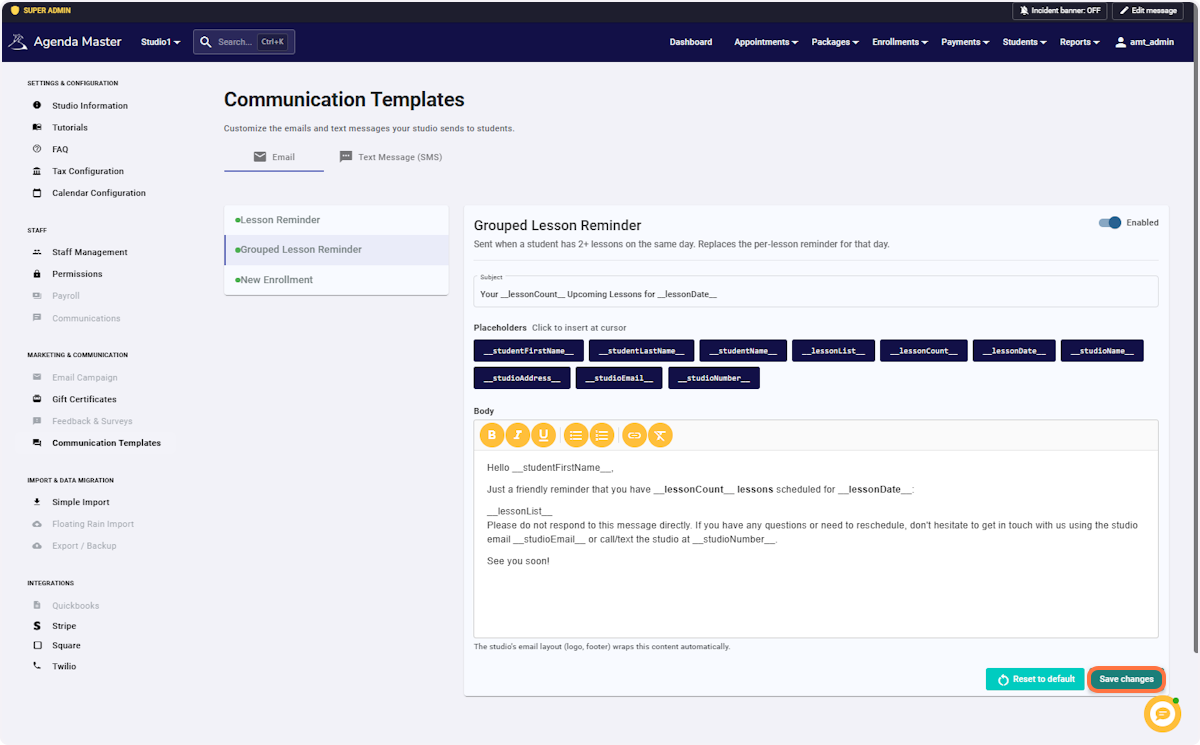
Click on Save changes #
A. Click on New Enrollment #
B. Go through New Enrollment Information. #
a – First toggle the switch to ENABLE the reminders.
b – Rewrite the script if you’d like. Use the Placeholders to personalize the message.
Enrollments are NOT sent automatically. Only if the “email” button is manually pushed.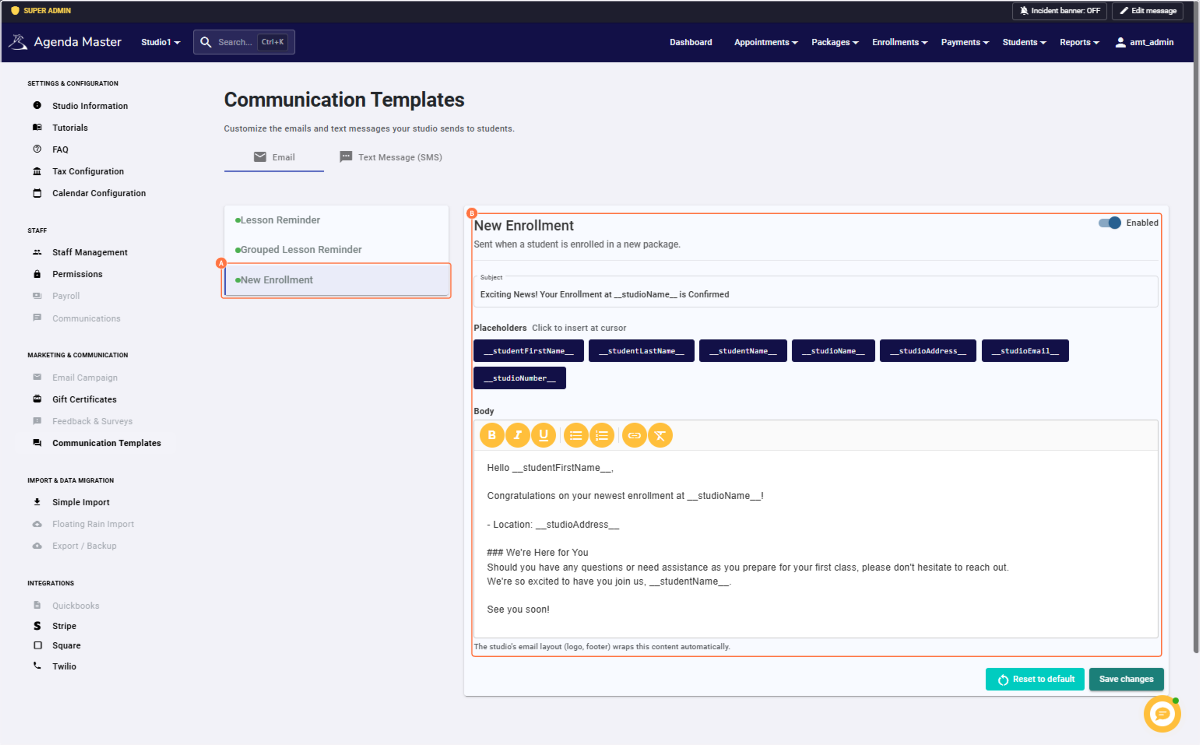
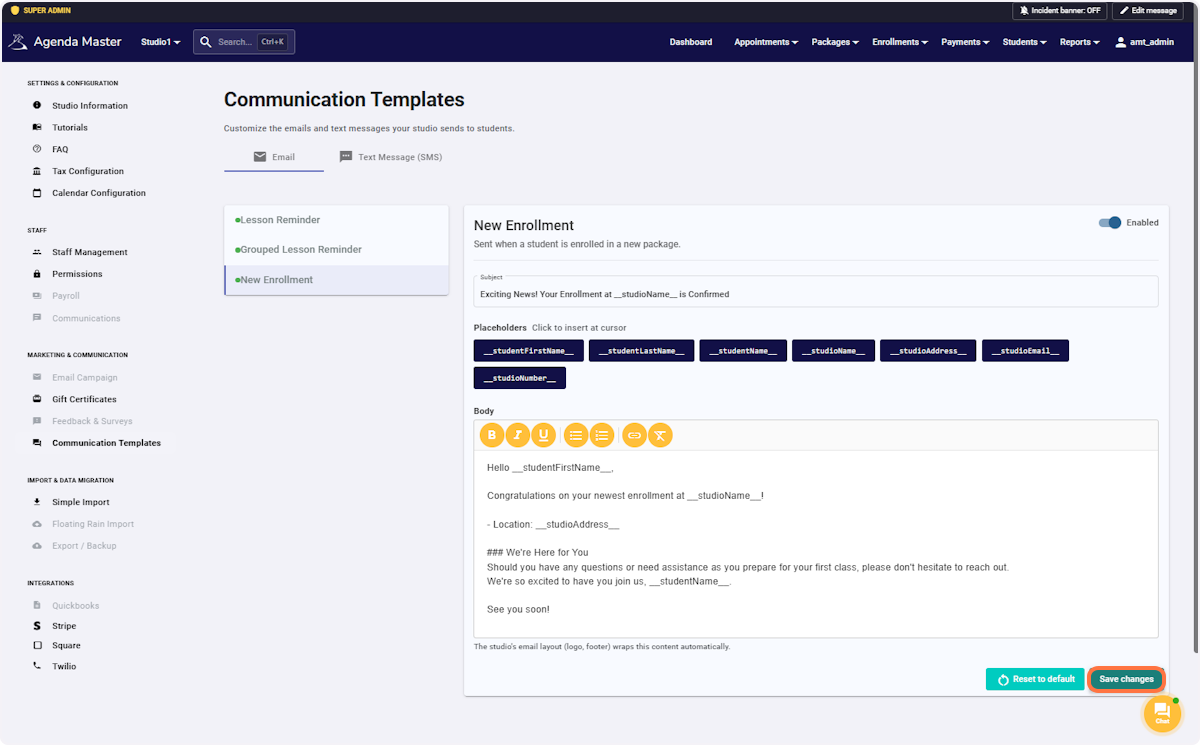
Click on Save changes #
A. Now Configure Text Messages (SMS) #
B. Click on Lesson Reminder #
C. Go through Lesson Reminder Information #
a – First toggle the switch to ENABLE the reminders.
b – Choose ONE reminder time that you want sent out. (24/48/72 hours BEFORE the lesson.
c – Rewrite the script if you’d like. Use the {Placeholders} to personalize the message.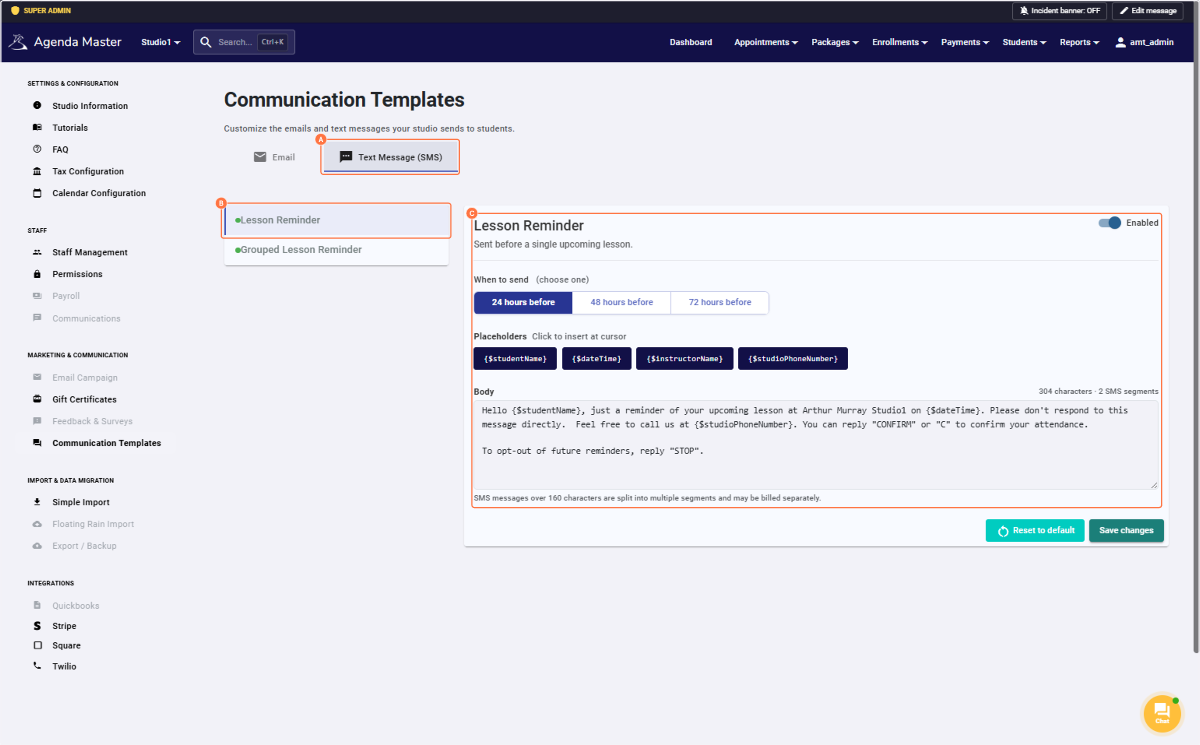
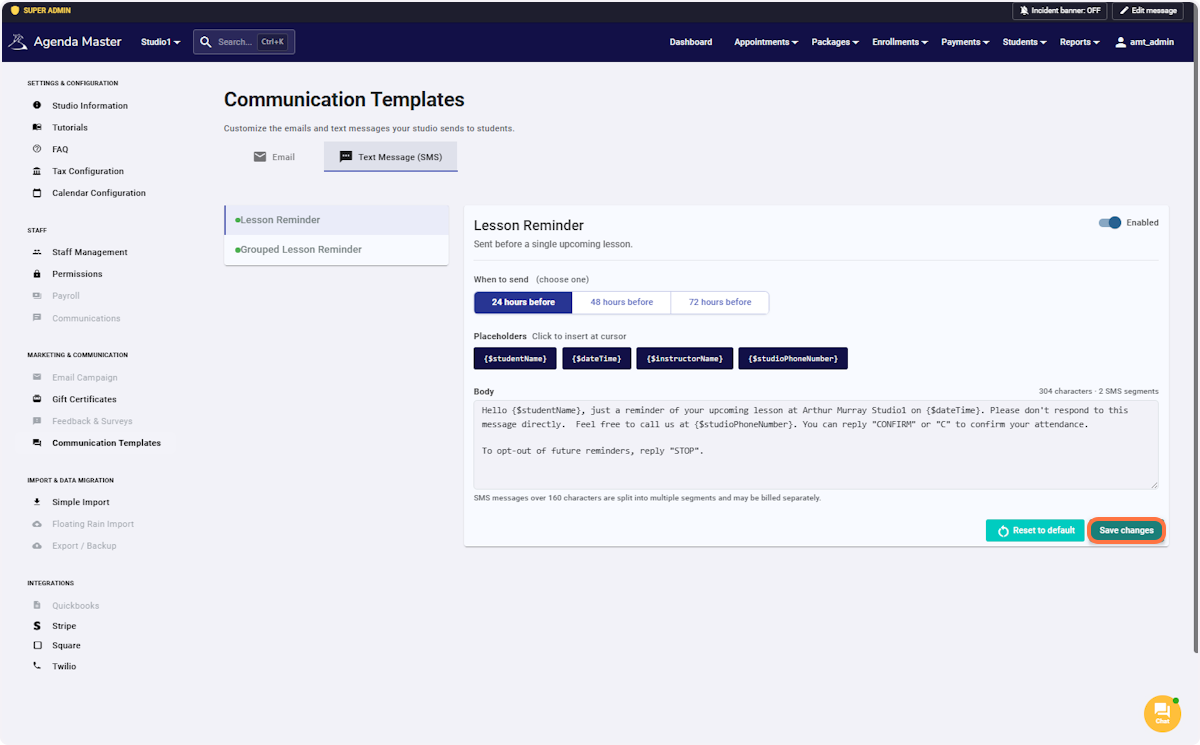
Click on Save changes #
A. Click on Grouped Lesson Reminder #
B. Go through Grouped Lesson Reminder Information #
a – First toggle the switch to ENABLE the reminders.
b – Rewrite the script if you’d like. Use the {Placeholders} to personalize the message.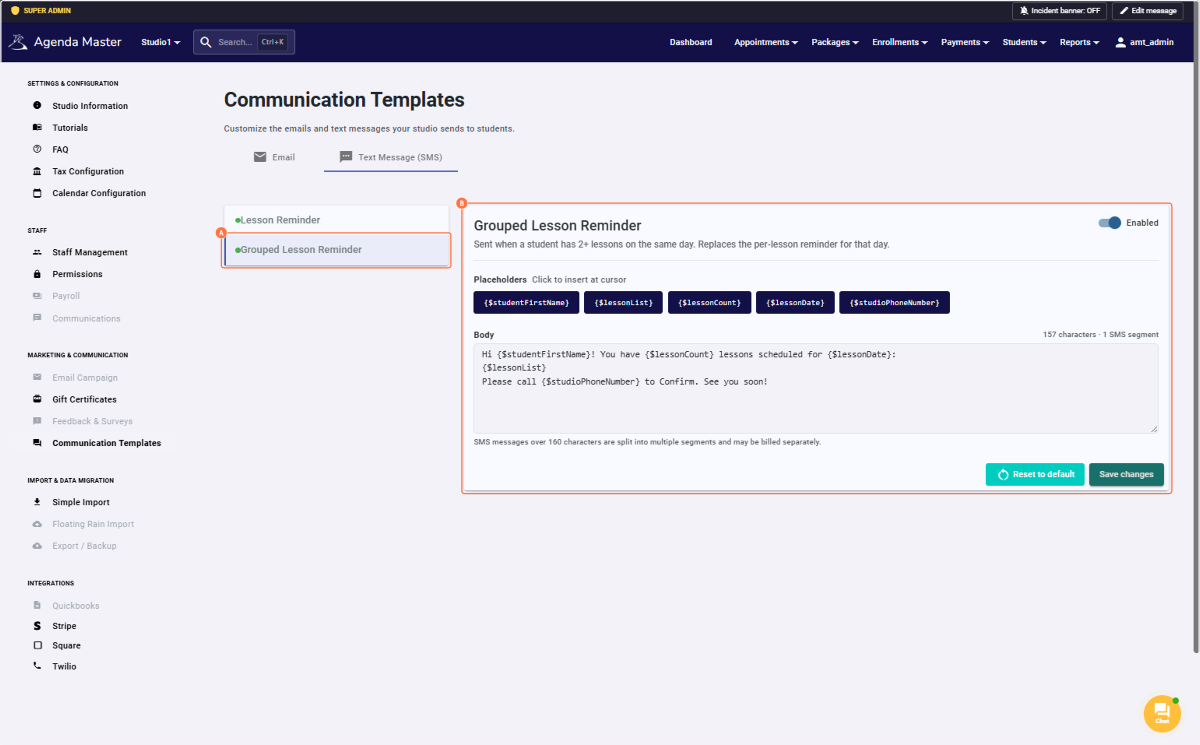
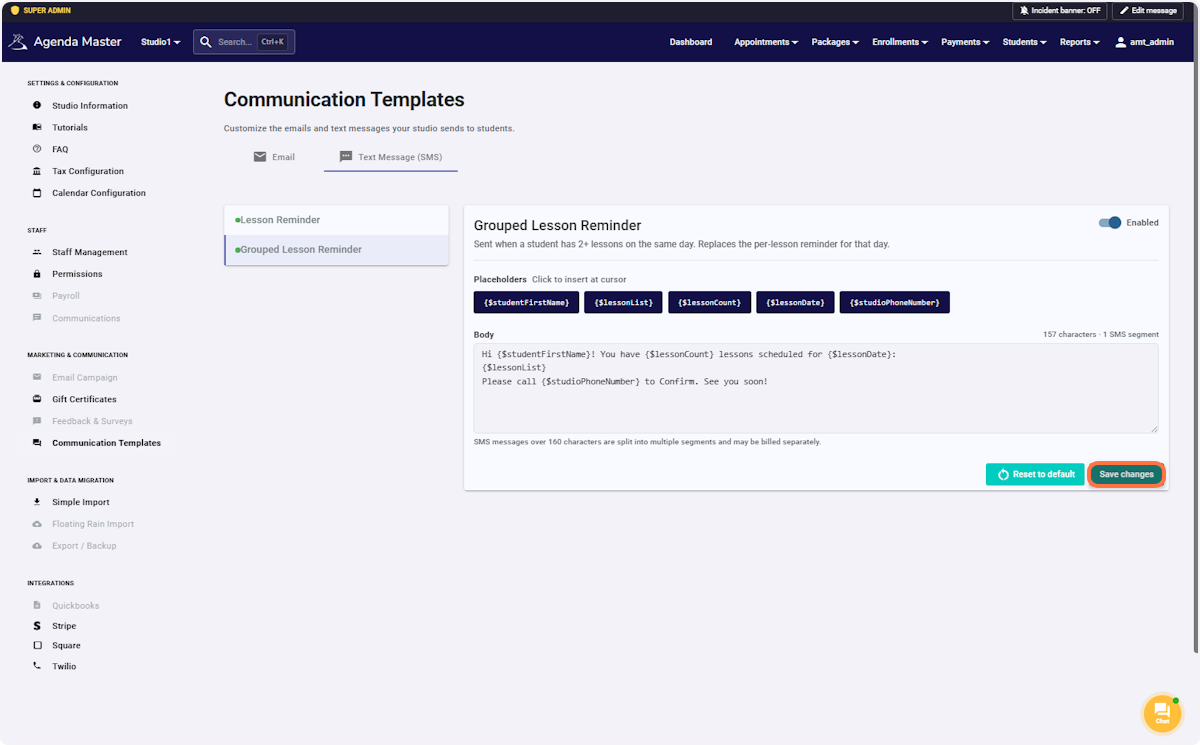
Click on Save changes #
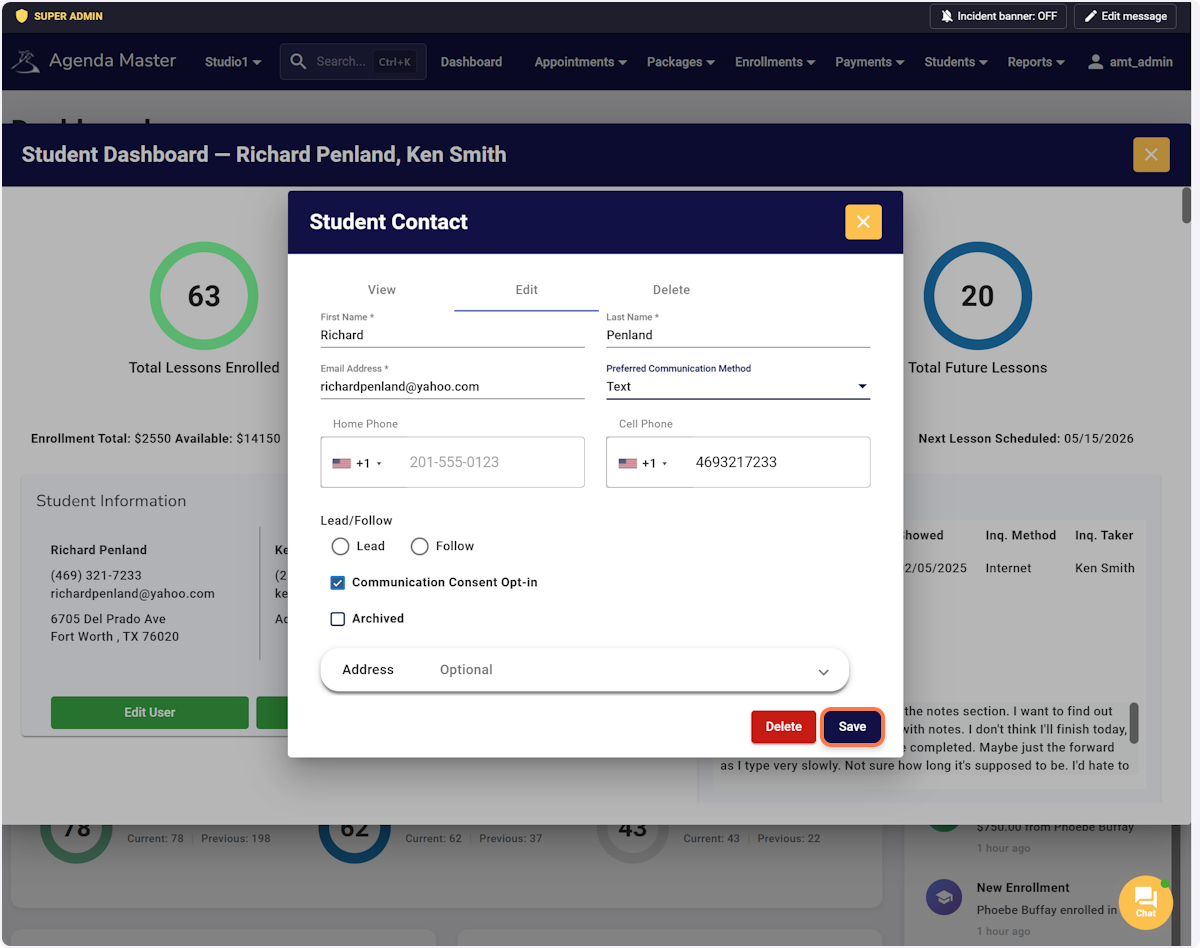
Now you’ll need to make sure your students are “Opted In” on their account. #
Go to their dashboard and Edit User
Mark the “Communication Consent Opt-In” box. (Get their consent first) #
If this is NOT checked, the reminder will NOT go out.
Click on Preferred Communication Method to reserve the type of message they would like to get #
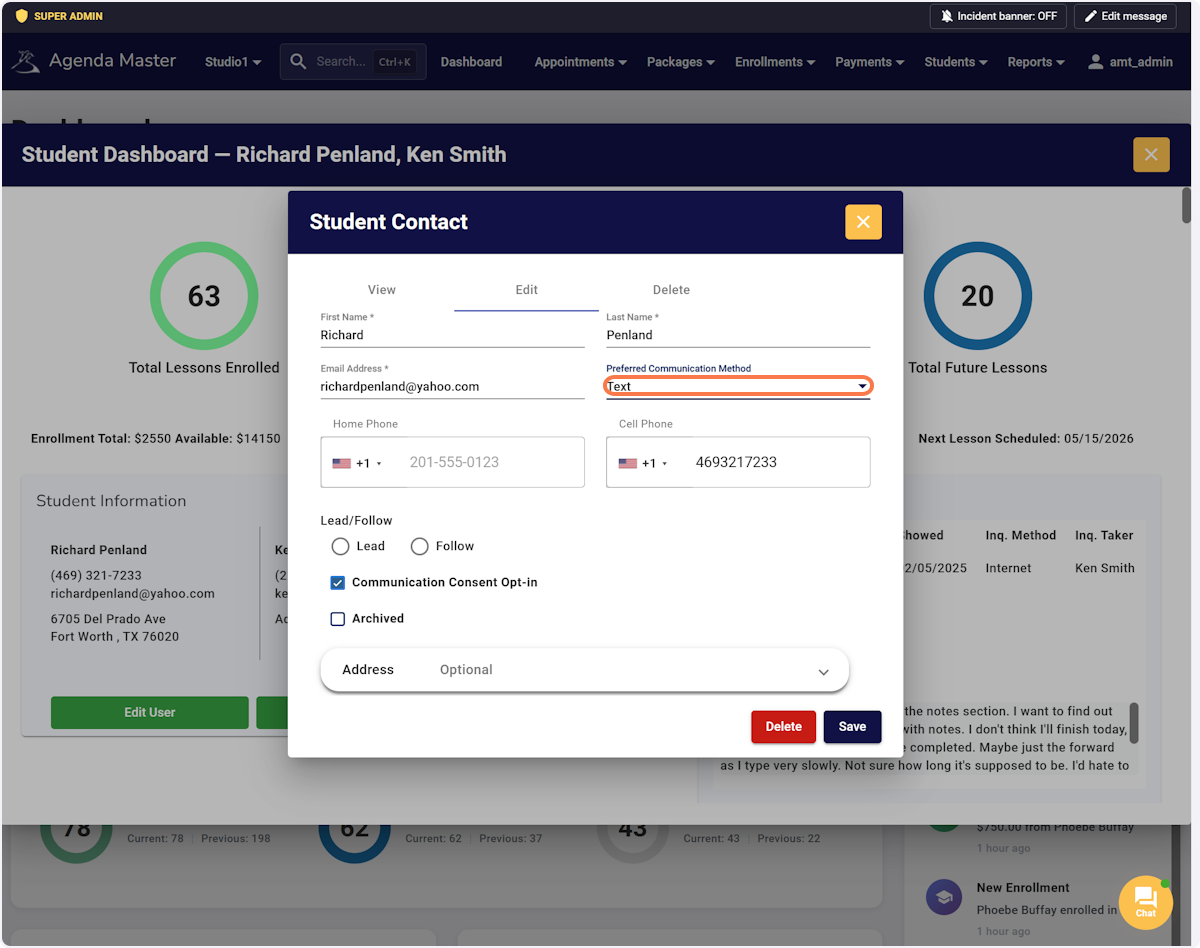
Choose Text, Email or Both. (Some students want an actual phone call. If you choose Phone, Phone will NOT send a message) #
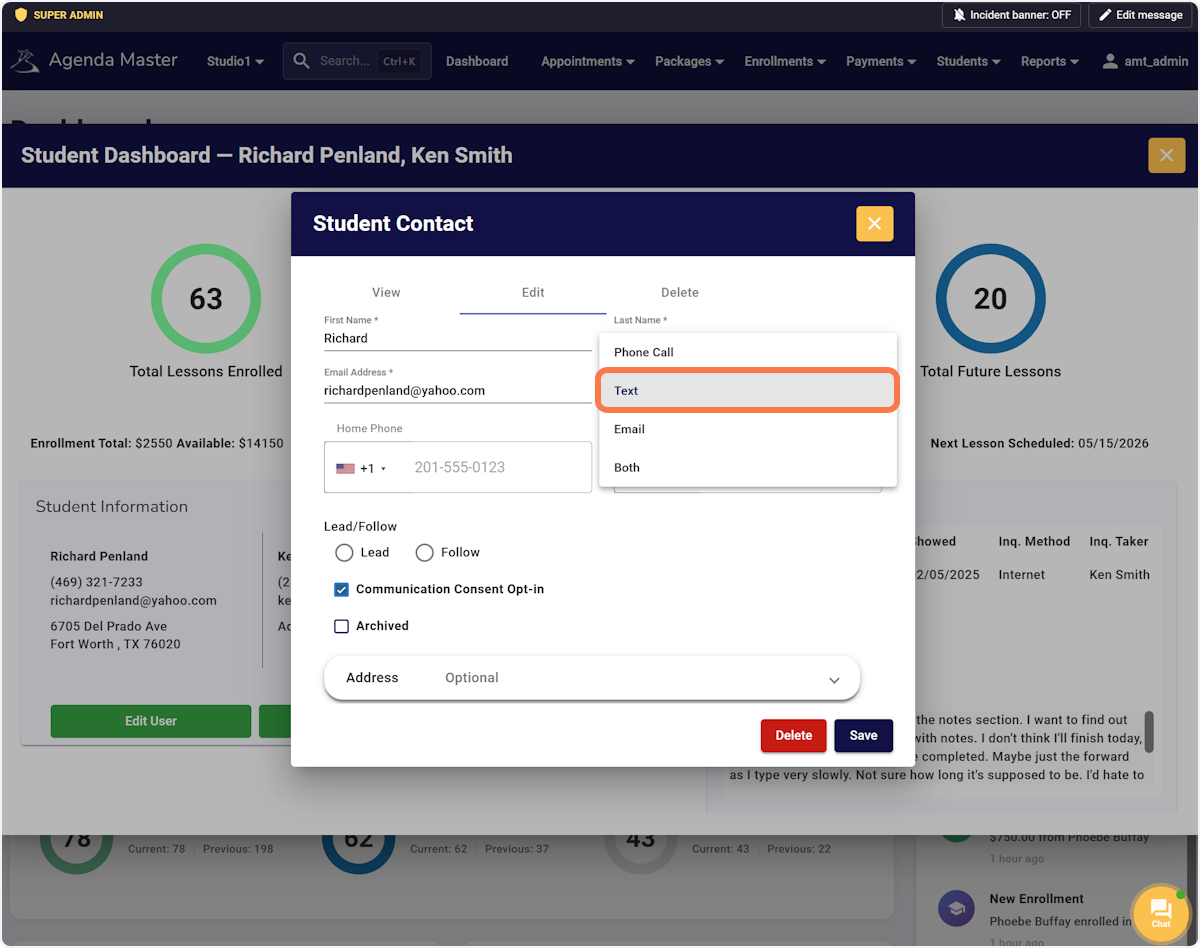
Click on Save #