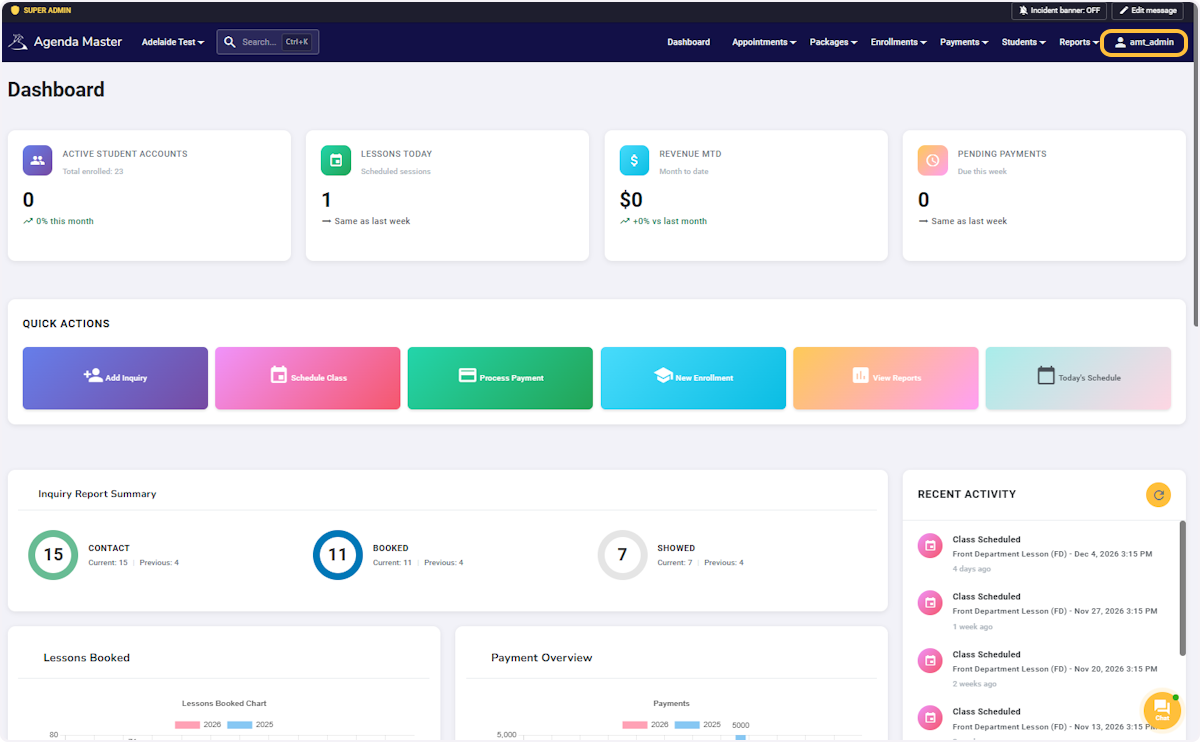
Click on username #
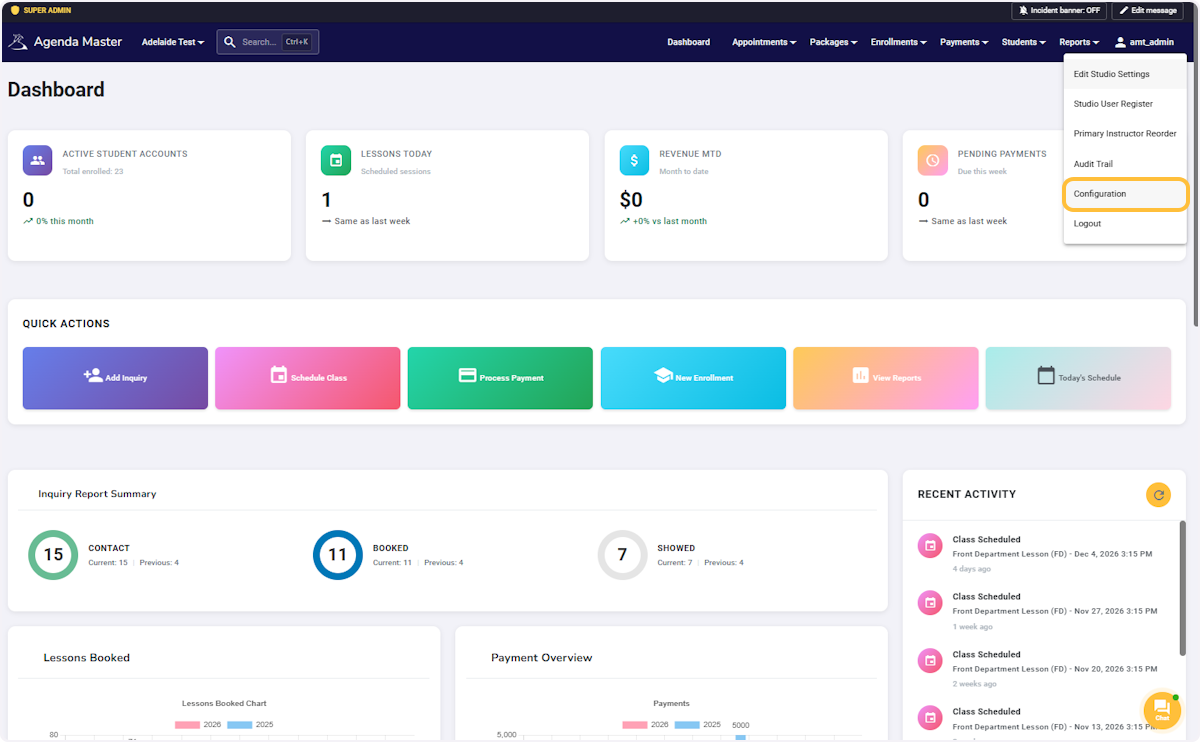
Click on Configuration #
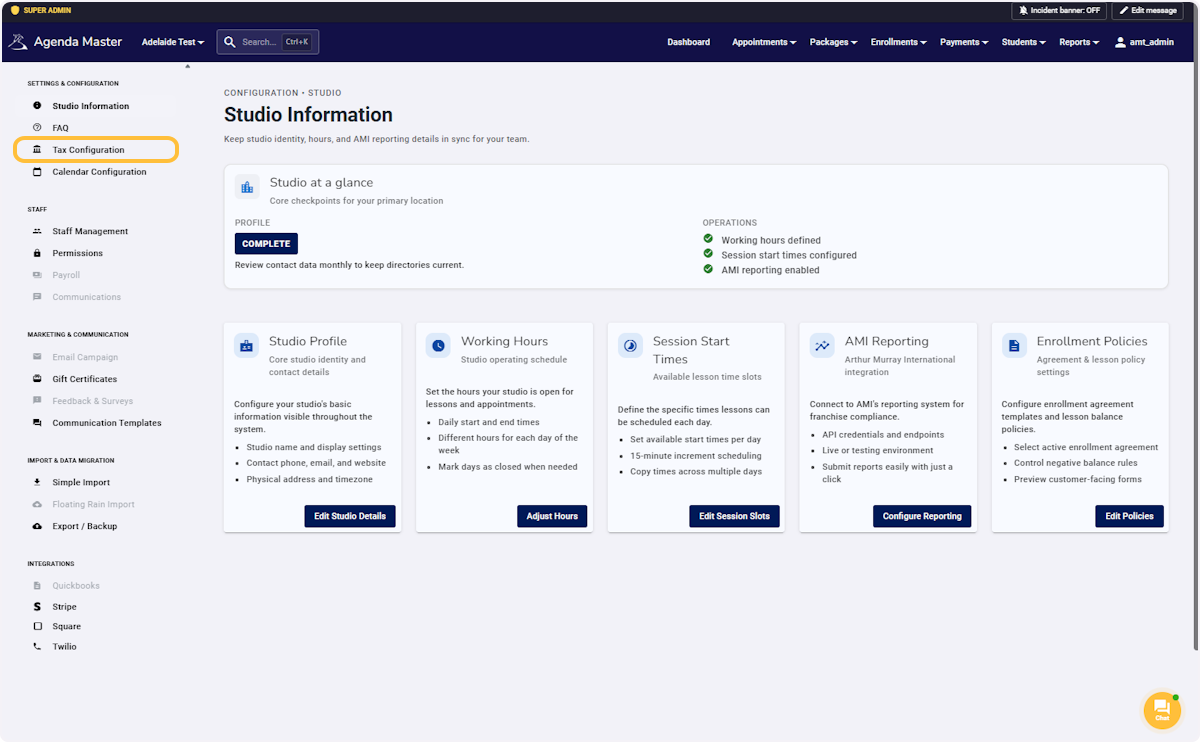
Click on Tax Configuration #
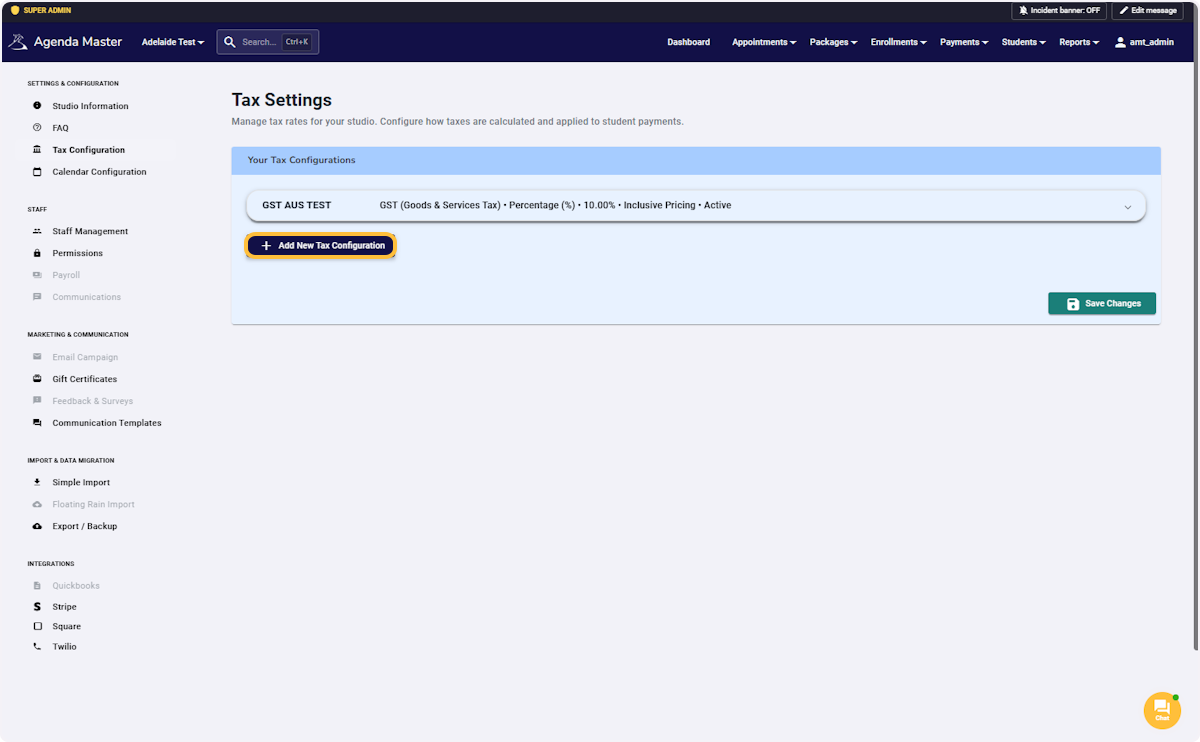
To Add a NEW Tax – Click on Add New Tax Configuration #
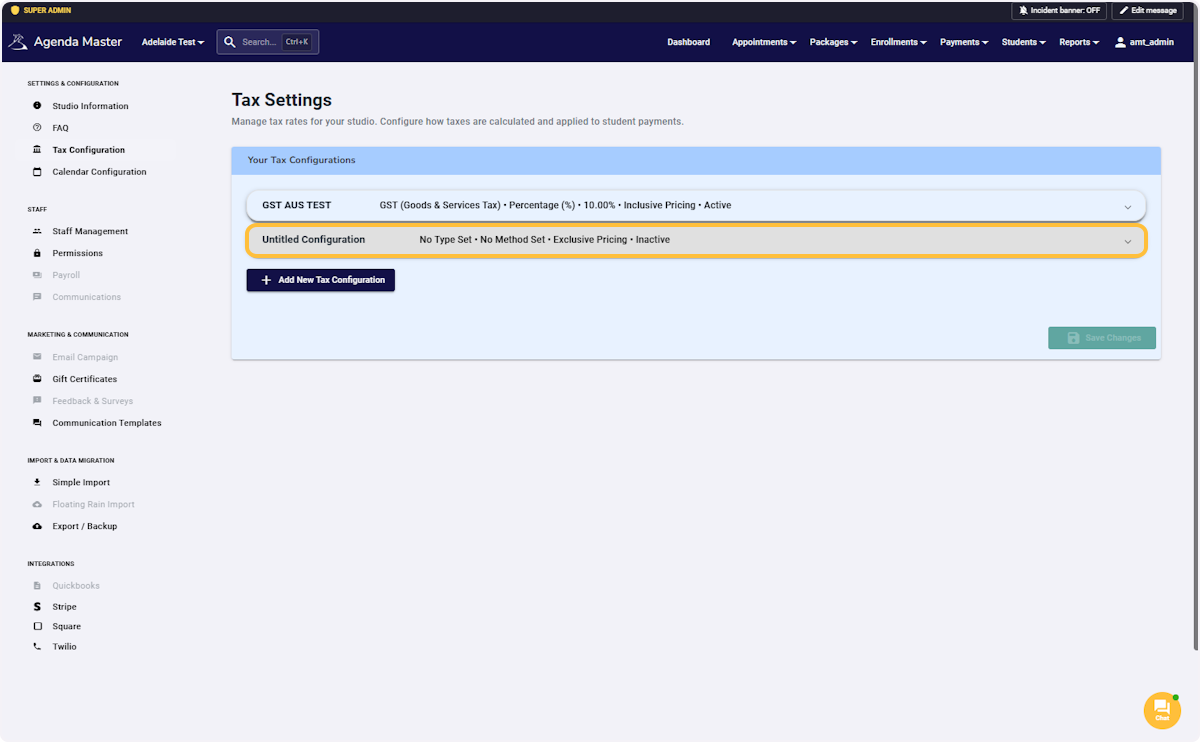
Click on the configuration bubble to edit #
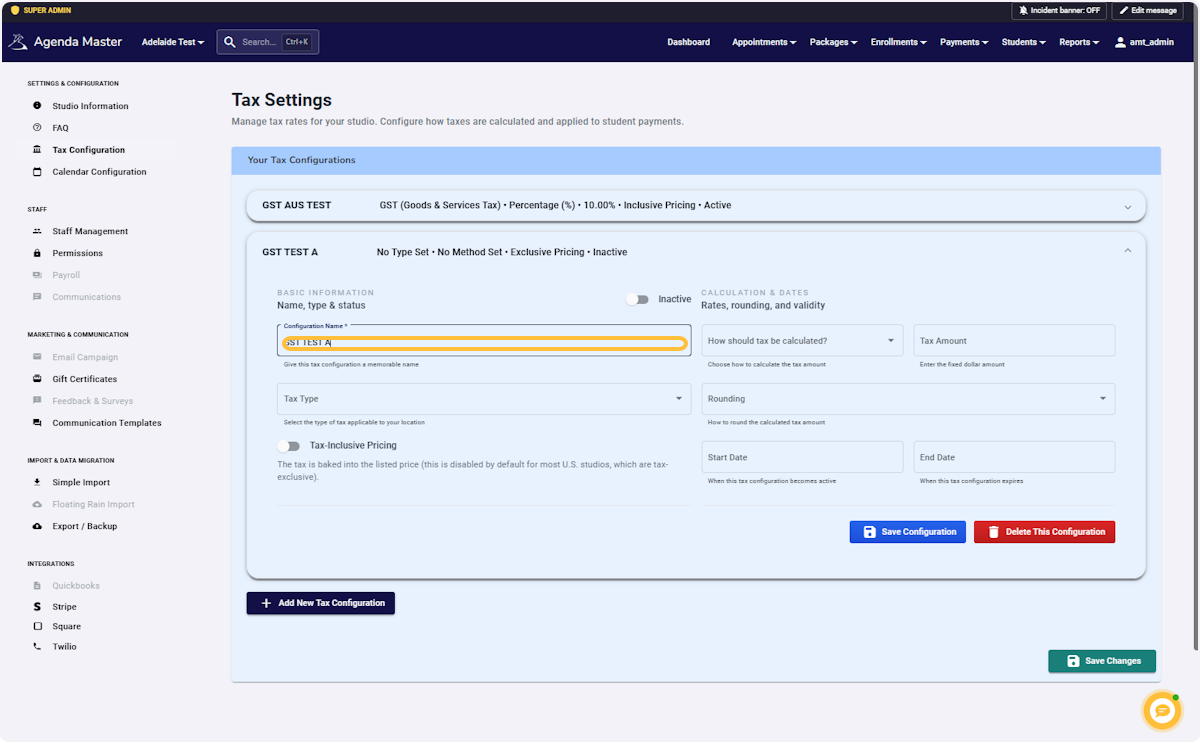
Name this Tax Configuration #
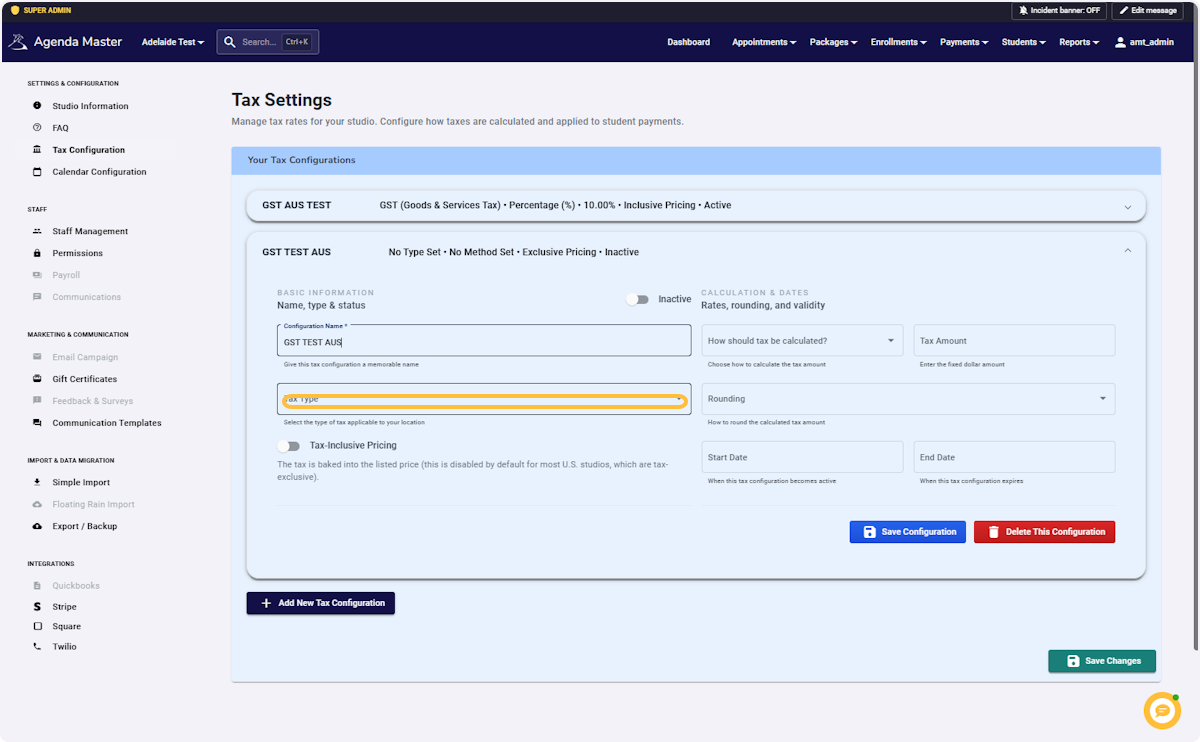
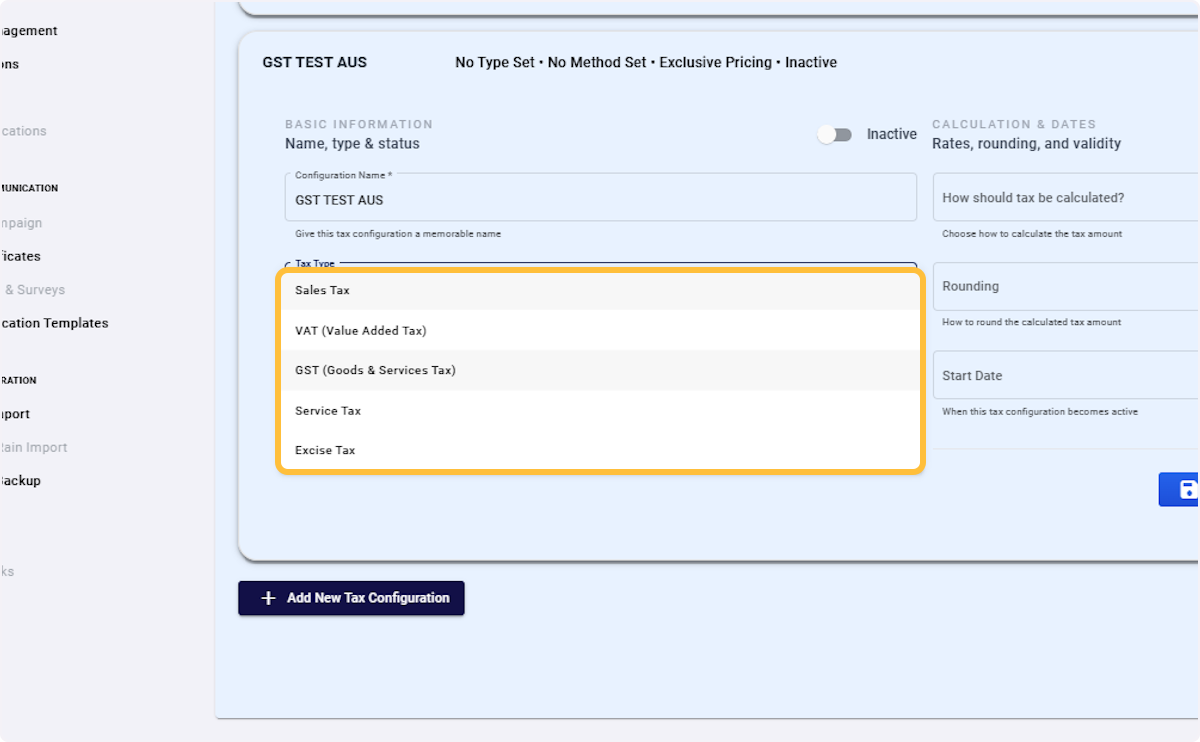
Click on Tax Type #
Select Tax Type #
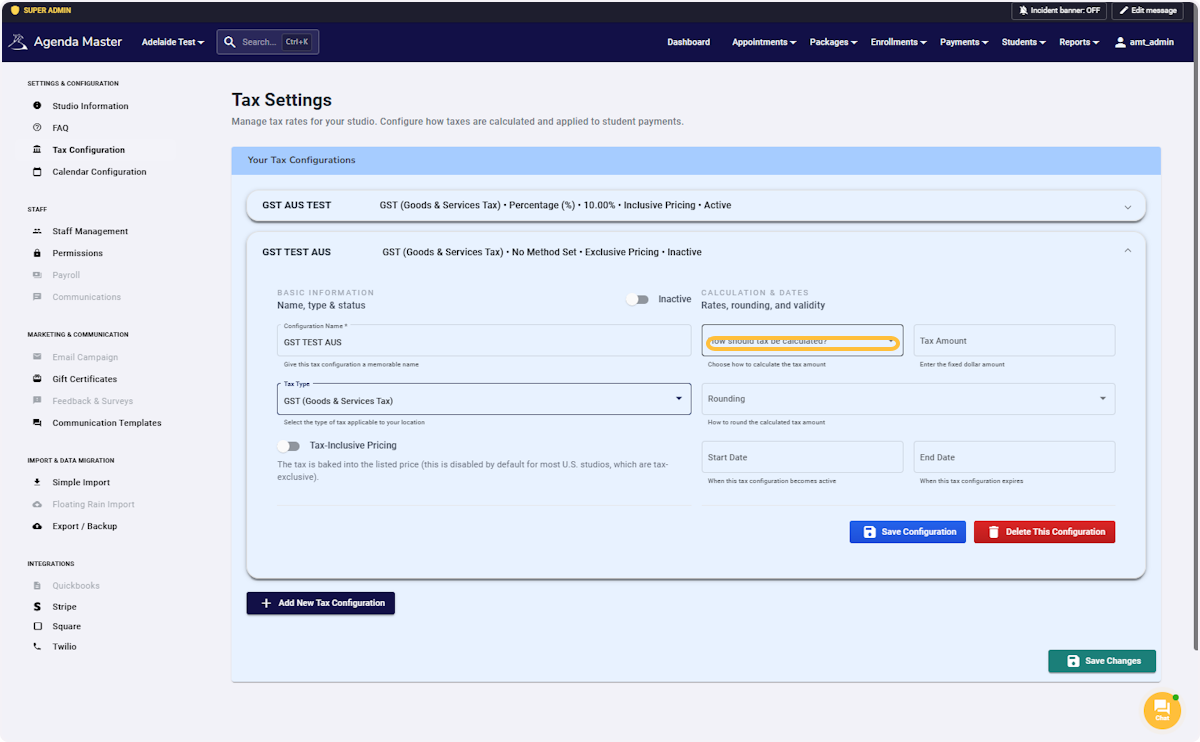
Click on How should tax be calculated? #
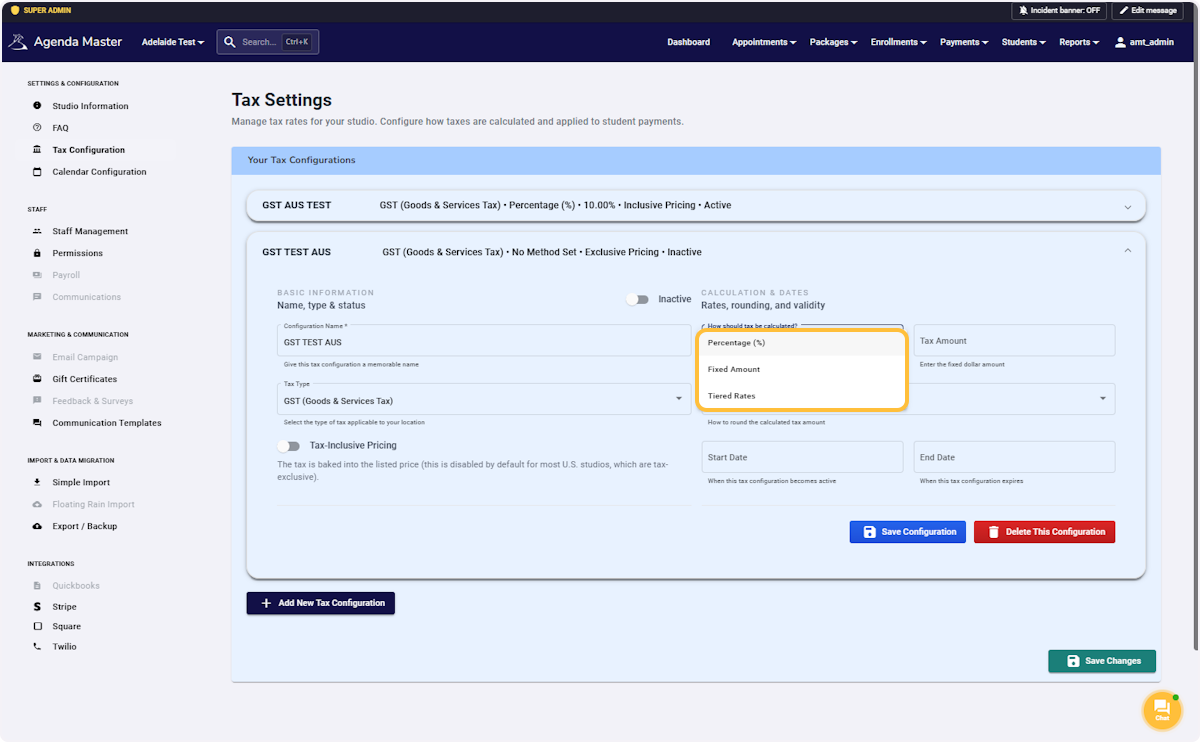
Select How should tax be calculated? #
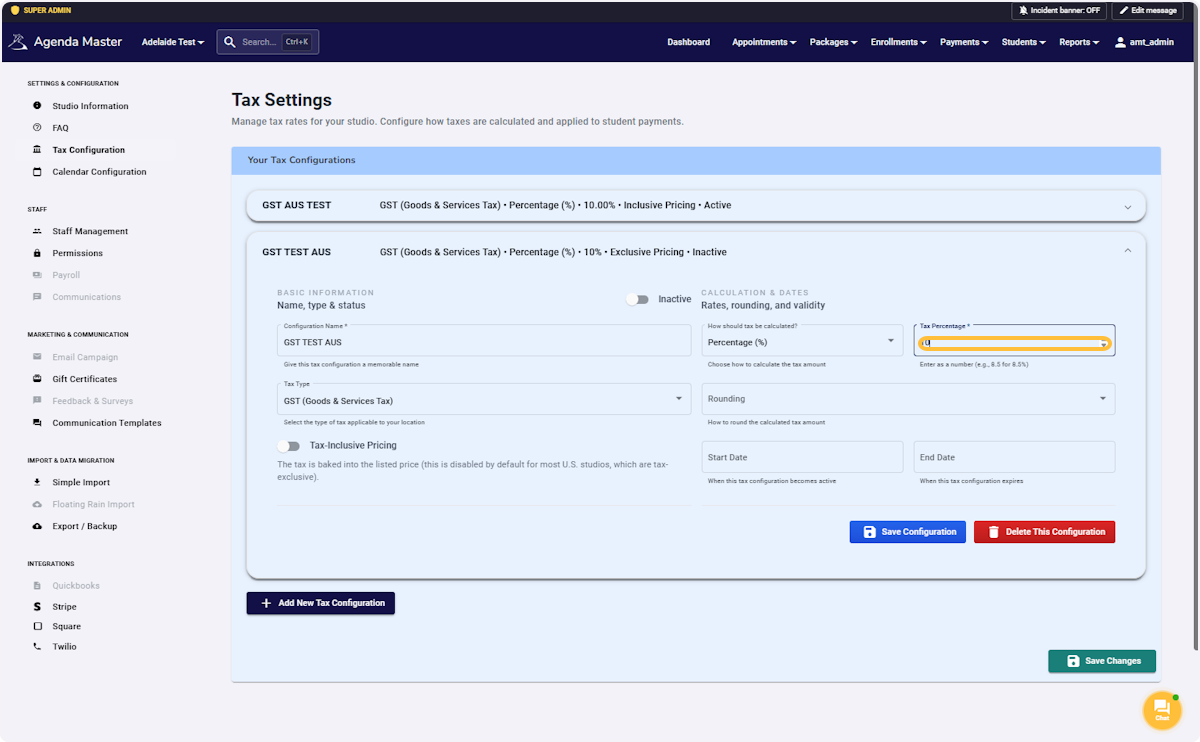
If you chose Percentage, Enter the Percentage (without the % sign) #
Click on Rounding #
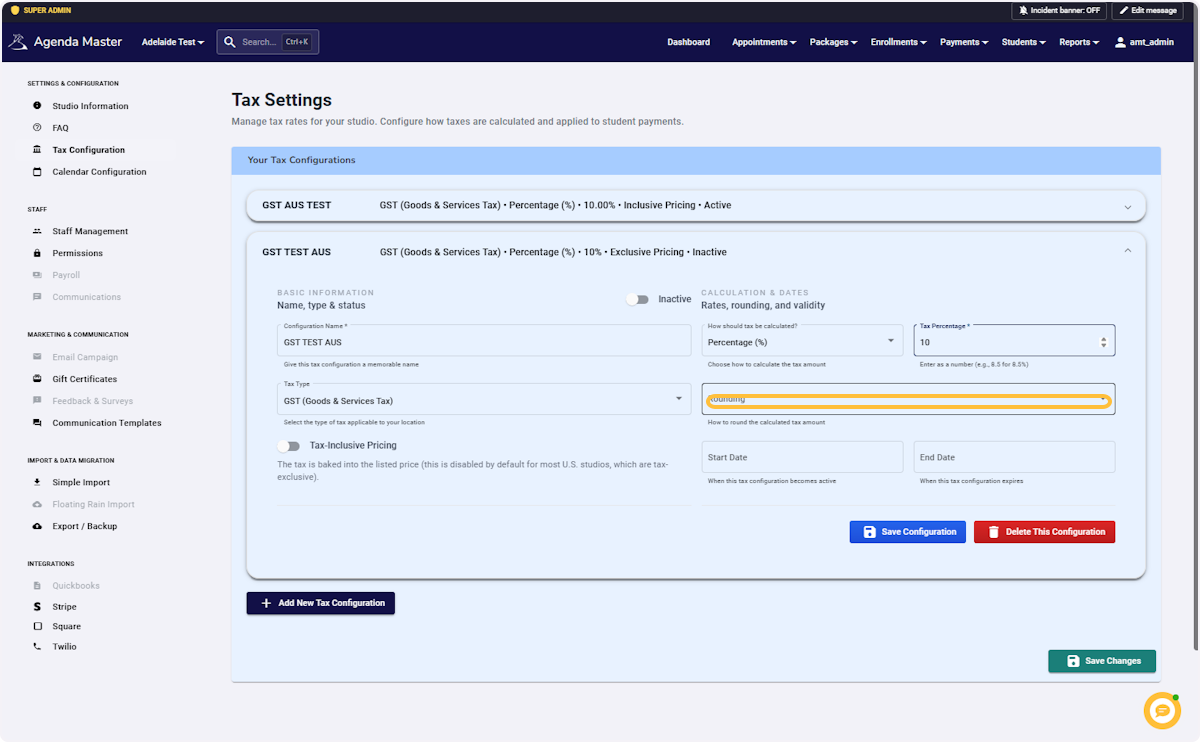
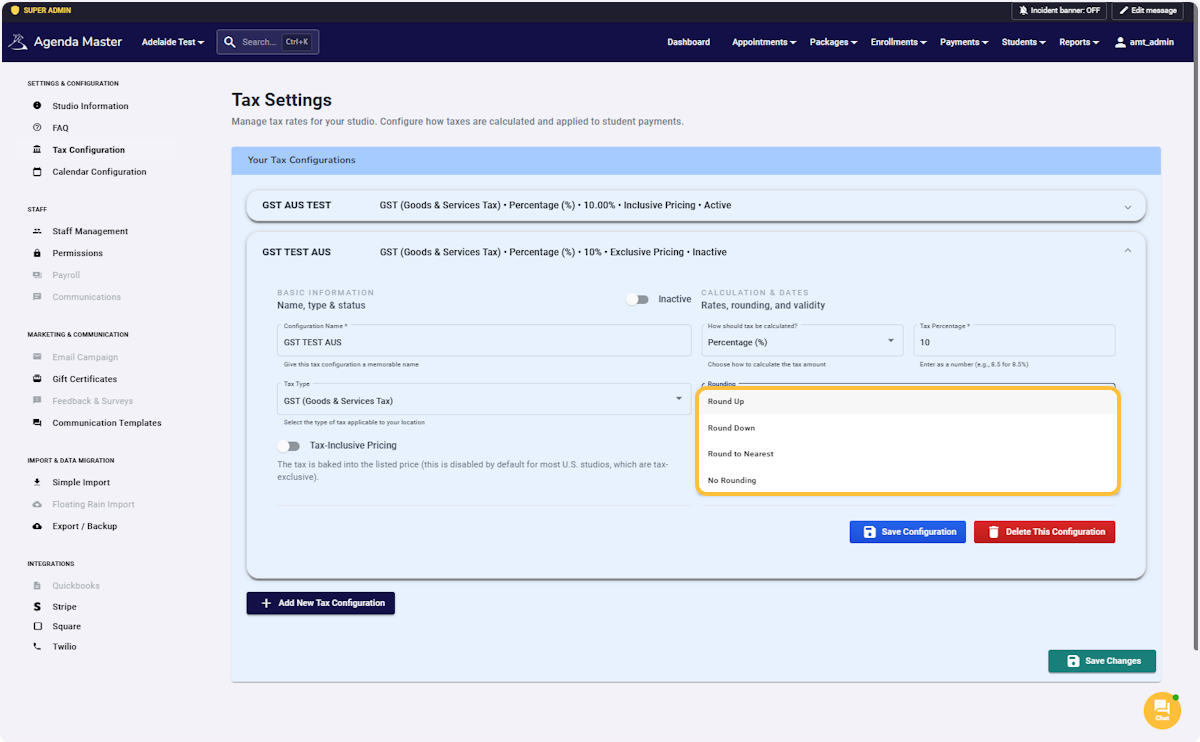
Select How you want to Round (Most schools round to nearest) #
This takes your percentage from 9.9999999% to 10%
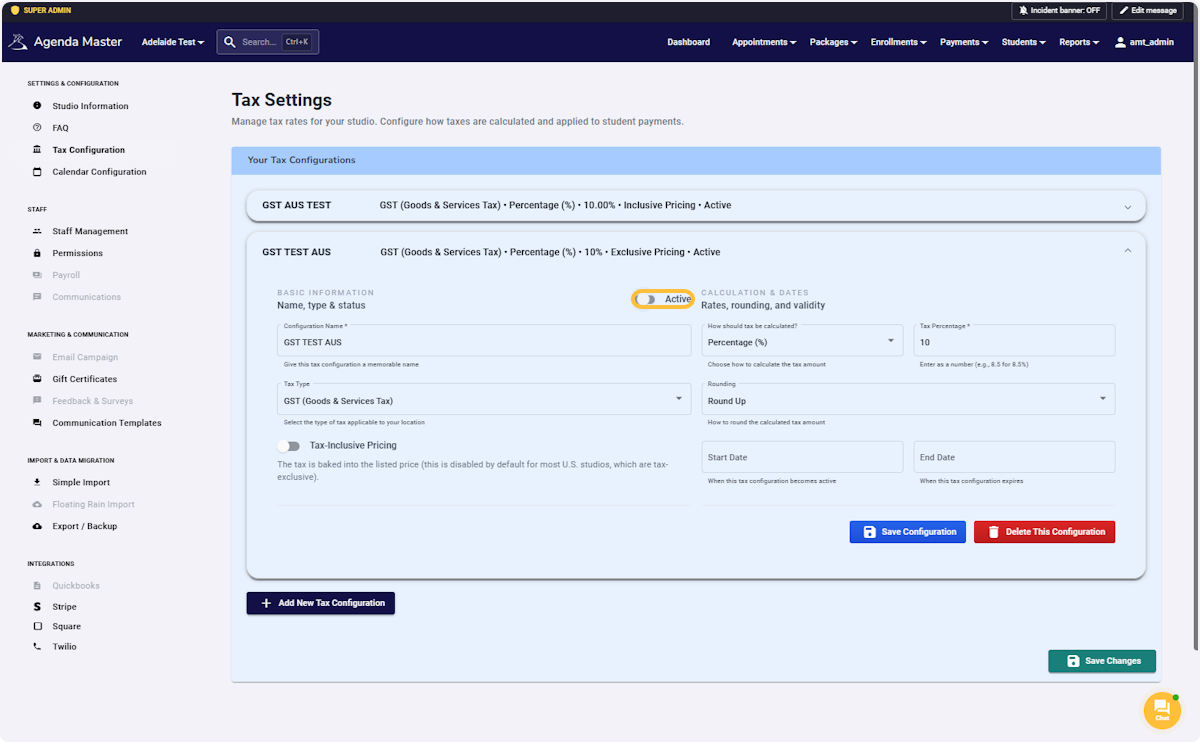
To activate the Tax Settings for your system #
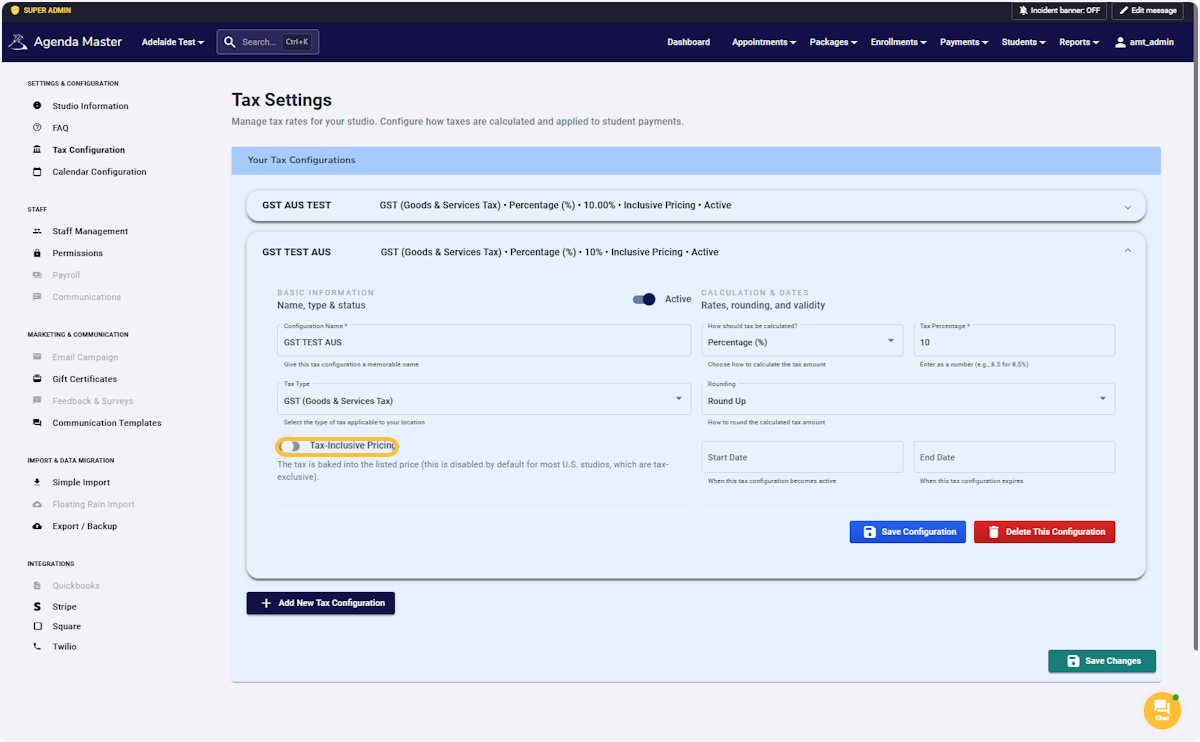
Select Tax-Inclusive Pricing to include the Tax directly into the totals of the Packages. #
Toggle this switch OFF if you want the taxes NOT to be included in the totals
Click on Save Configuration #
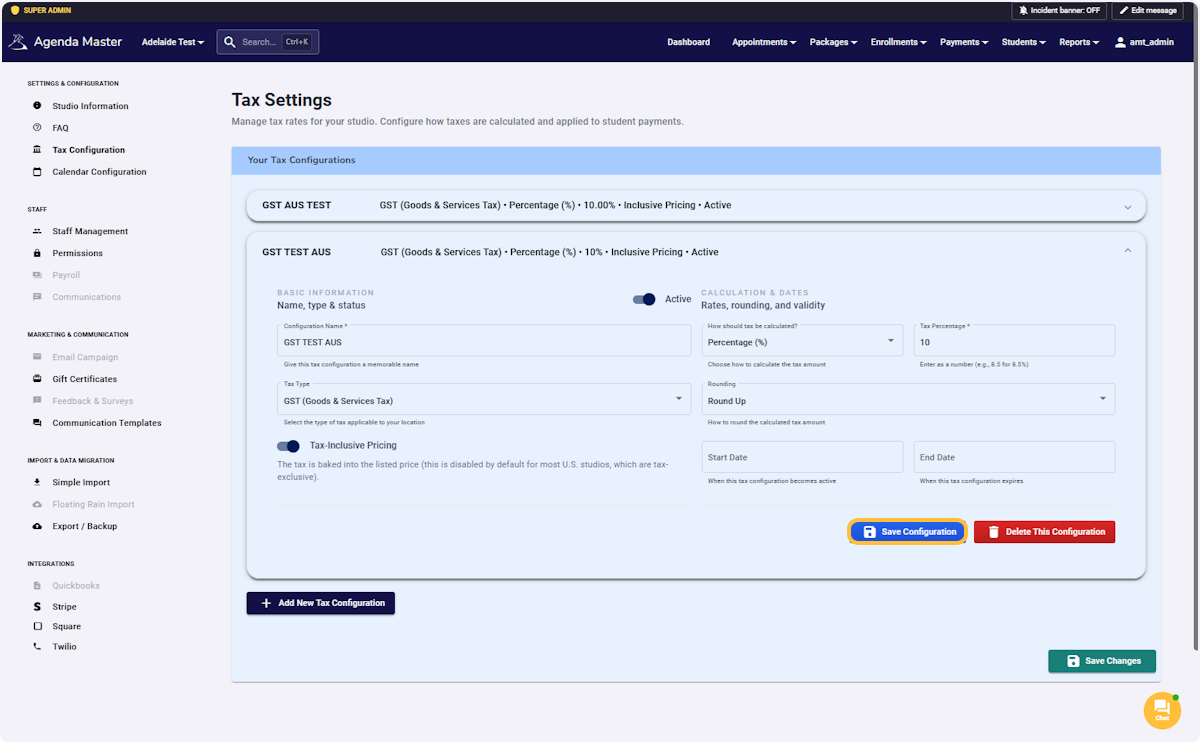
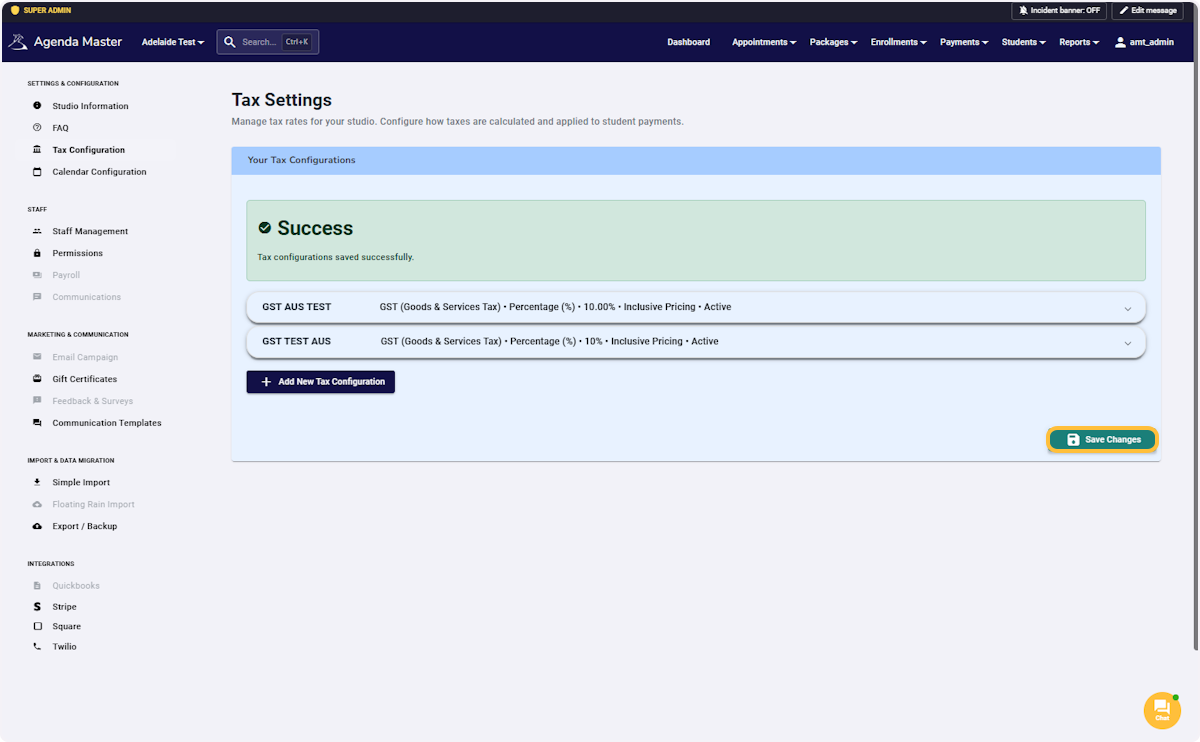
Click on Save Changes #