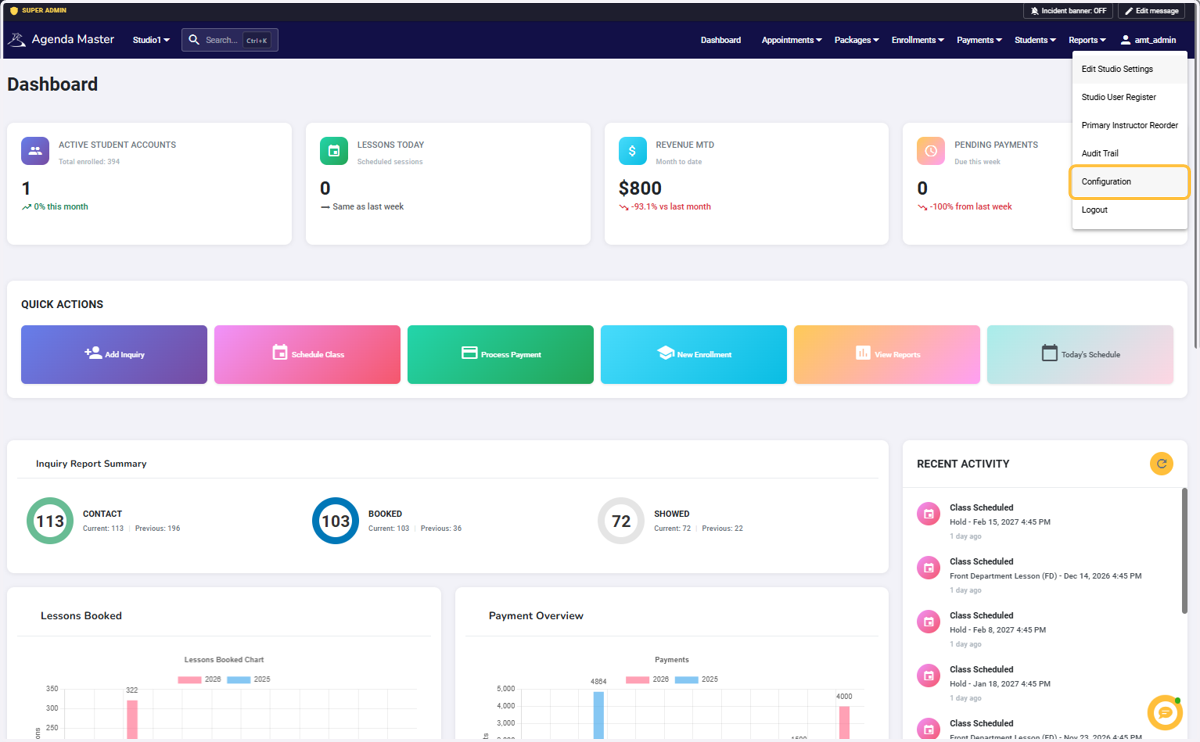
Click on User and go to Configuration #
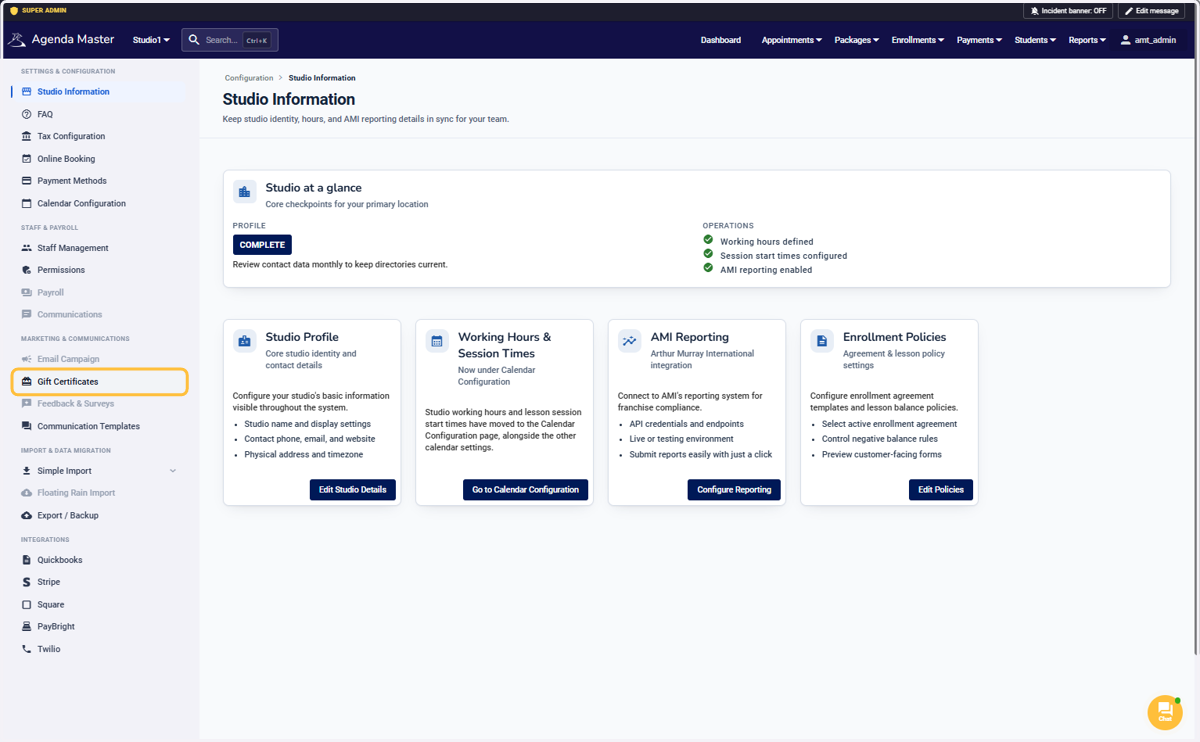
Click on Gift Certificates #
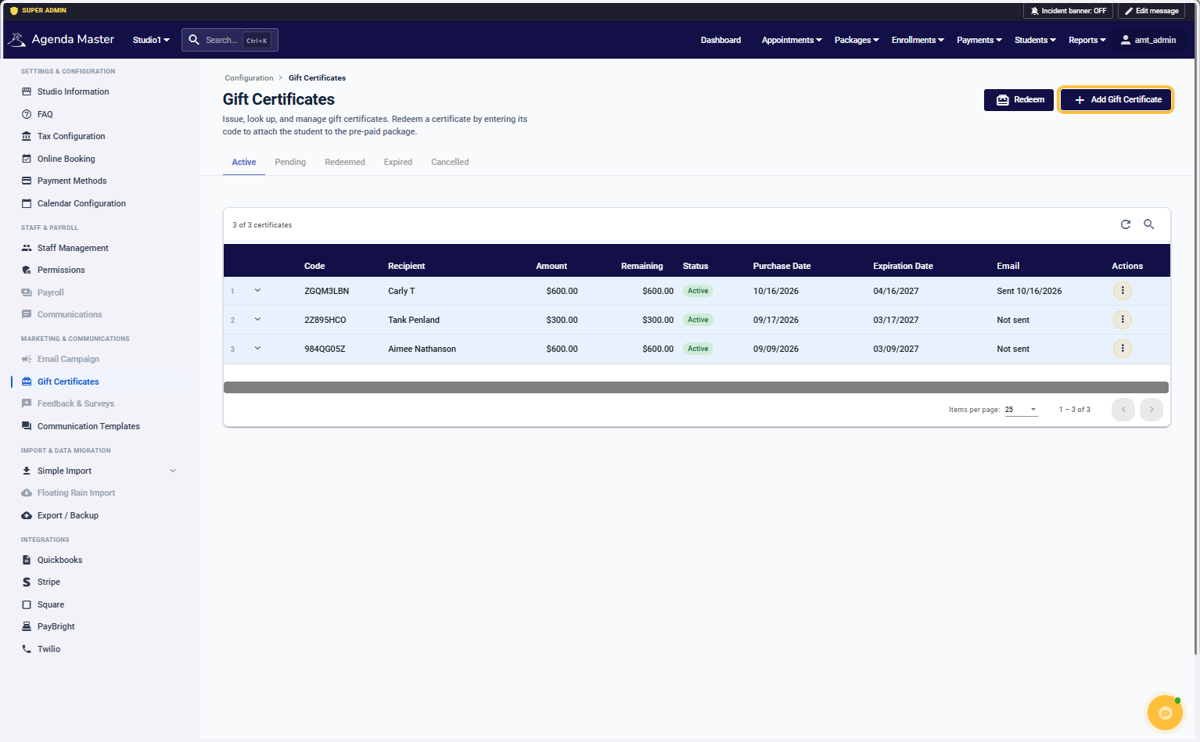
Click on Add Gift Certificate #
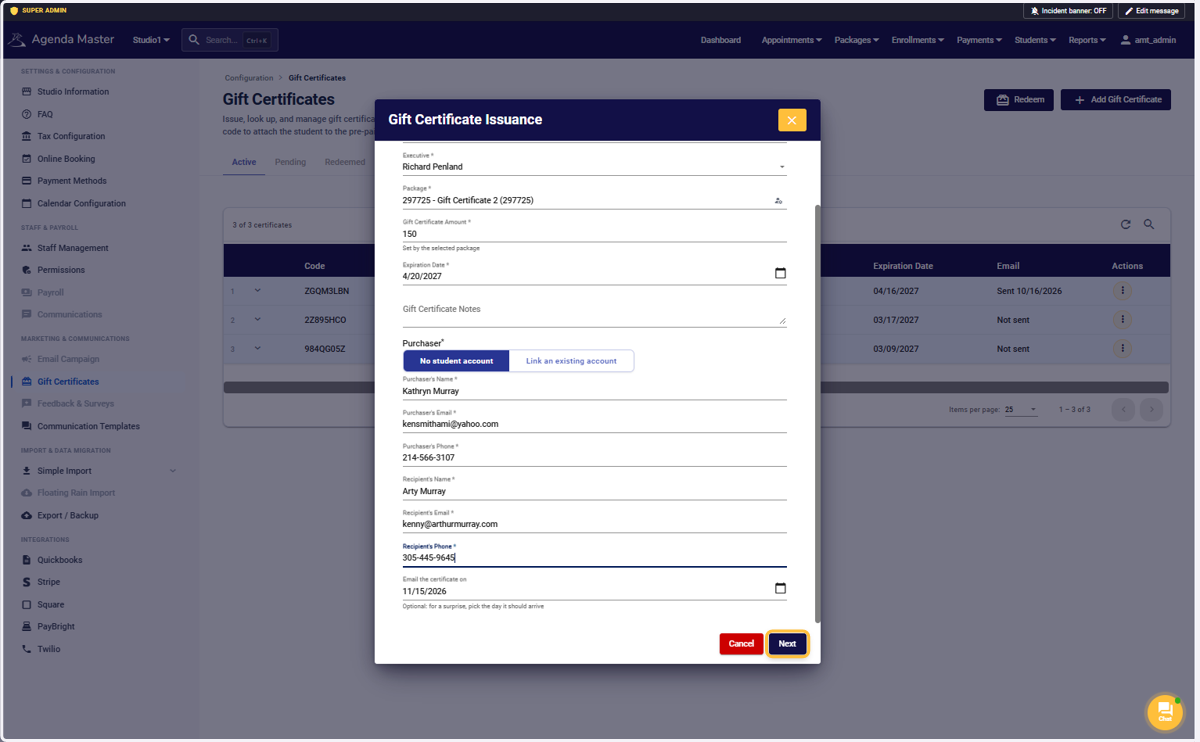
Click on Executive #
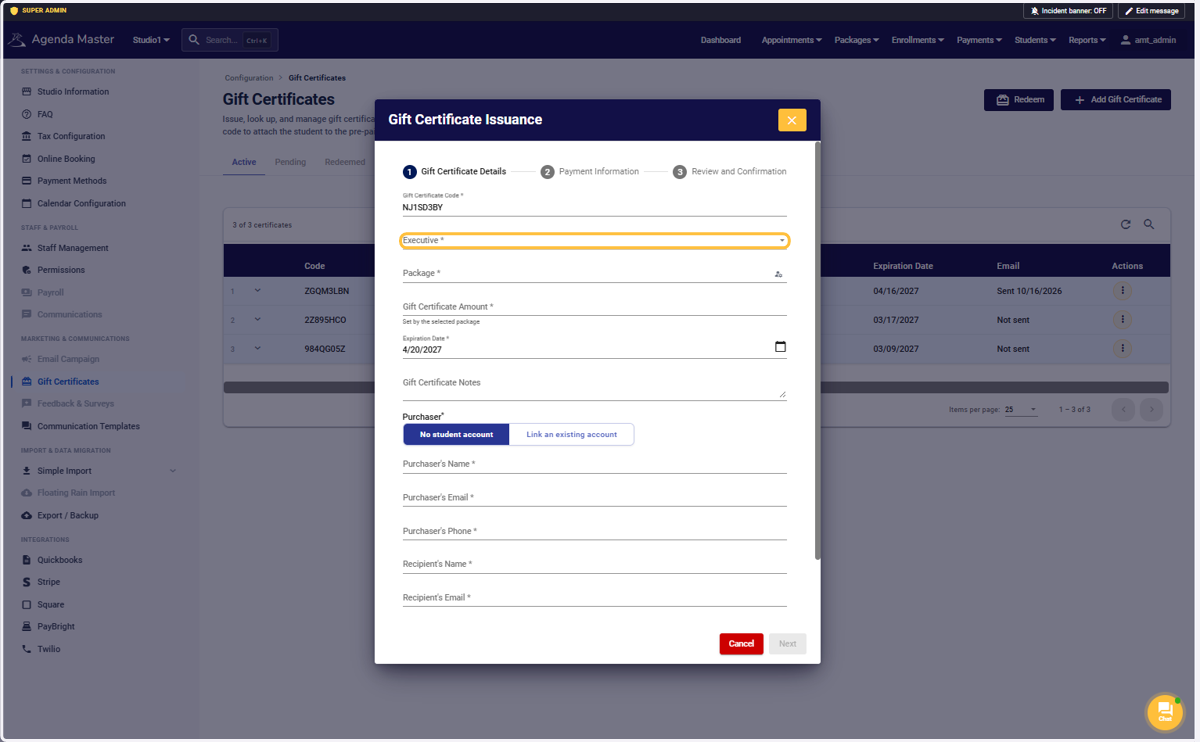
Select Executive #
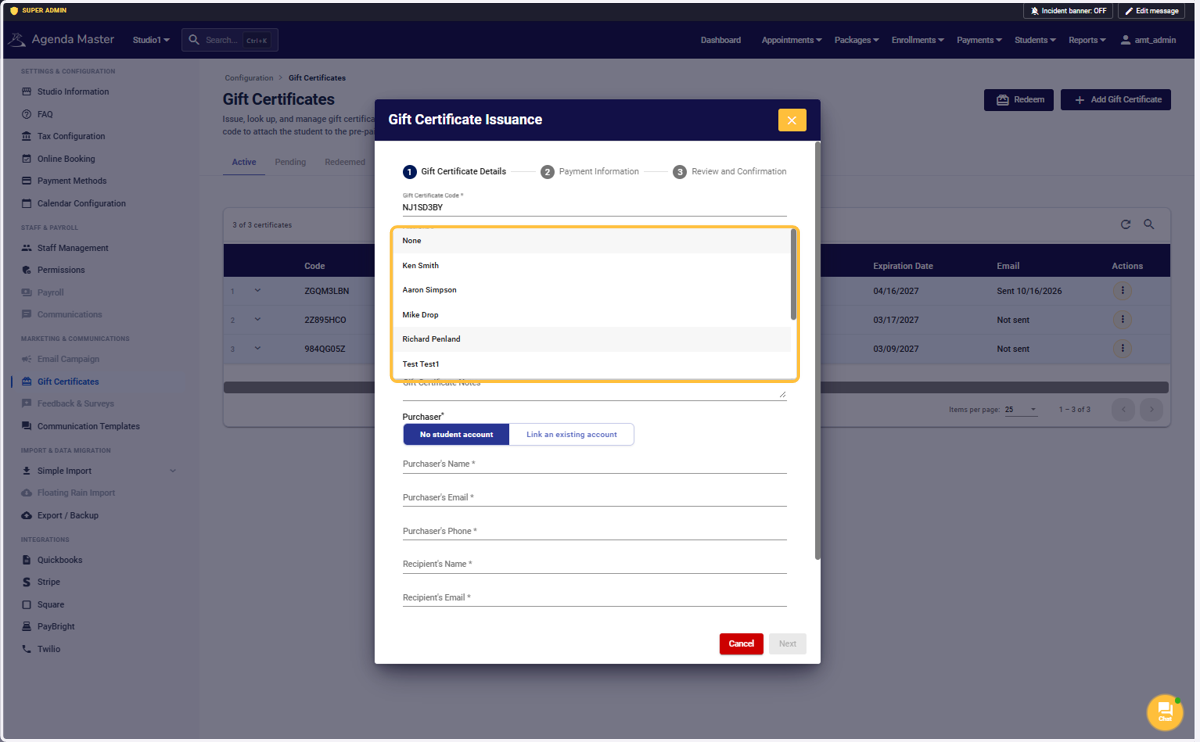
Select Package from the dropdown #
Side note: You can ONLY use Packages that have already been created. When making a package that you want to see here, click the “Gift Certificate” checkbox in the package window.
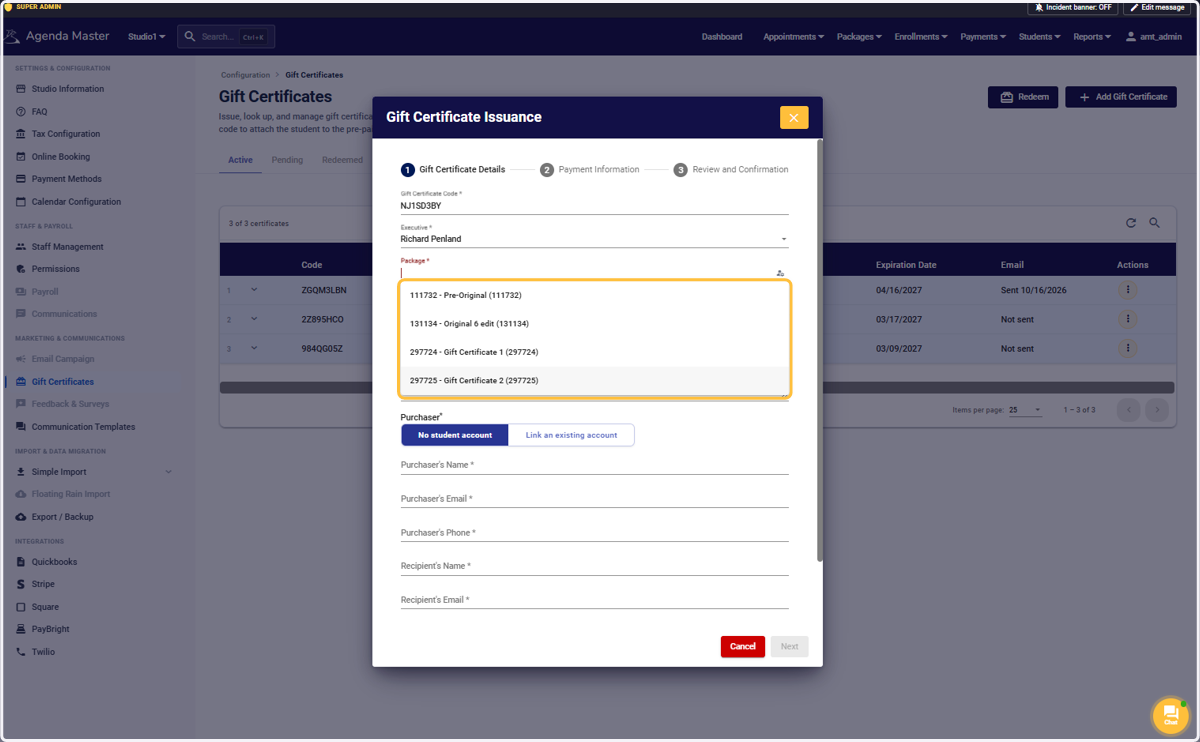
SIDE NOTE: You can add Notes to this certificate. They are for internal use only.
Click on “No student account” #
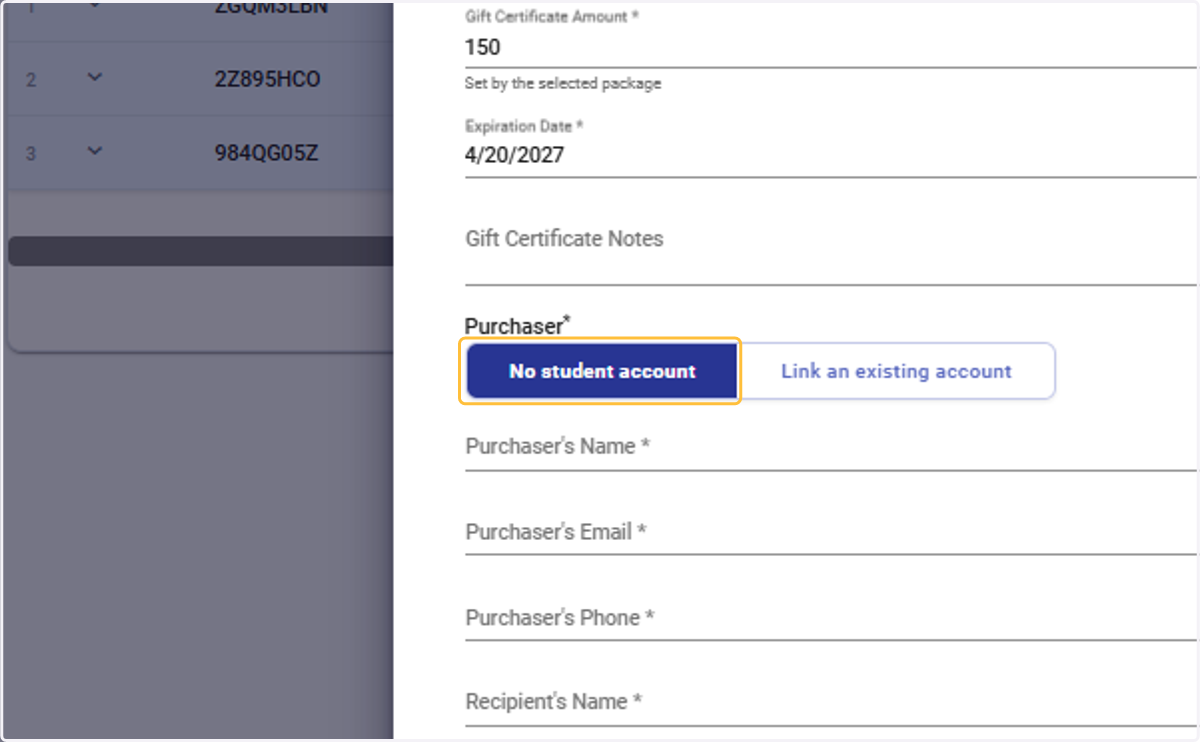
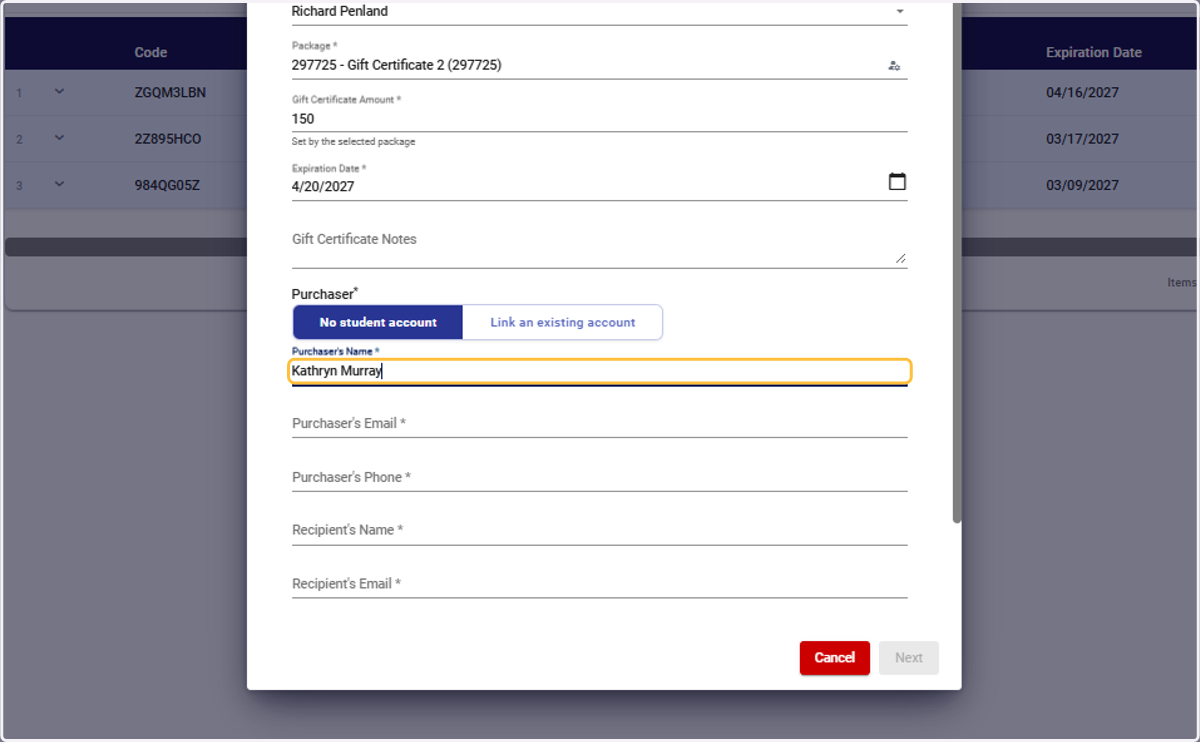
Type Purchaser’s Name #
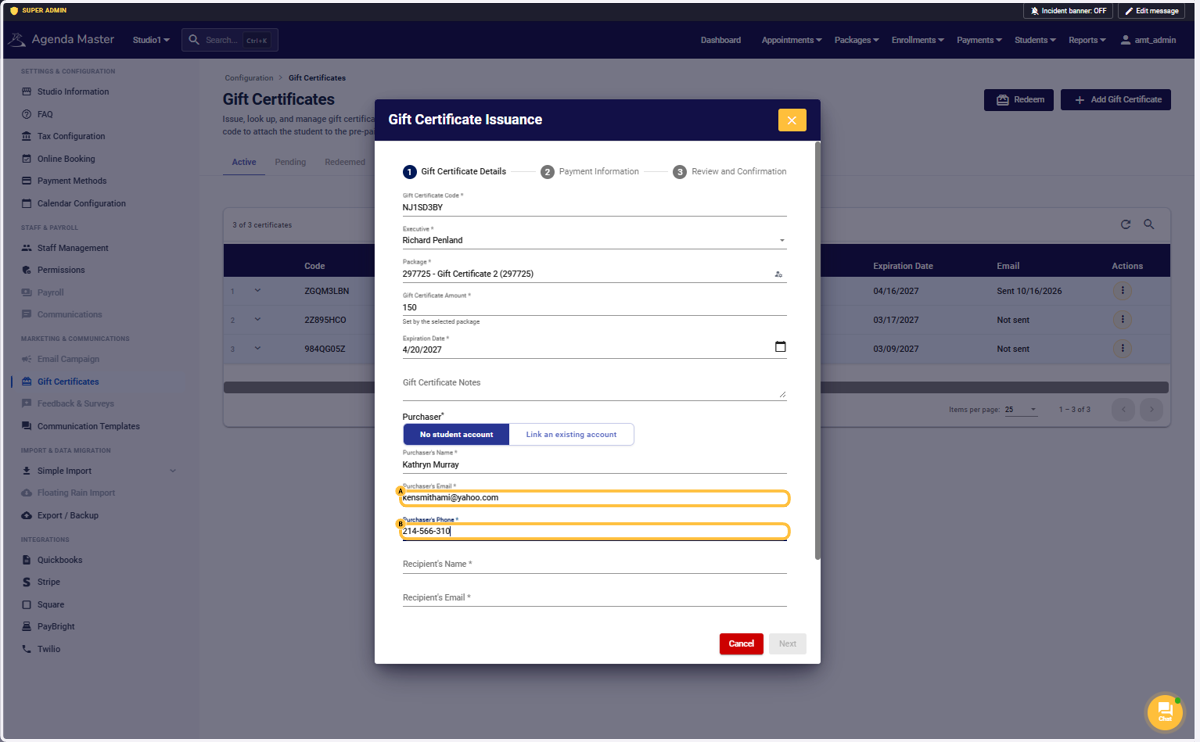
A. Type Purchaser’s Email #
B. Type Purchaser’s Phone #
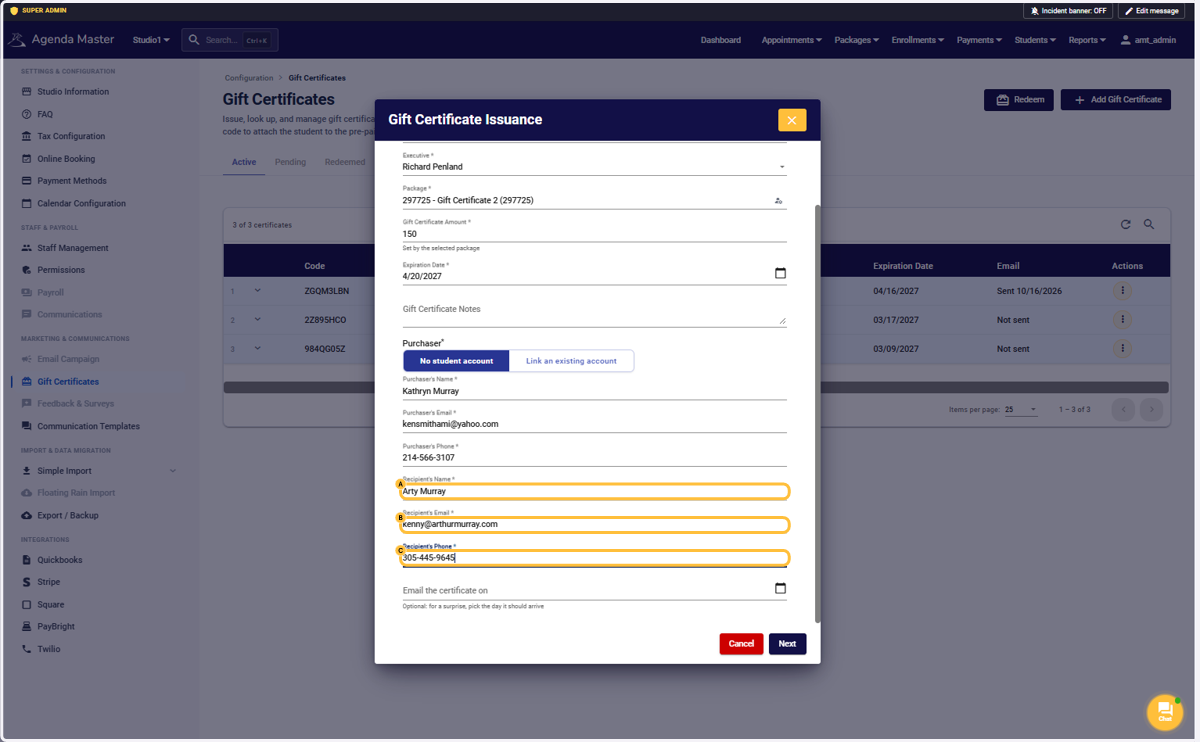
A. Type Recipient’s Name #
B. Type Recipient’s Email #
C. Type Recipient’s Phone #
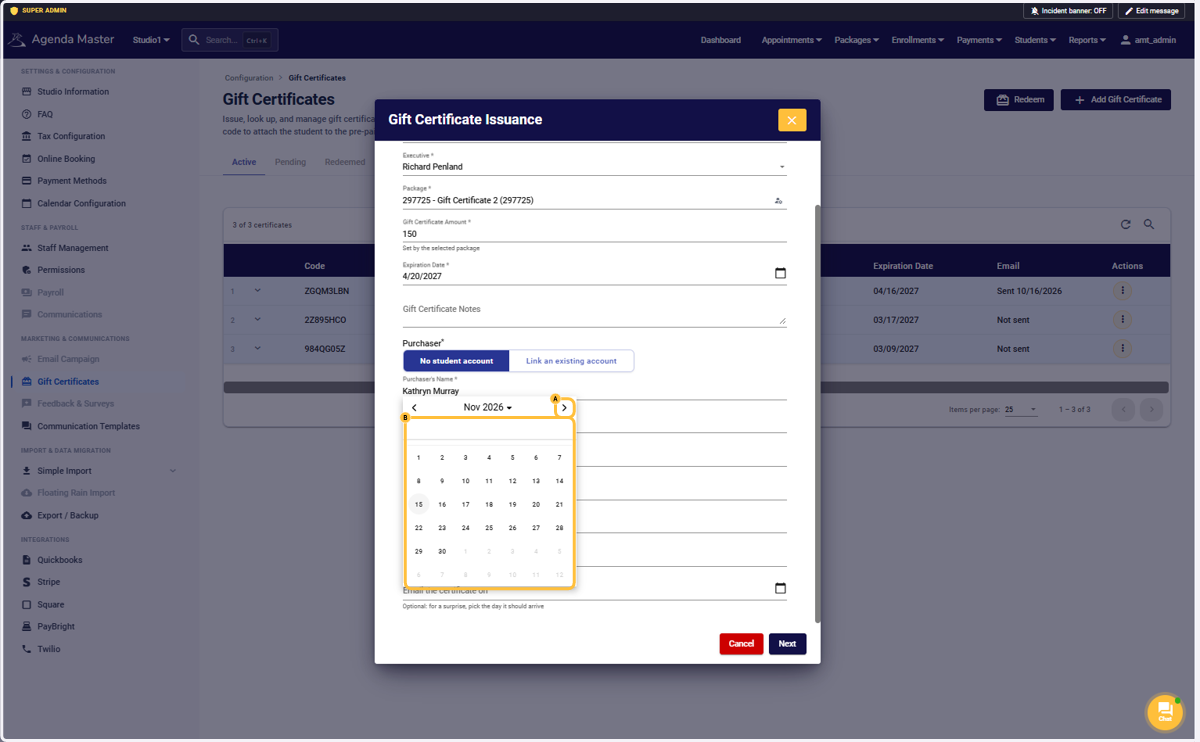
A. You can input a date for an email to go out to the Recipient, or skip that field. #
B. Select a date #
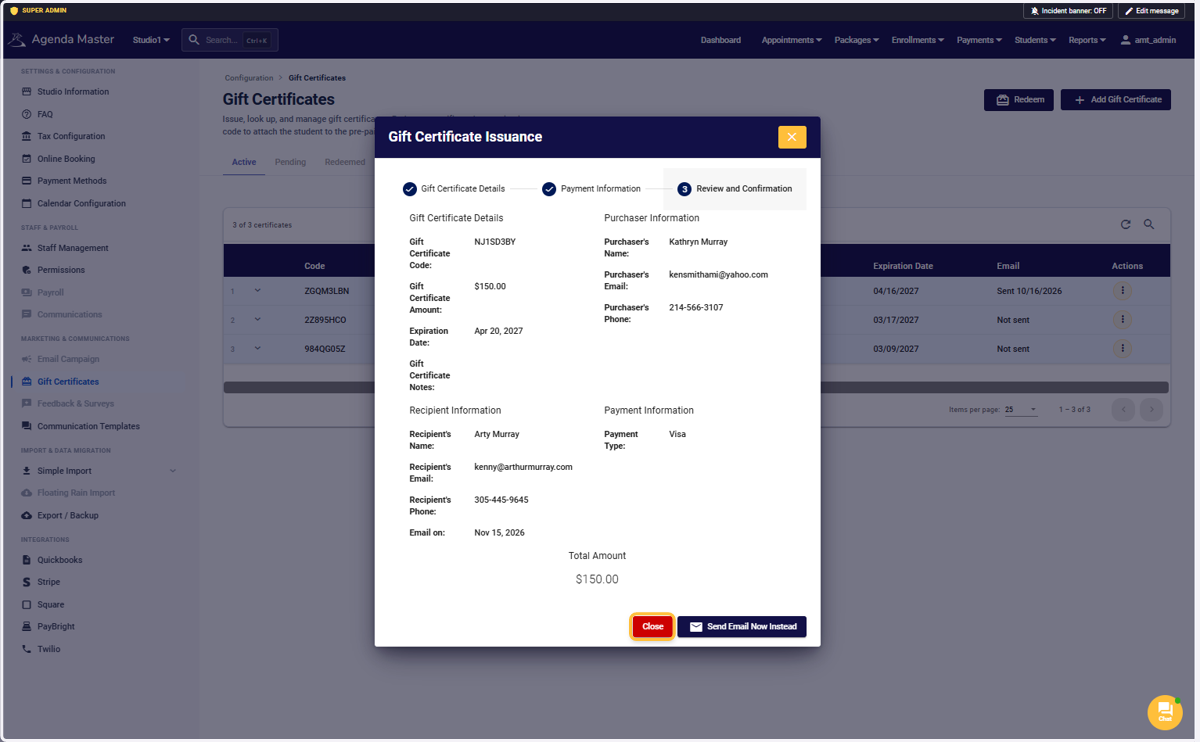
Verify that the info is correct, then click on Next to Pay #
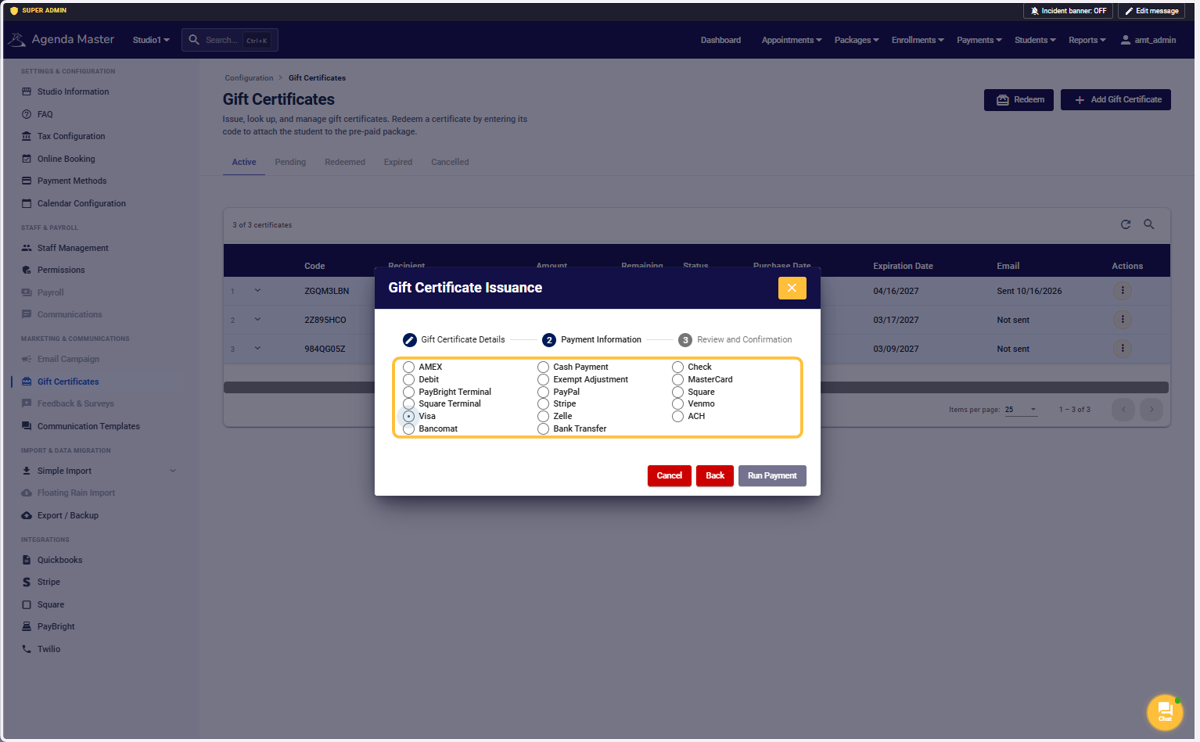
Select a payment method #
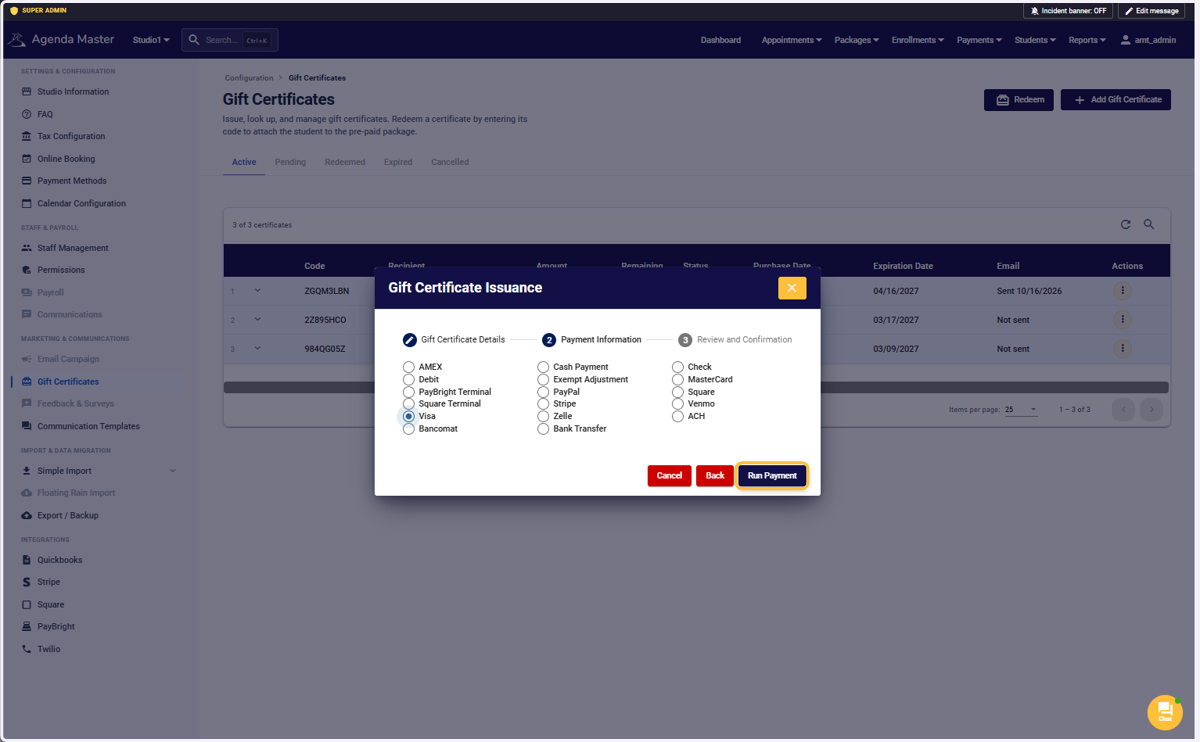
Click on Run Payment #
Your GC has been created. Sales and Receipt put in, and will show up on reports. #
Note: Non Student Accounts will be created when Redeemed
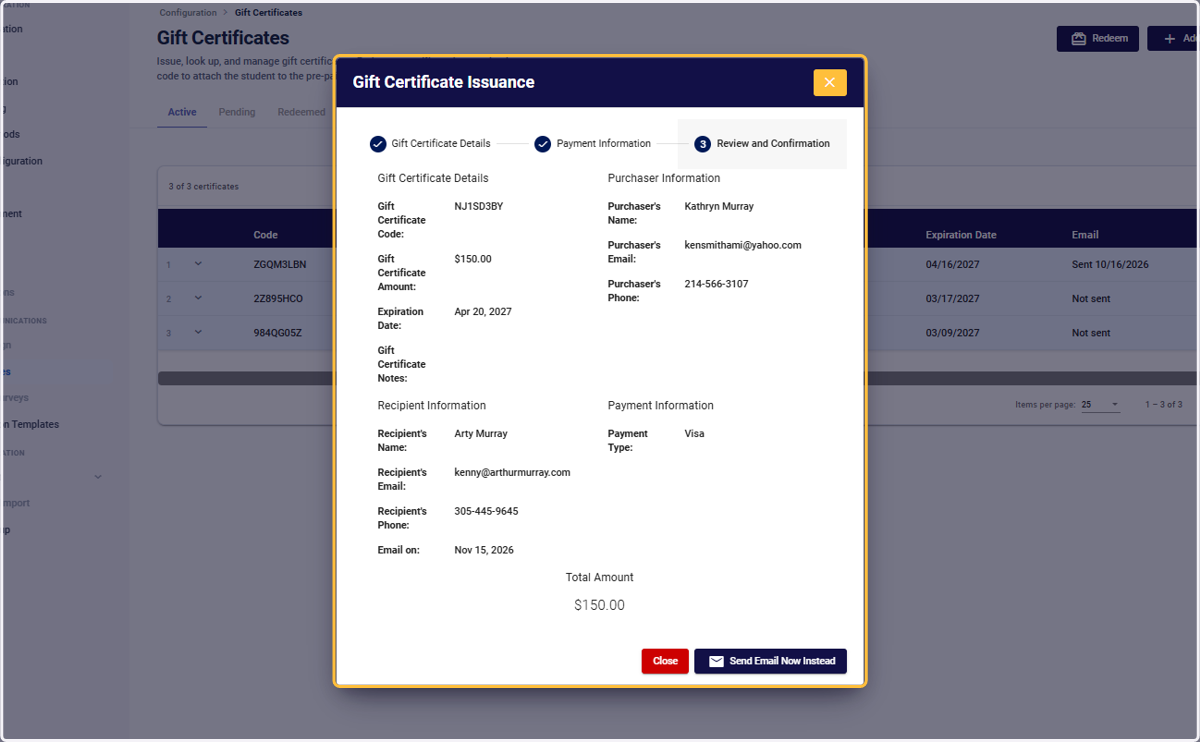
Click on Close #
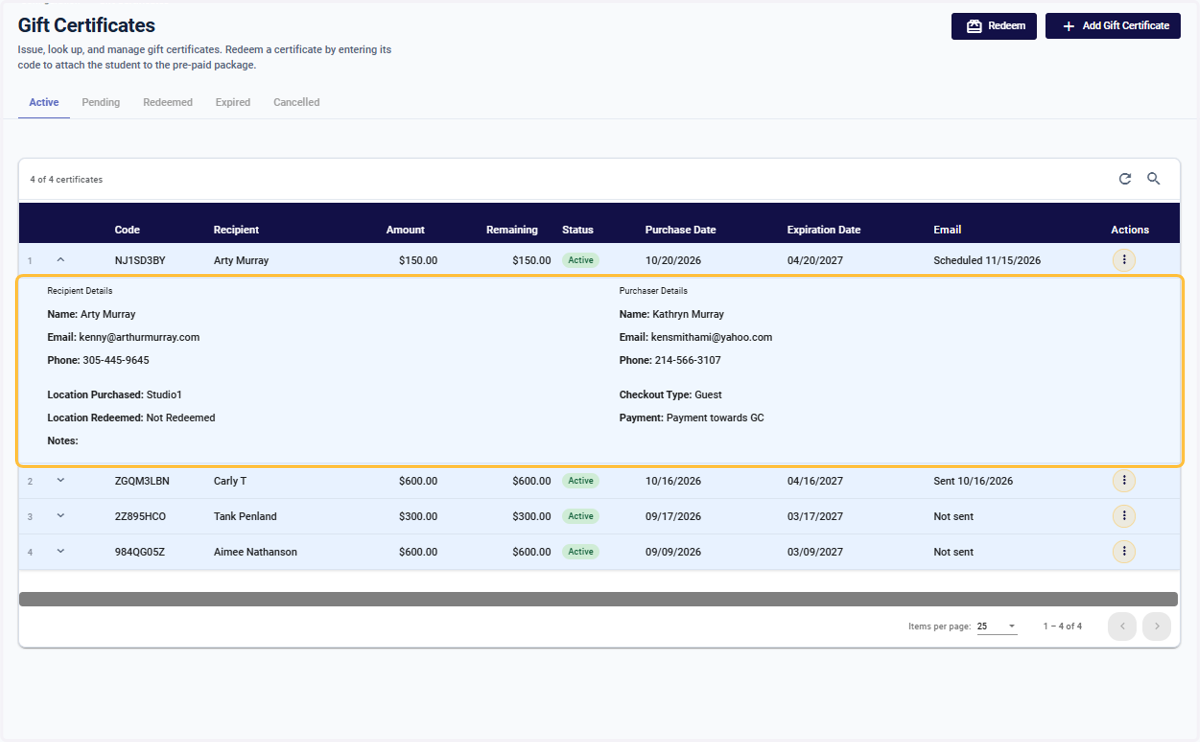
Click on expand arrow to see GC details #
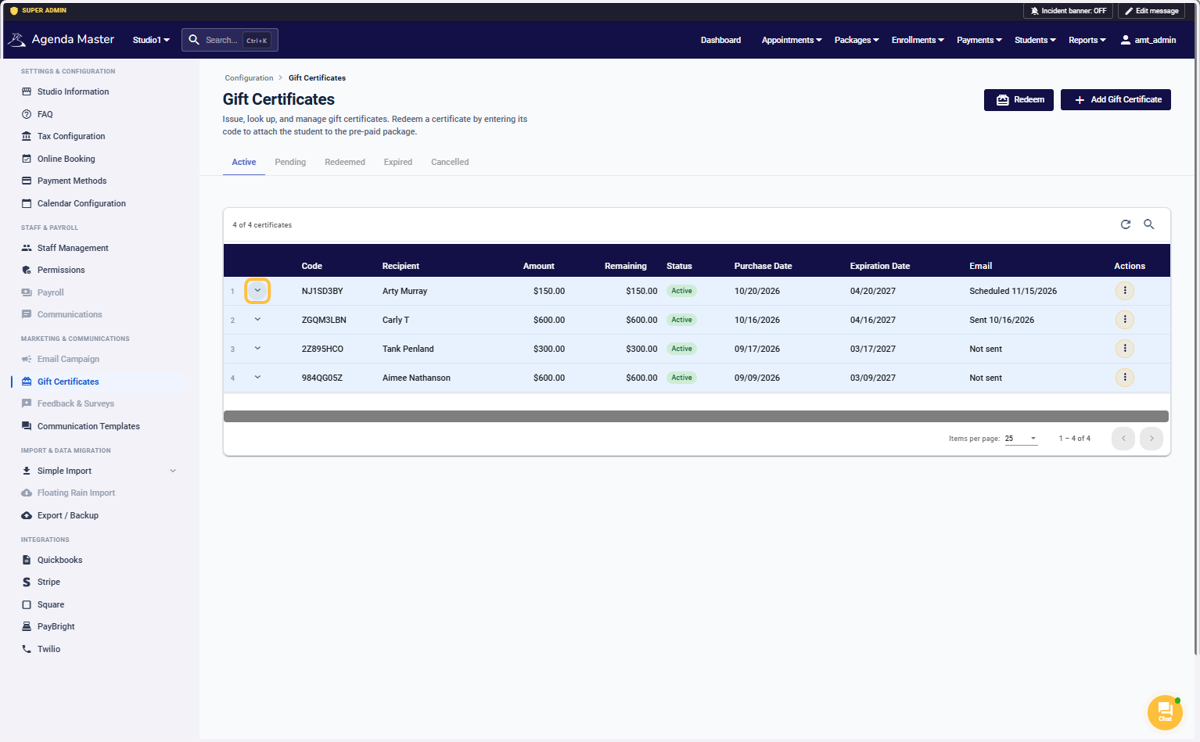
View Recipient Details… #