
This walkthrough will take you through the DROP LESSONS ONLY process. View other walkthroughs for Refunds or Drop AND Refund.
Click on View Enrollments #

Find the Enrollment that you want to Drop #

Click on the Enrollment Action button and choose Drop. #
(LESSONS ONLY WILL BE REMOVED FROM ACCOUNT)
Today’s date will show in the Calendar. #
You can change it if you’d like. #
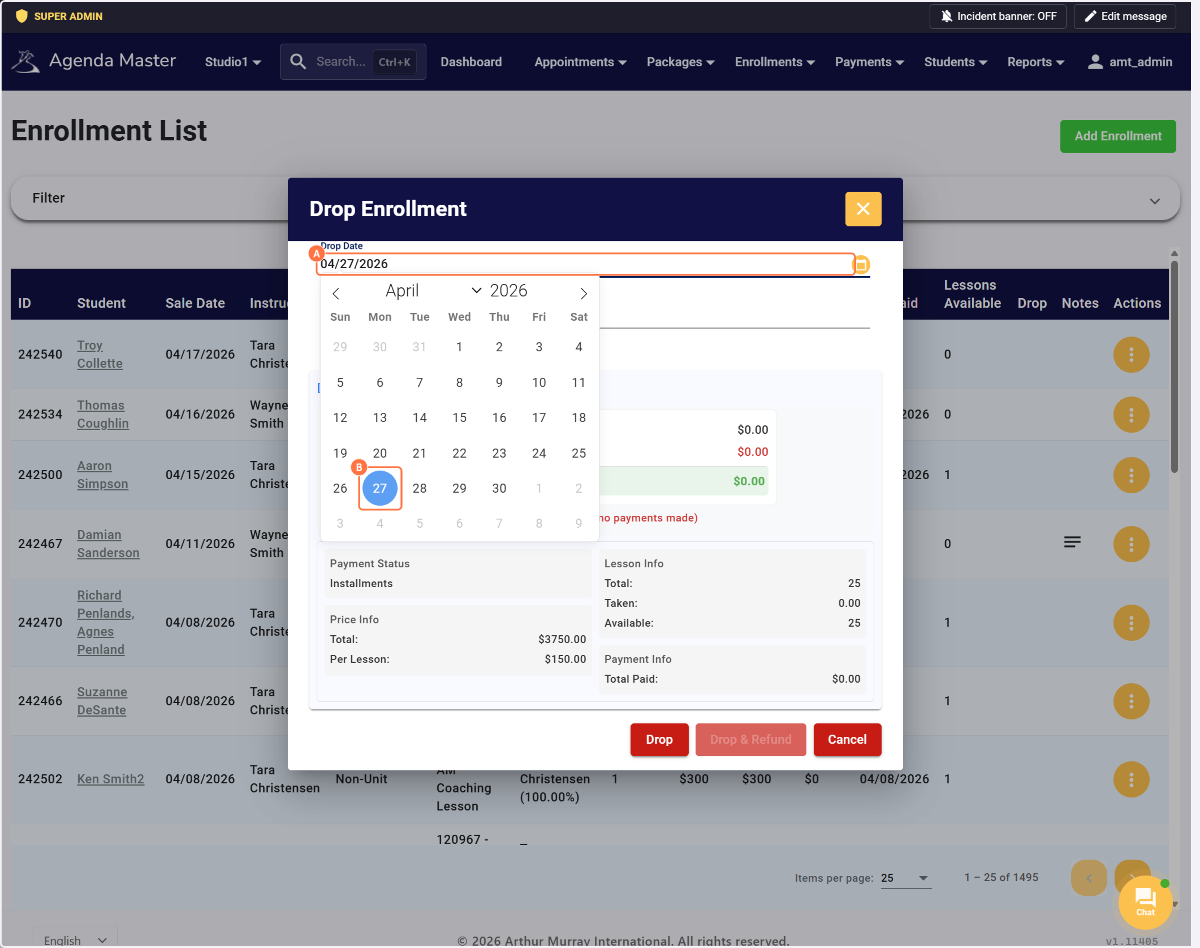
Review the info. NO CHANGES CAN BE MADE AFTER YOU DROP #

Click on Drop. NO CHANGES CAN BE MADE AFTER YOU DROP #

An Adjustment line is created. The original signed Enrollment is still visible. The system is showing you that you’ve removed the 25 lessons leaving 0 remaining and $0 due. #

The Drop will be removed from the Staff Performance report and show on the Studio Business Report. (ONLY LESSONS, NO $) #
You can hover over the “i” to see details.