
This walkthrough will take you through the DROP and REFUND process simultaneously. View other walkthroughs for Drops or Refunds separately.
You can Drop and Refund from the Enrollments List OR directly from the Student Account. #
Click the search bar
Enter the student name and choose one to go to their account #

Scroll down on their Dashboard, Click on lesson enrollments and look for the Enrollment you want to Drop and Refund #

Use the Action button to the Right and Choose DROP. #
We’ll be Dropping the lessons AND Refunding the money.
Today’s date is prefilled, you can change the date by opening the calendar. #

Review the information. The refunded amount and # of lessons is calculated through the UNIT rate. #
If satisfied – Click on Drop & Refund #
DROP/REFUND DATE CANNOT BE CHANGED AFTER YOU CLICK THE BUTTON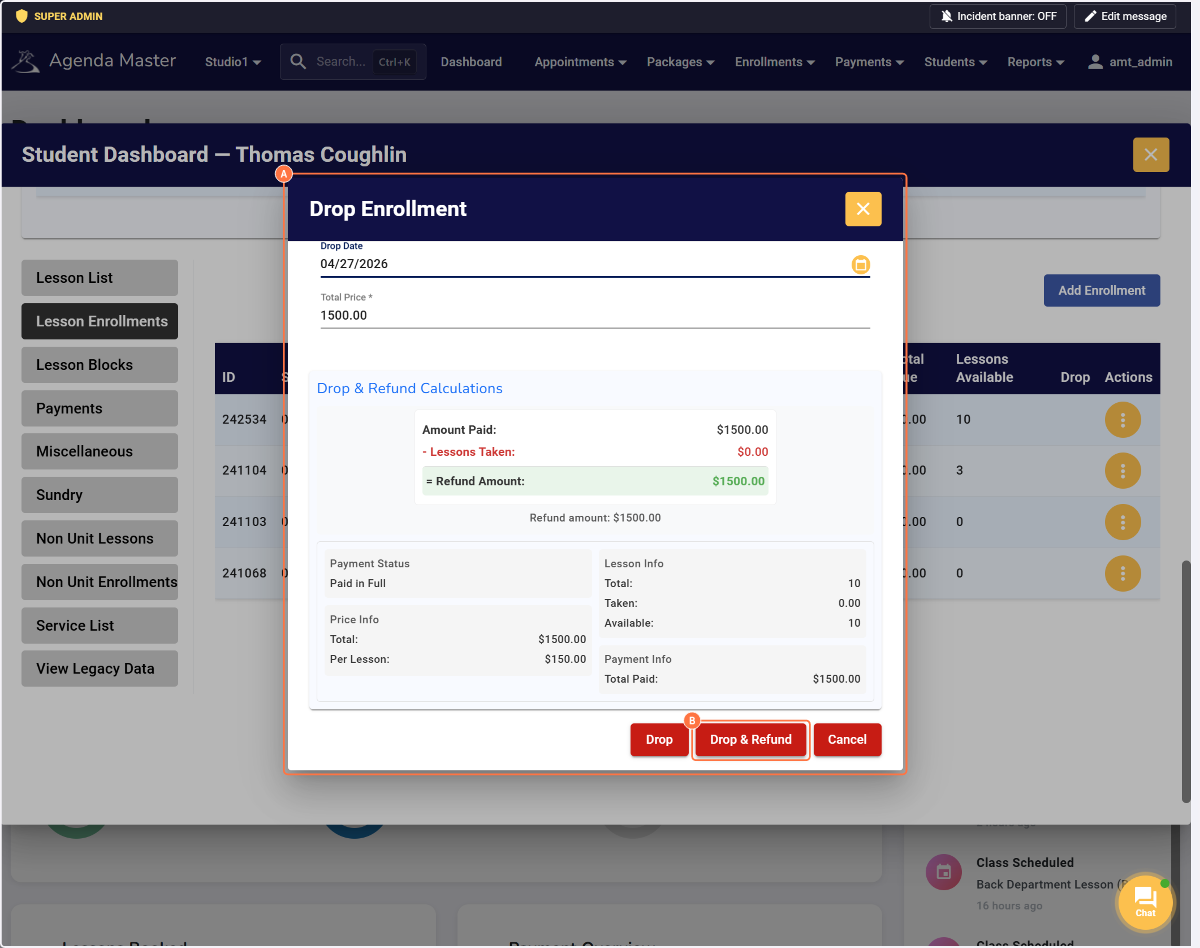
View the Adjustment. The 10 lessons have been removed and the Total Due has been deducted, leaving 0 remaining and $0 Due. #

Click Payments. A negative payment has been created to give you a refunded amount. #

You can see the refunded amount AND the Dropped amount on the Studio Business Report. The sale will also deduct from the Staff Performance. #

You’ll see the refund on this weeks Royalty Report. You’ll now need to email Elena a copy of the “proof” of the refund to receive credit. (A copy of the CC refund receipt or a copy of the cancelled check.) [email protected] #
