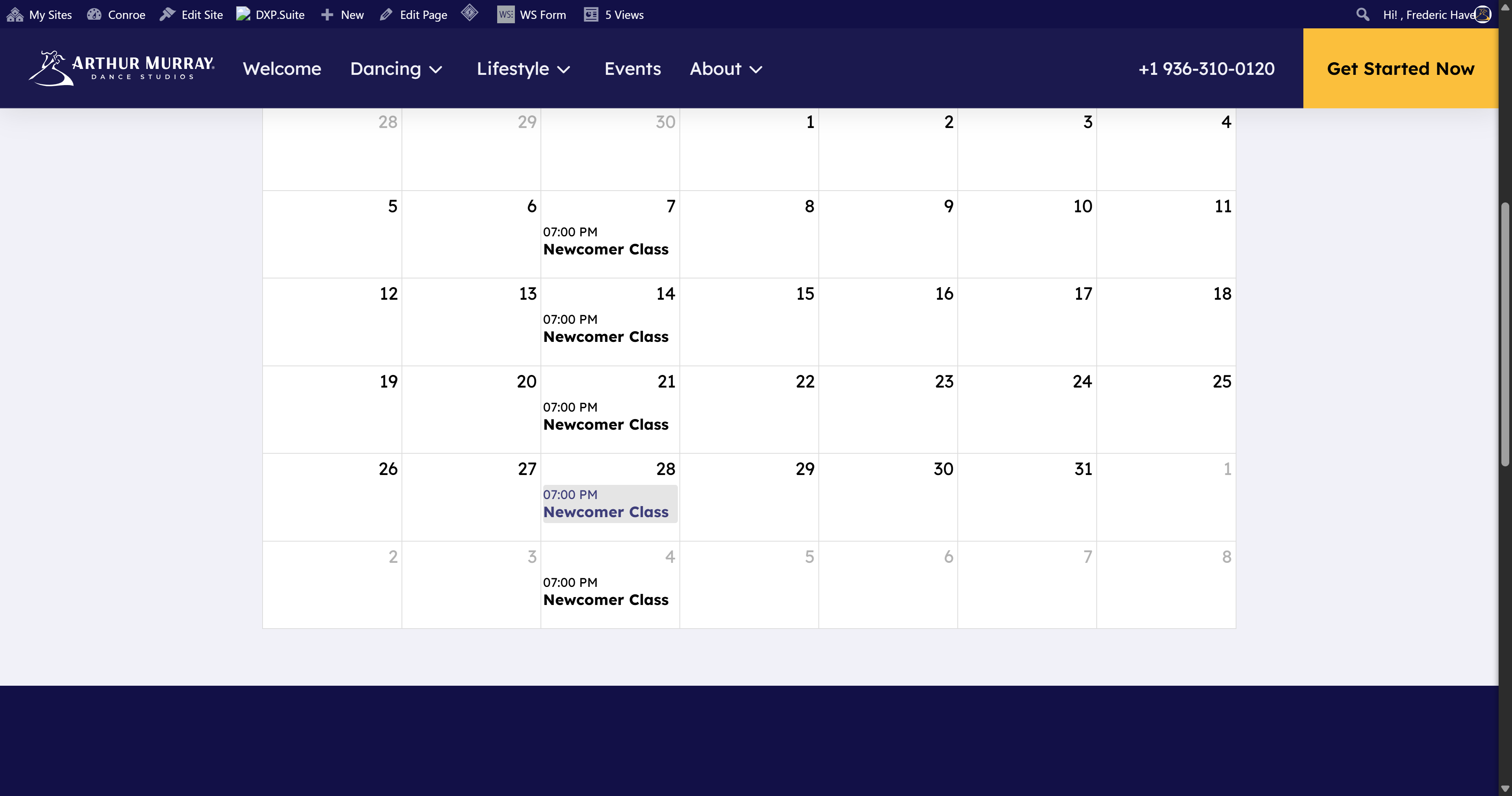
You’ll set up a new weekly event, define the time schedule, and configure recurrence rules to stop on a specific date.
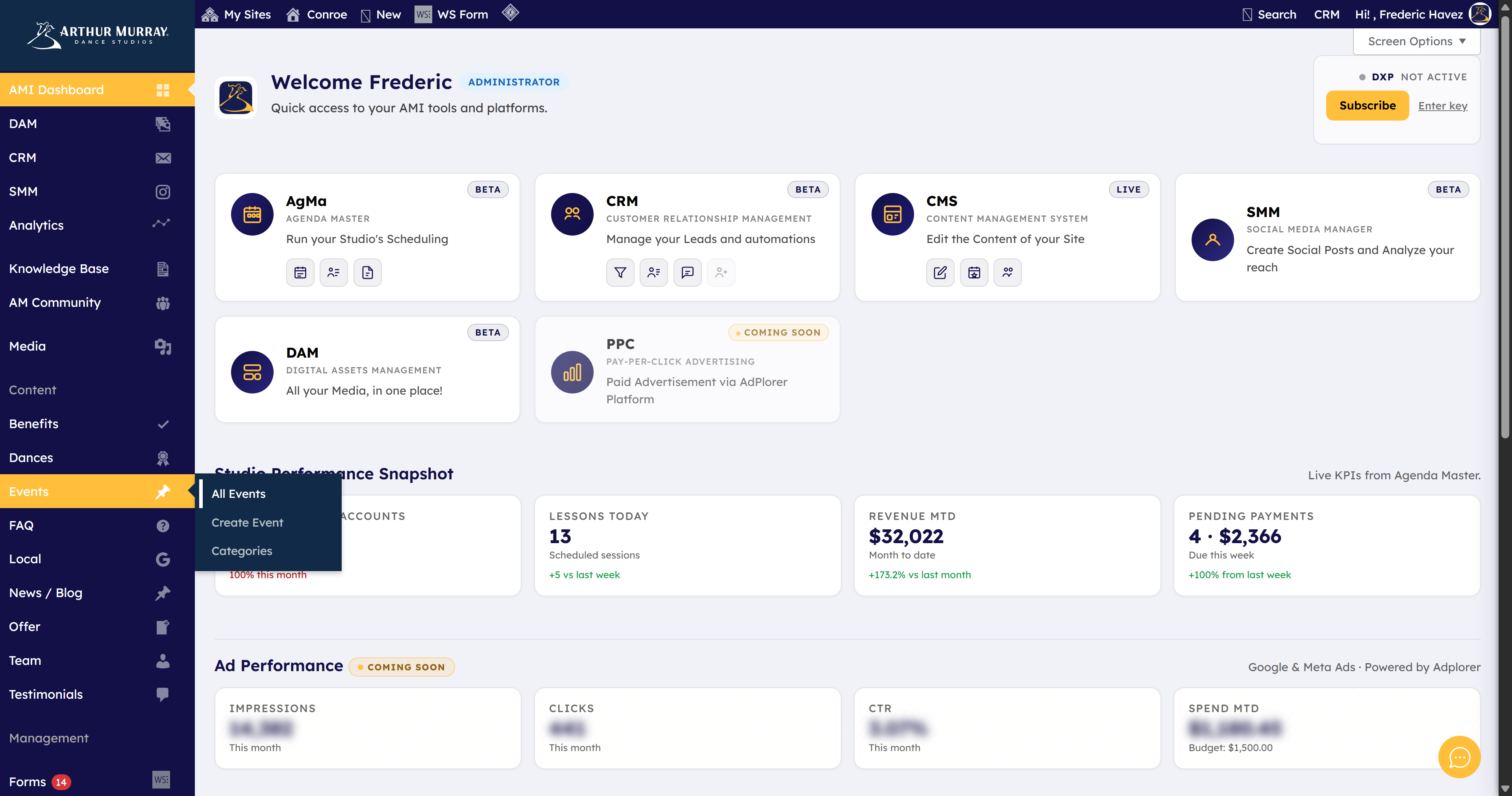
Step 1: Click All Events to open the events view. #
Let’s head over to our events area so we can manage and view our scheduled sessions.
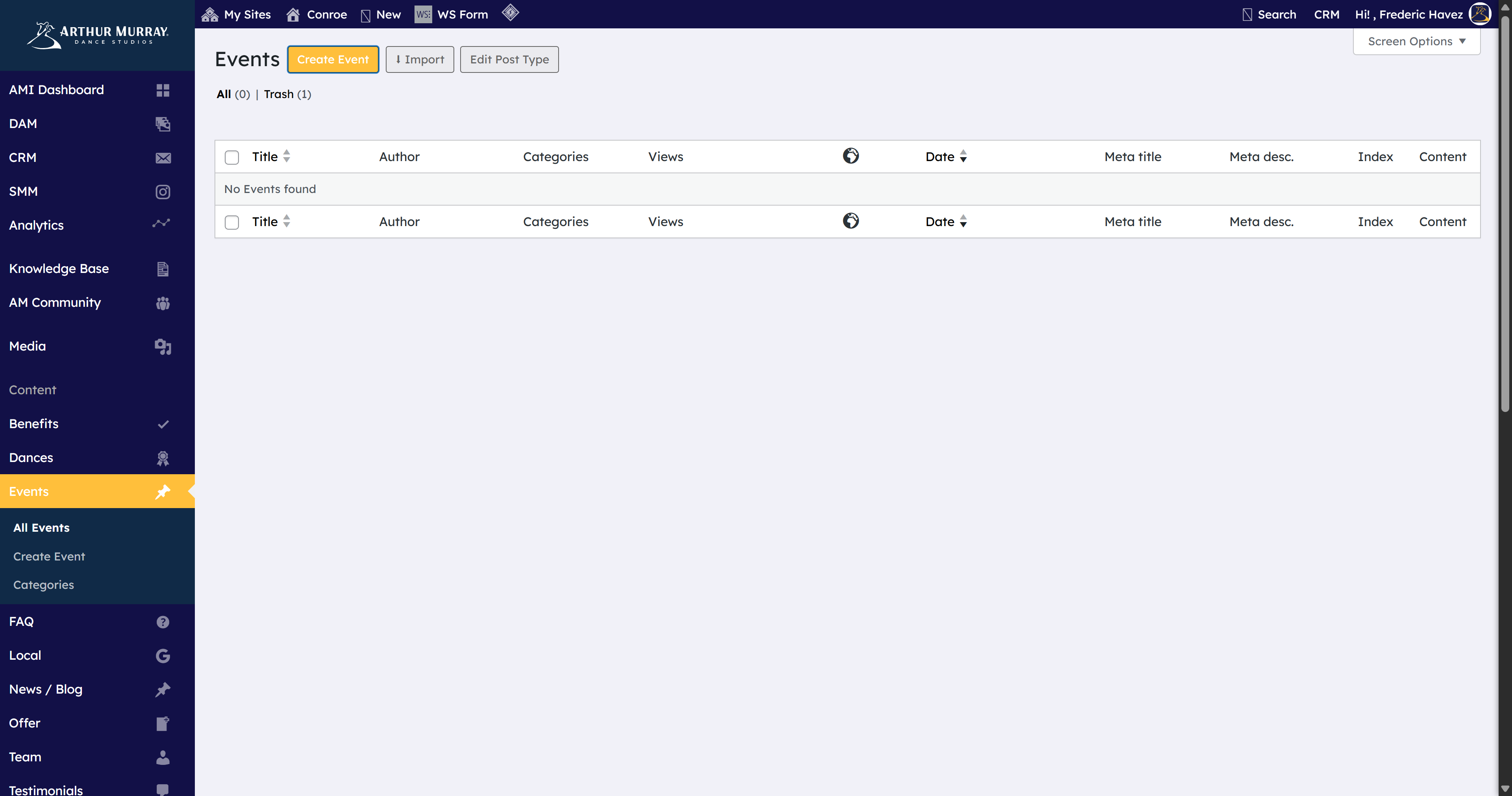
Step 2: Click Create Event to start a new event. #
Click Create Event to start a new event.
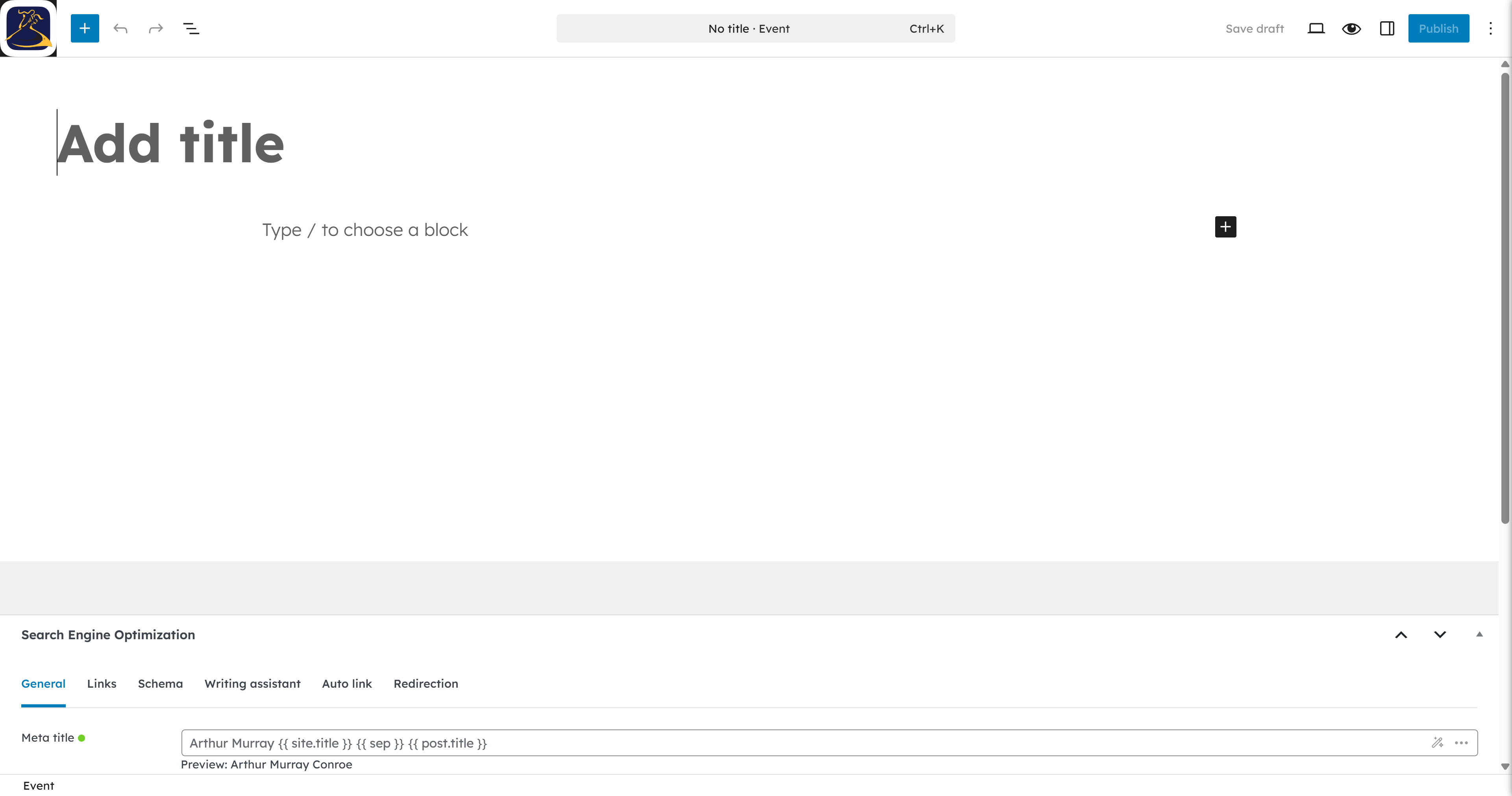
Step 3: Click the Add title field to begin typing. #
Click the Add title field to begin typing.
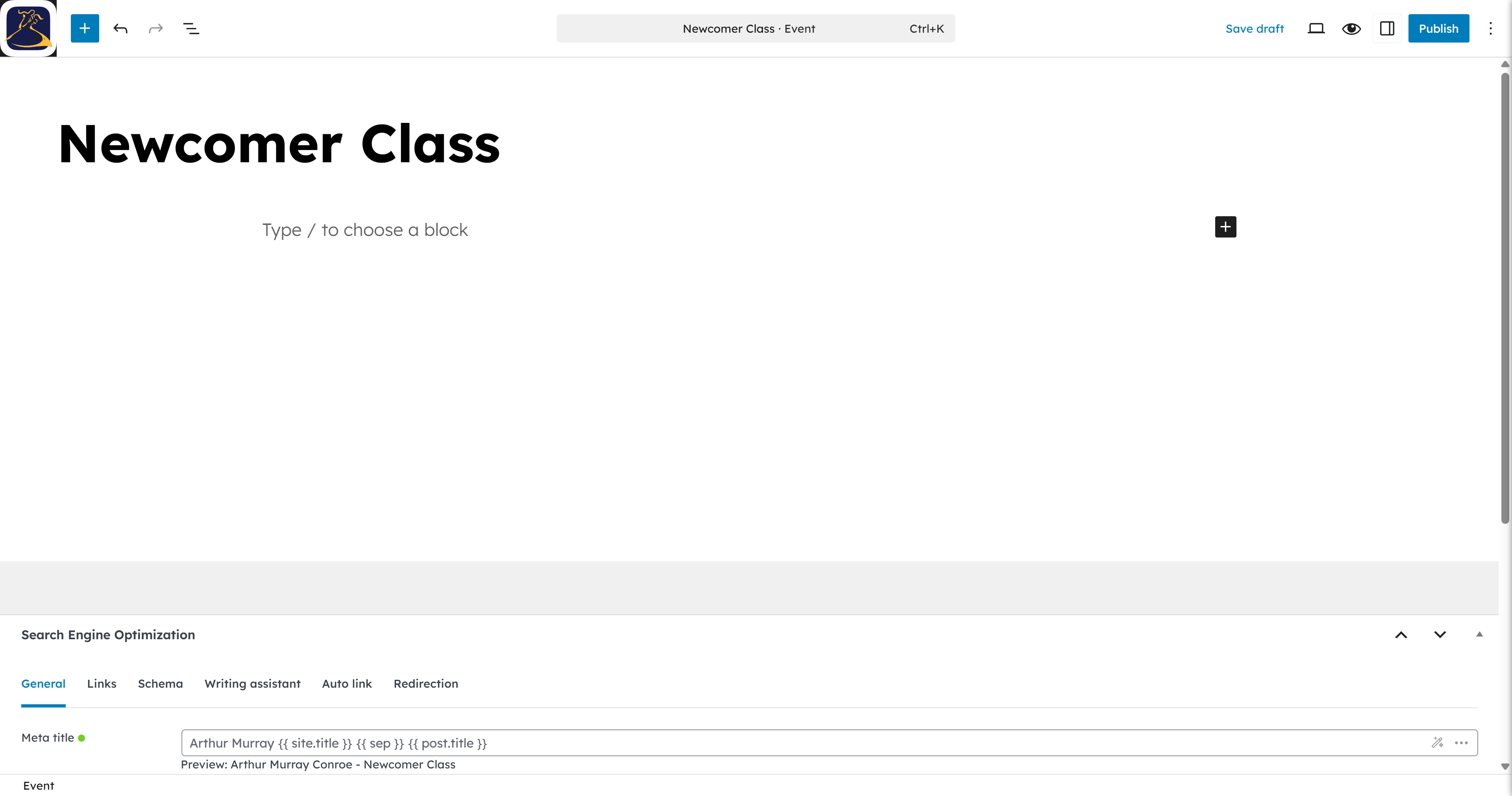
Step 4: Open side panel to view settings if closed. #
Click the Event tab to view settings.
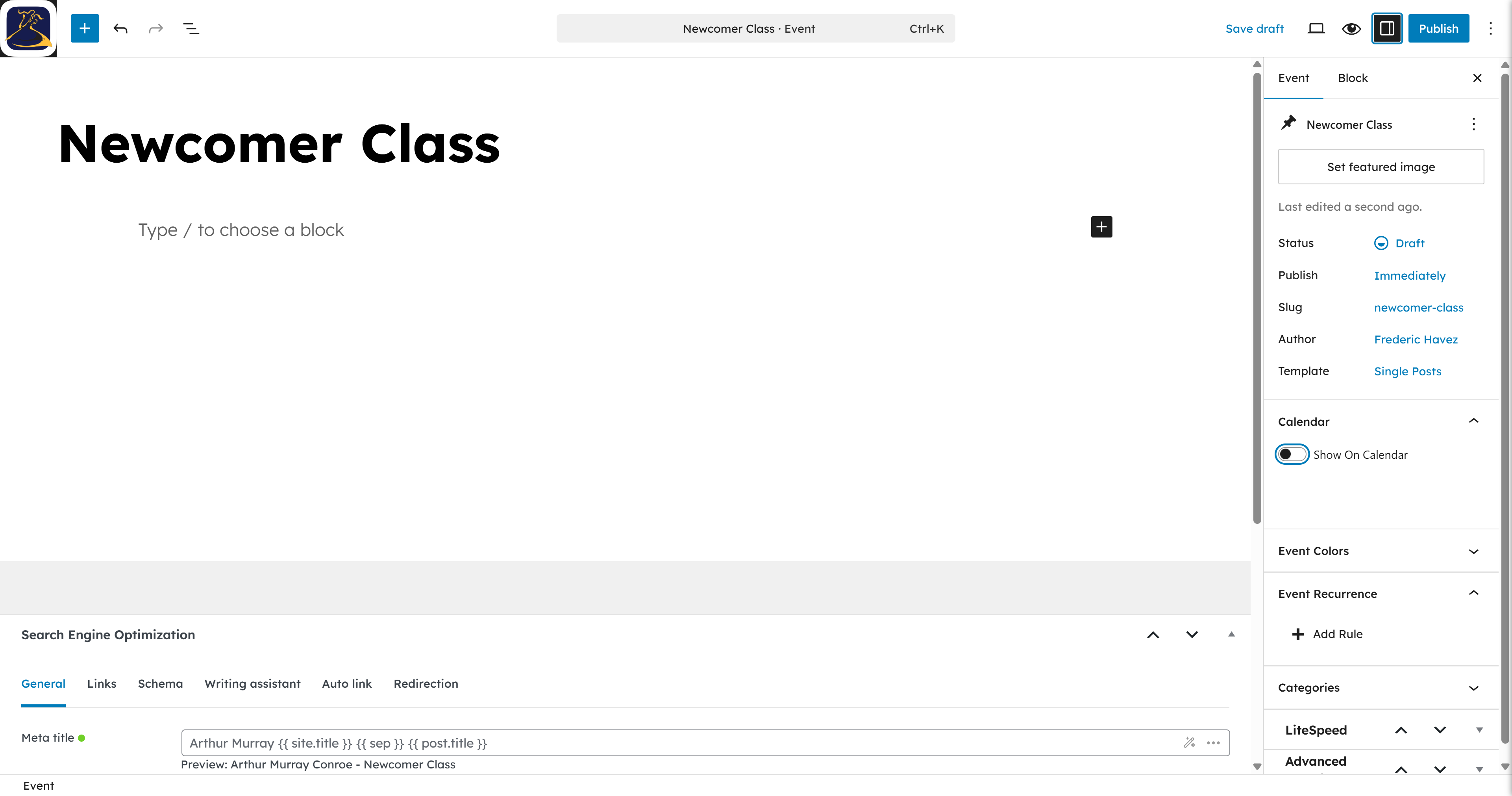
Step 5: Toggle Show On Calendar to make it visible. #
Toggle Show On Calendar to make it visible.
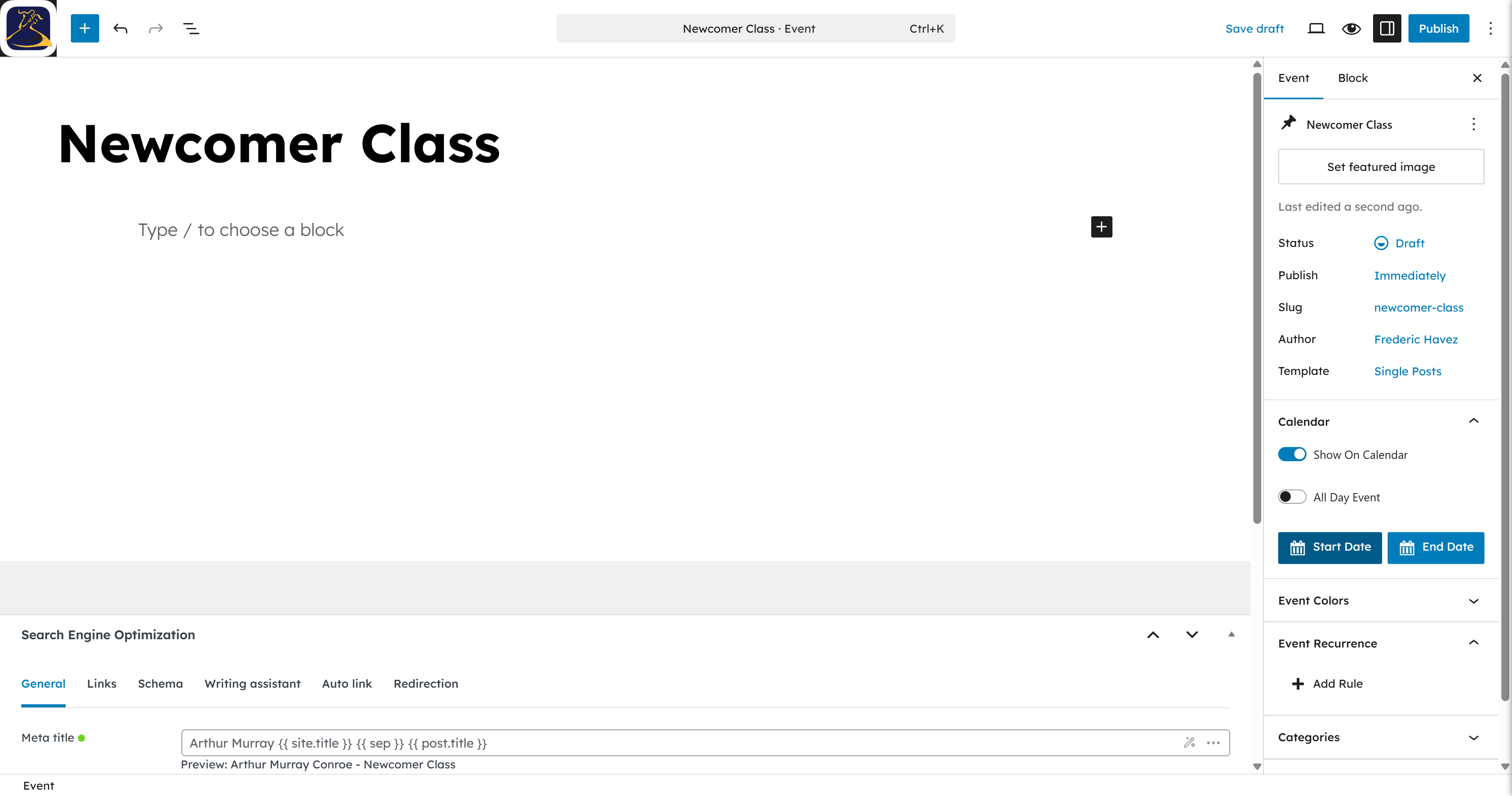
Step 6: Click Start Date to choose when it begins. #
Click Start Date to choose when it begins.
Step 7: Select a starting date. #
Select the starting date.
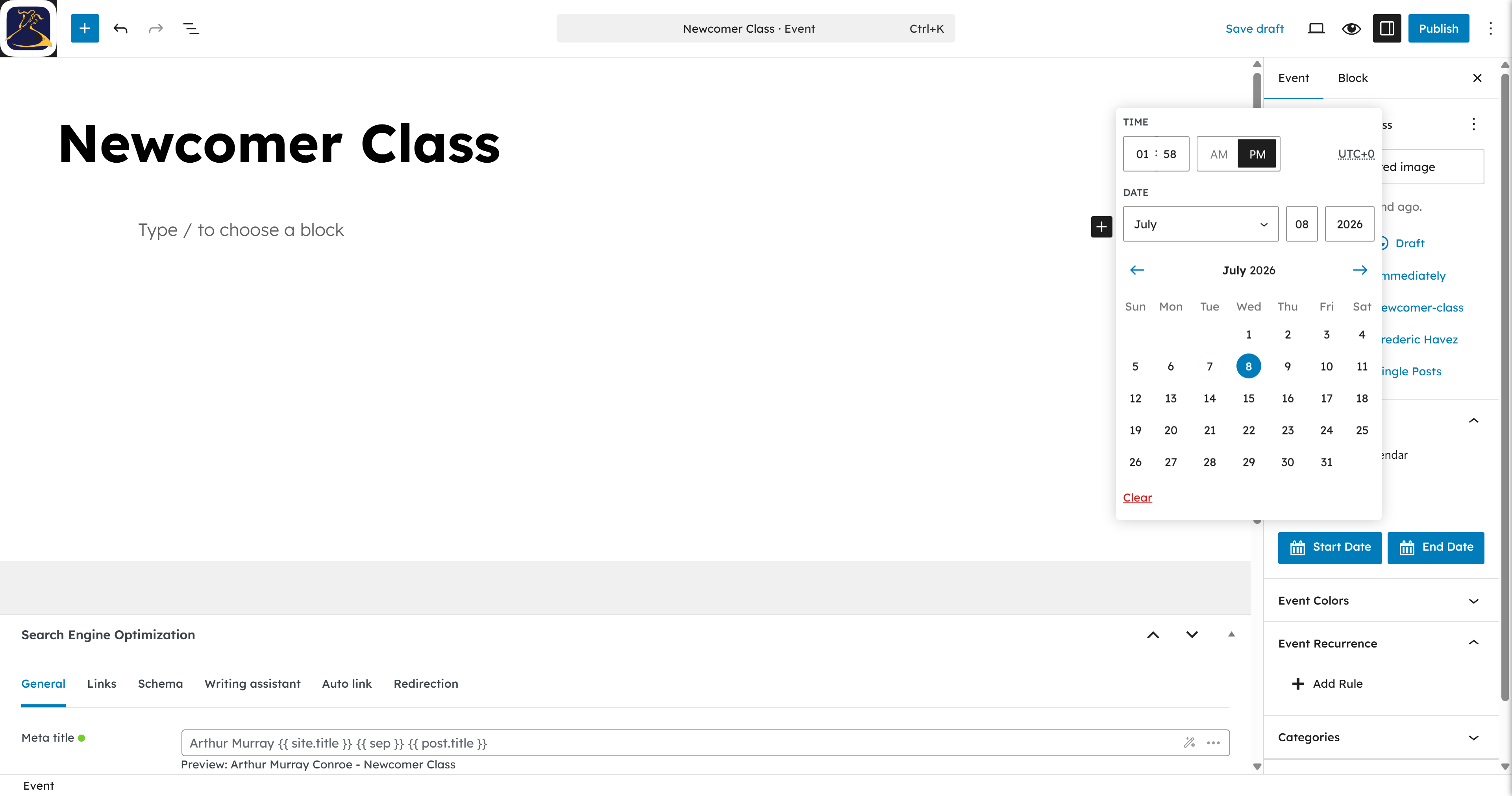
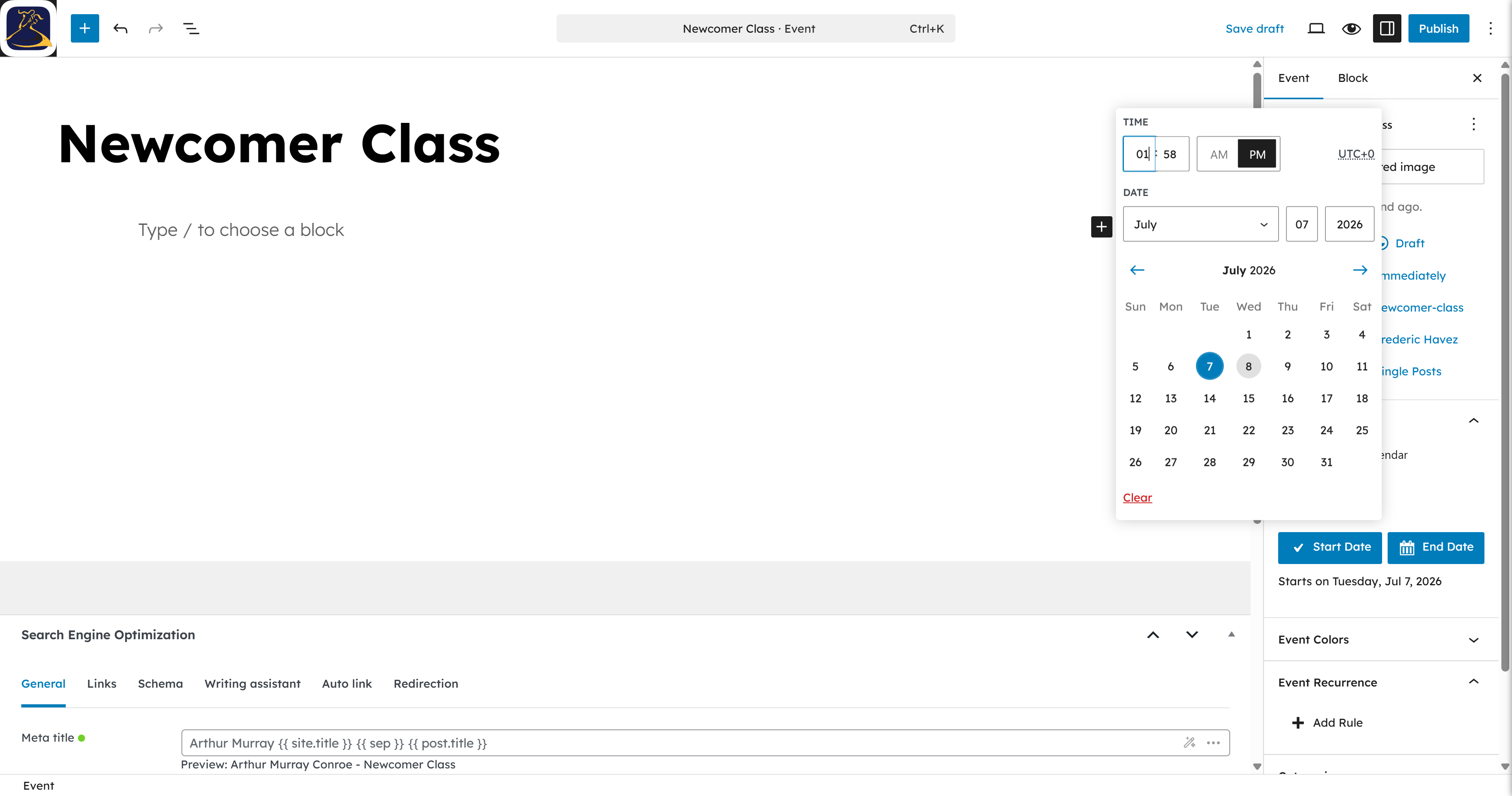
Step 8: Click the time input to adjust the hour. #
Click the time input to adjust the hour.
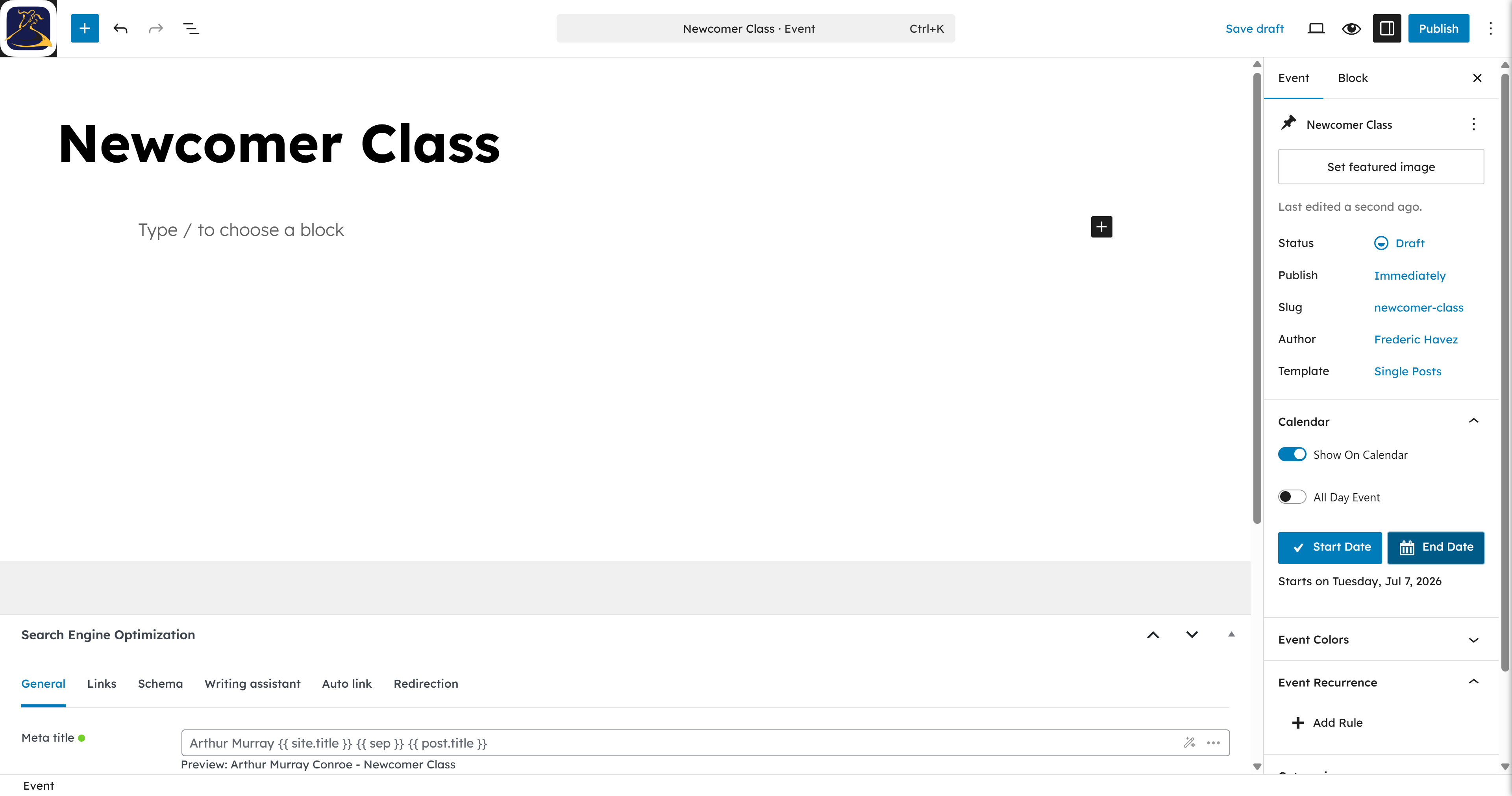
Step 9: Click End Date to set the completion time. #
Click End Date to set the completion time.
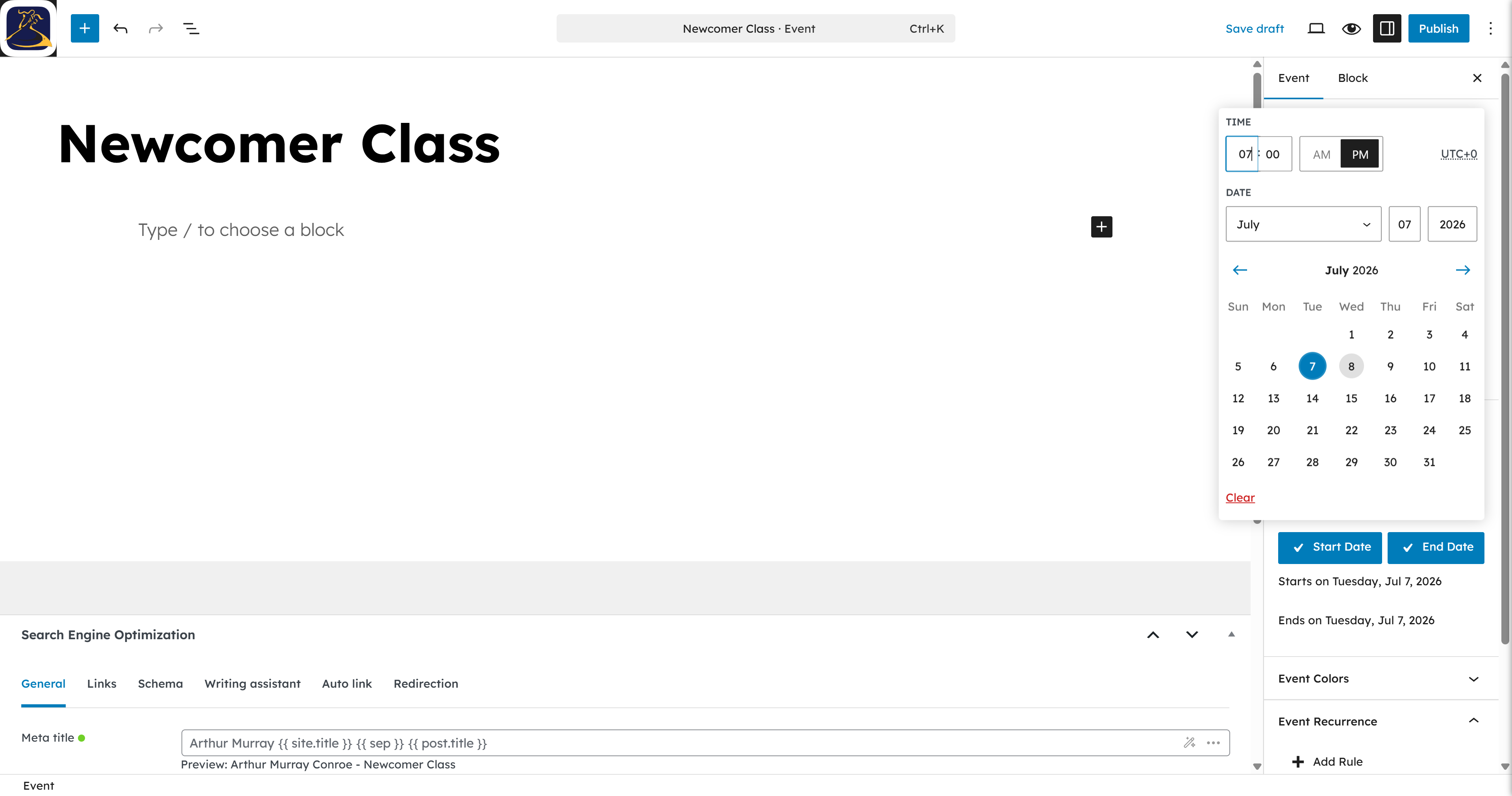
Step 10: Click the time input to adjust the end hour. #
Click the time input to adjust the end hour.
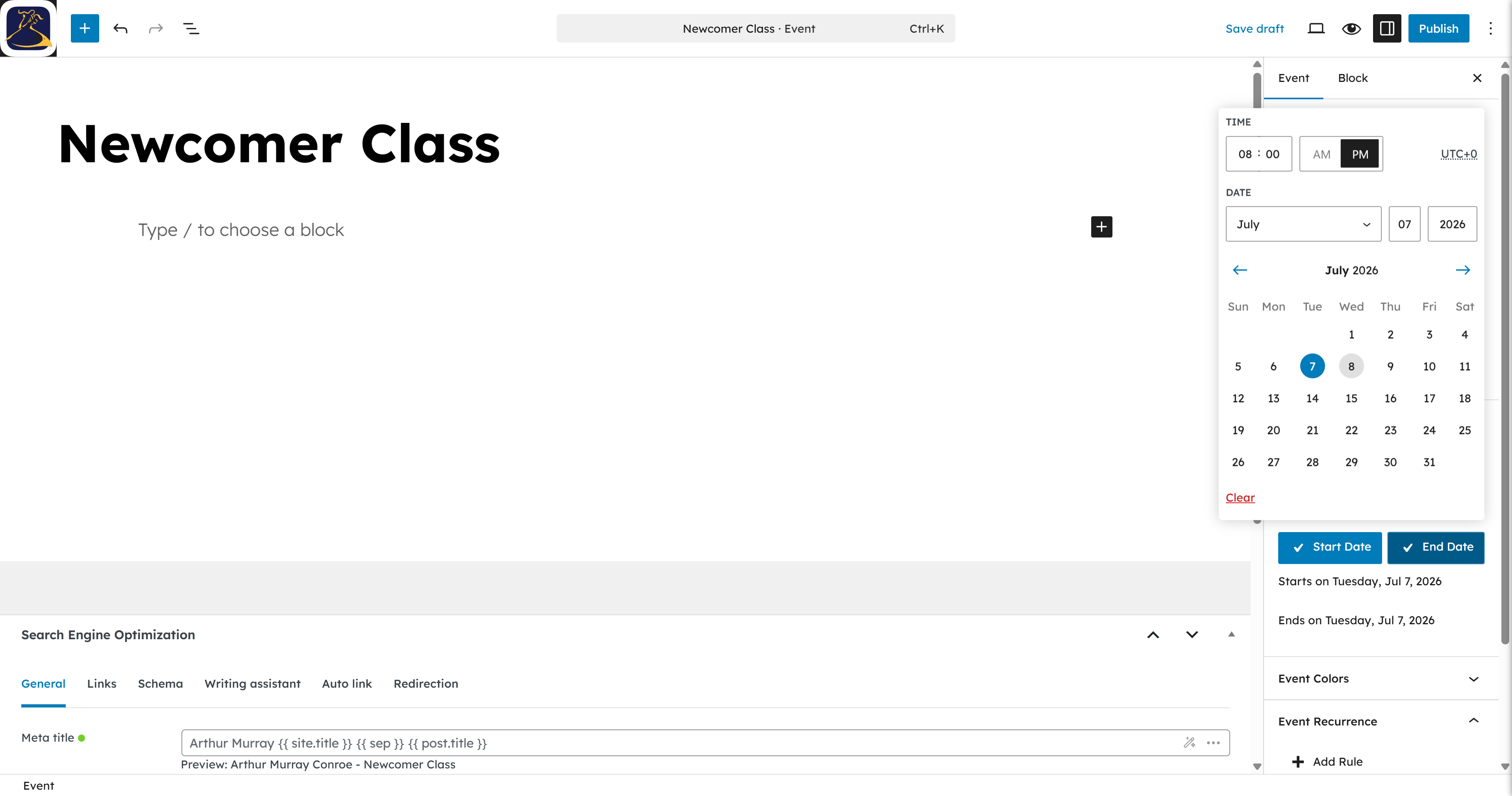
Step 11: Click End Date again to collapse the picker. #
Click End Date again to collapse the picker.
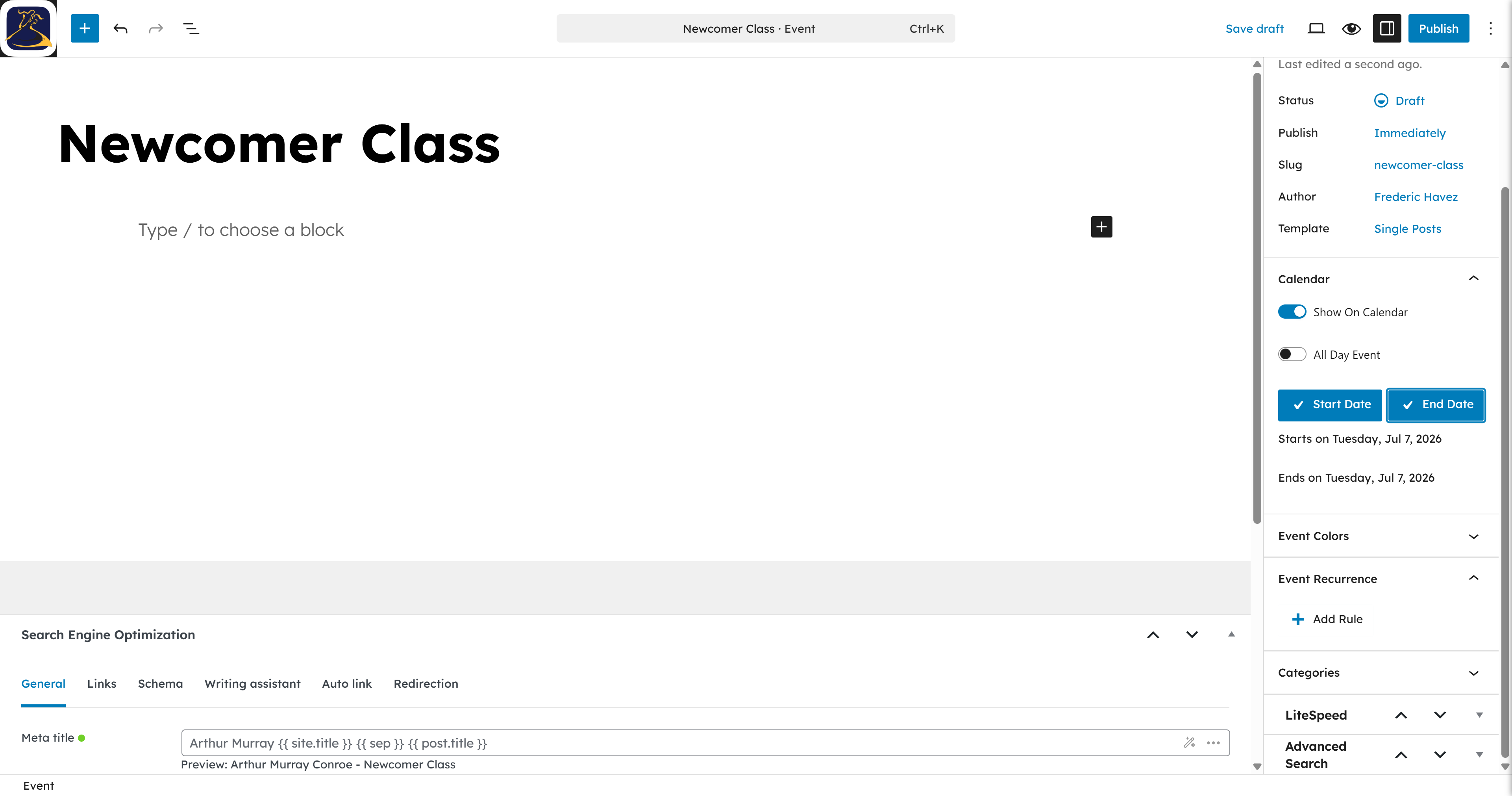
Step 12: Click Add Rule under Event Recurrence for repeating events #
Click Add Rule under Event Recurrence.
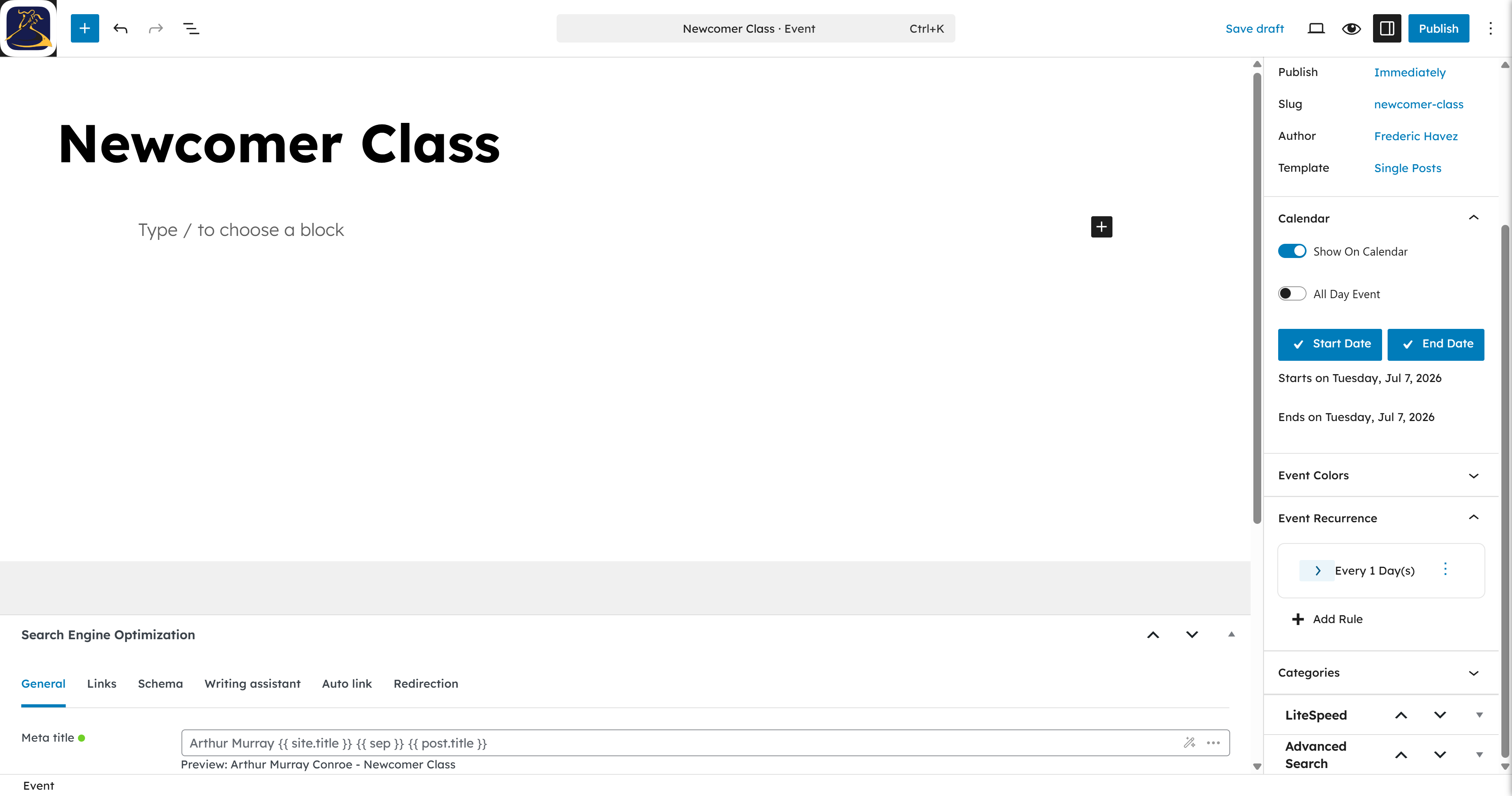
Step 13: Click the Day(s) dropdown to change the interval. #
Click the Day(s) dropdown to change the interval.
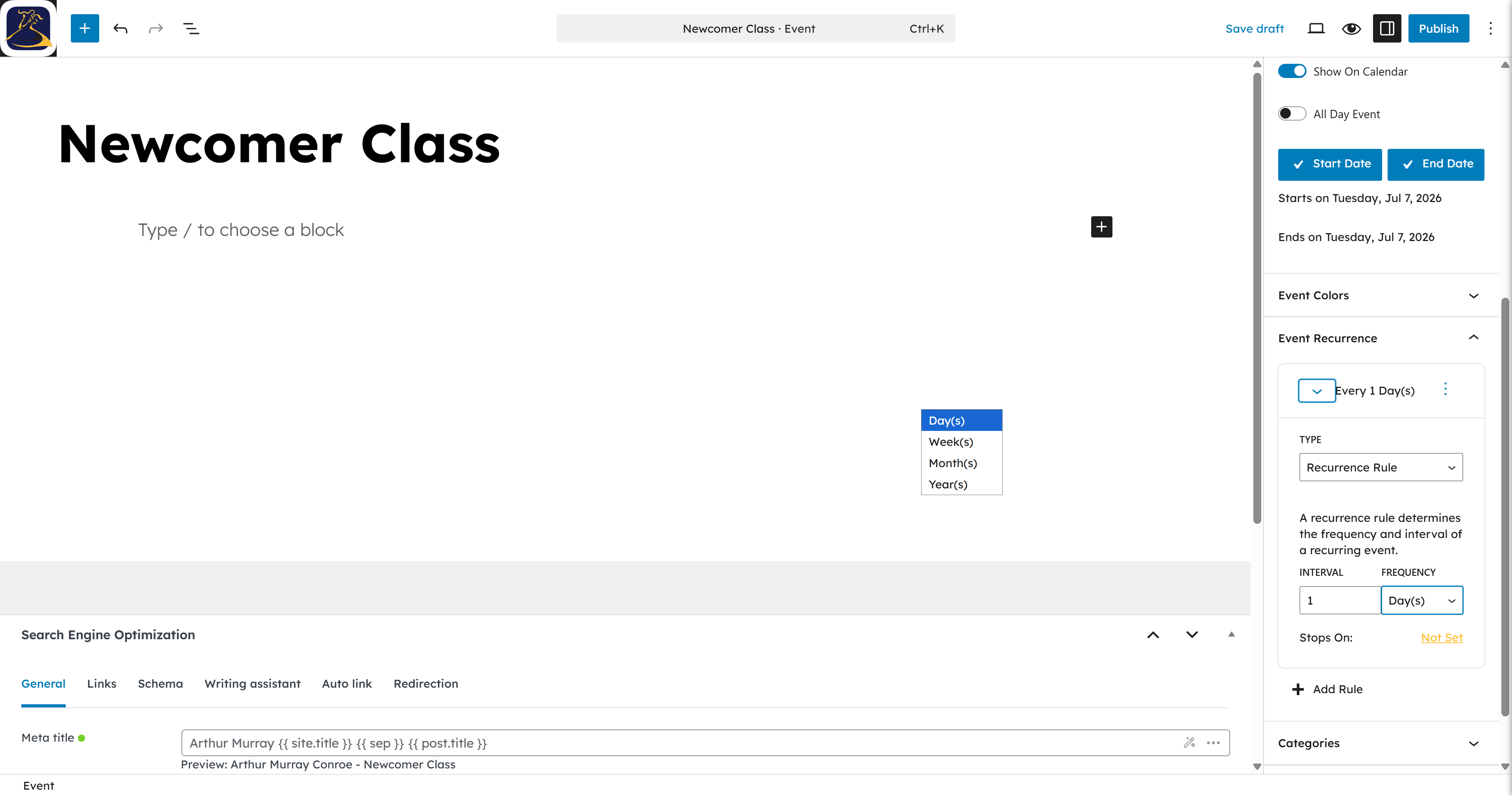
Step 14: Select Week(s) to make this a weekly class. #
Select Week(s) to make this a weekly class.
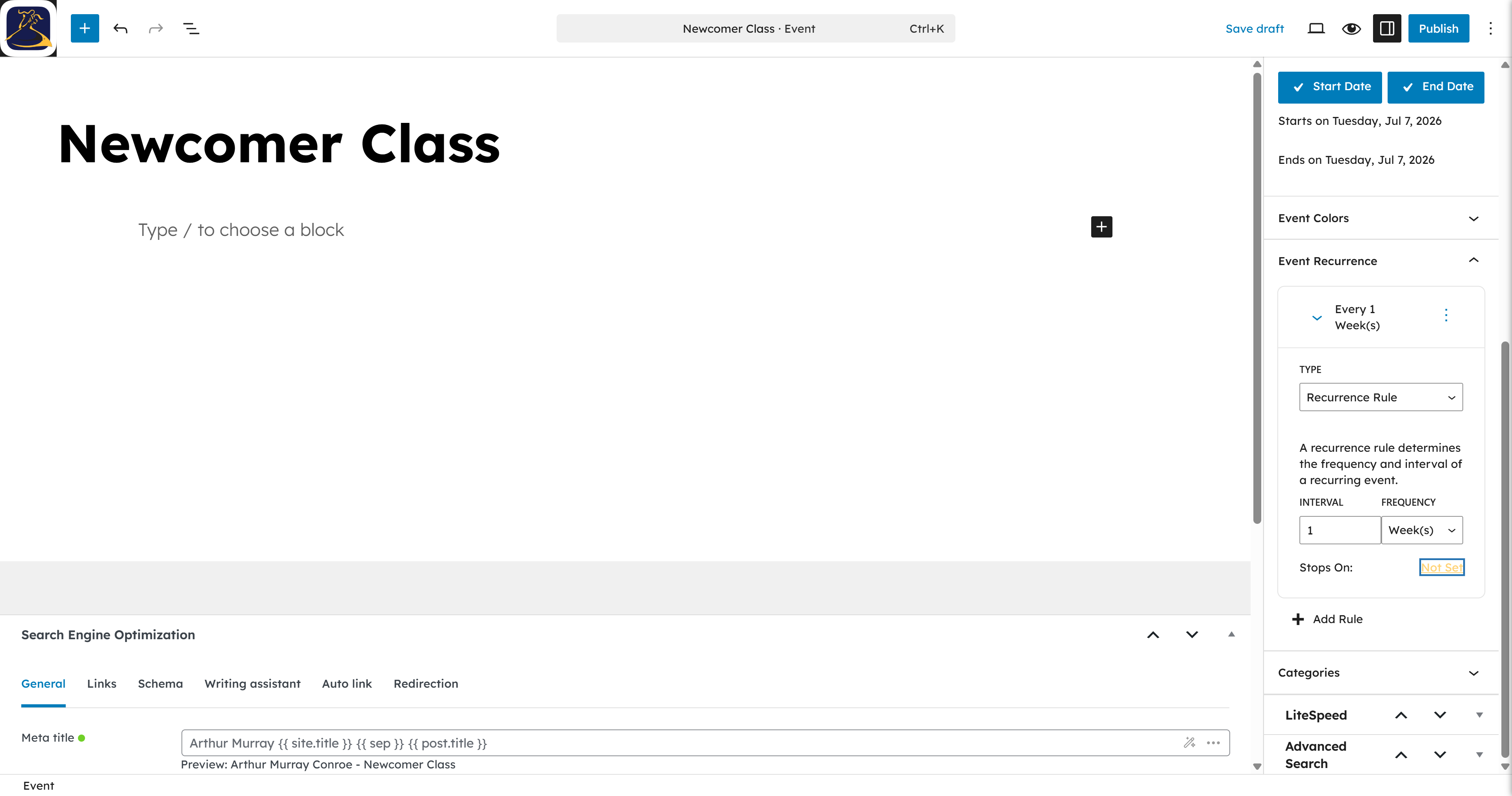
Step 15: Click Not Set next to Stops On to add a date the recurrence is no longer happening #
Click Not Set next to Stops On.
Step 16: Click the date field to open the calendar. #
Click the date field to open the calendar.
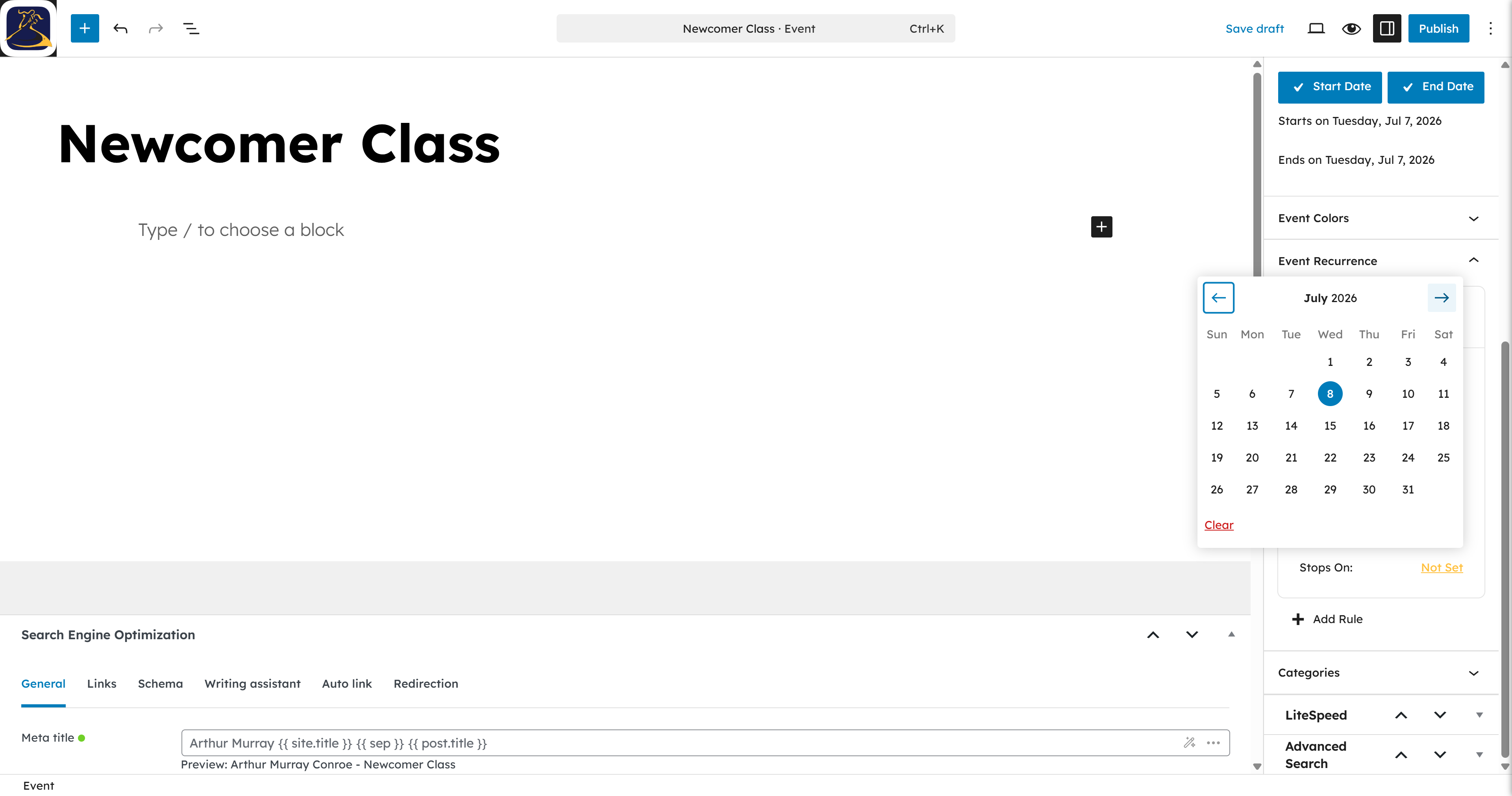
Step 17: Select a date as the final date. #
Select September 1 as the final date.
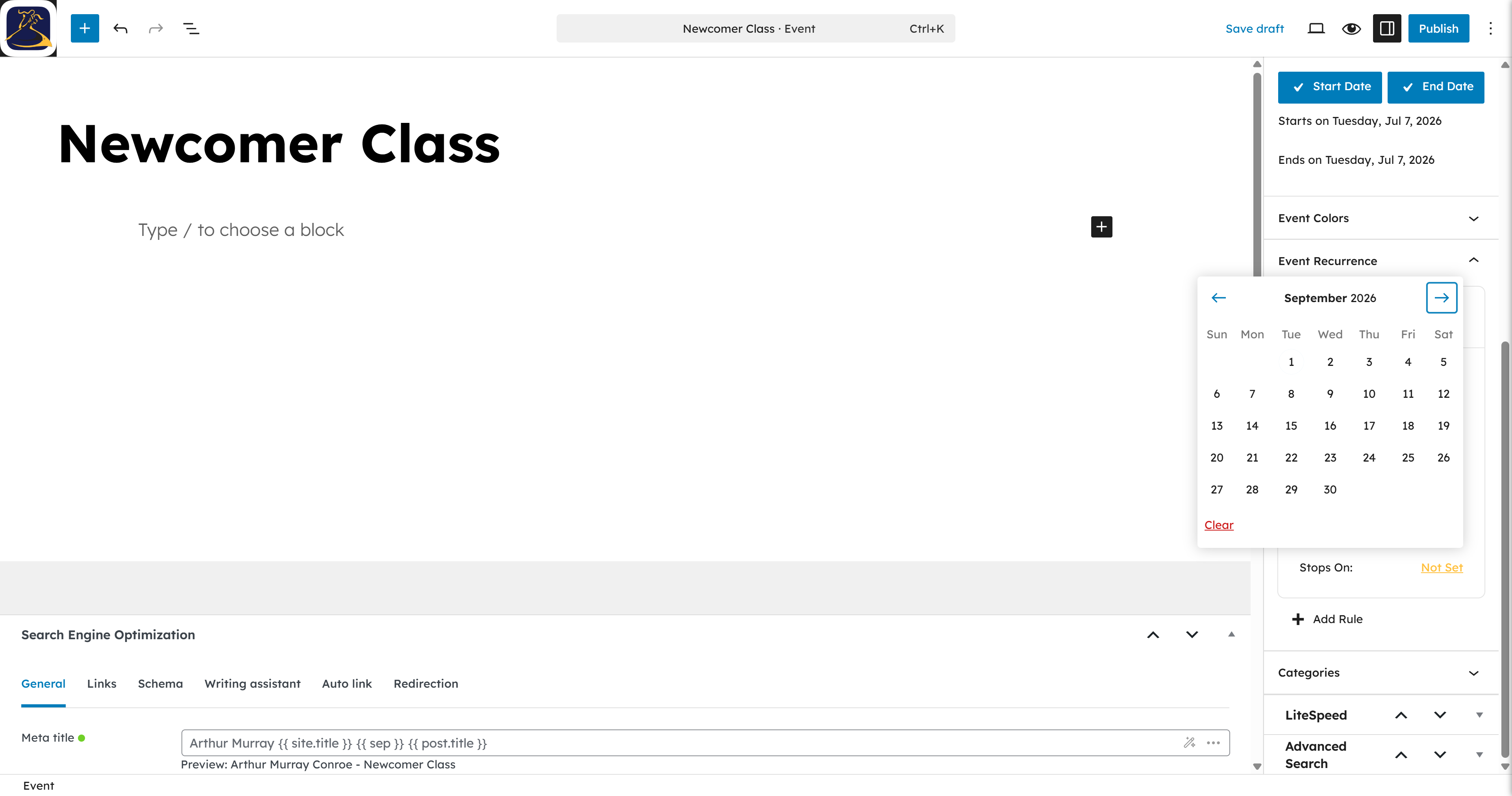
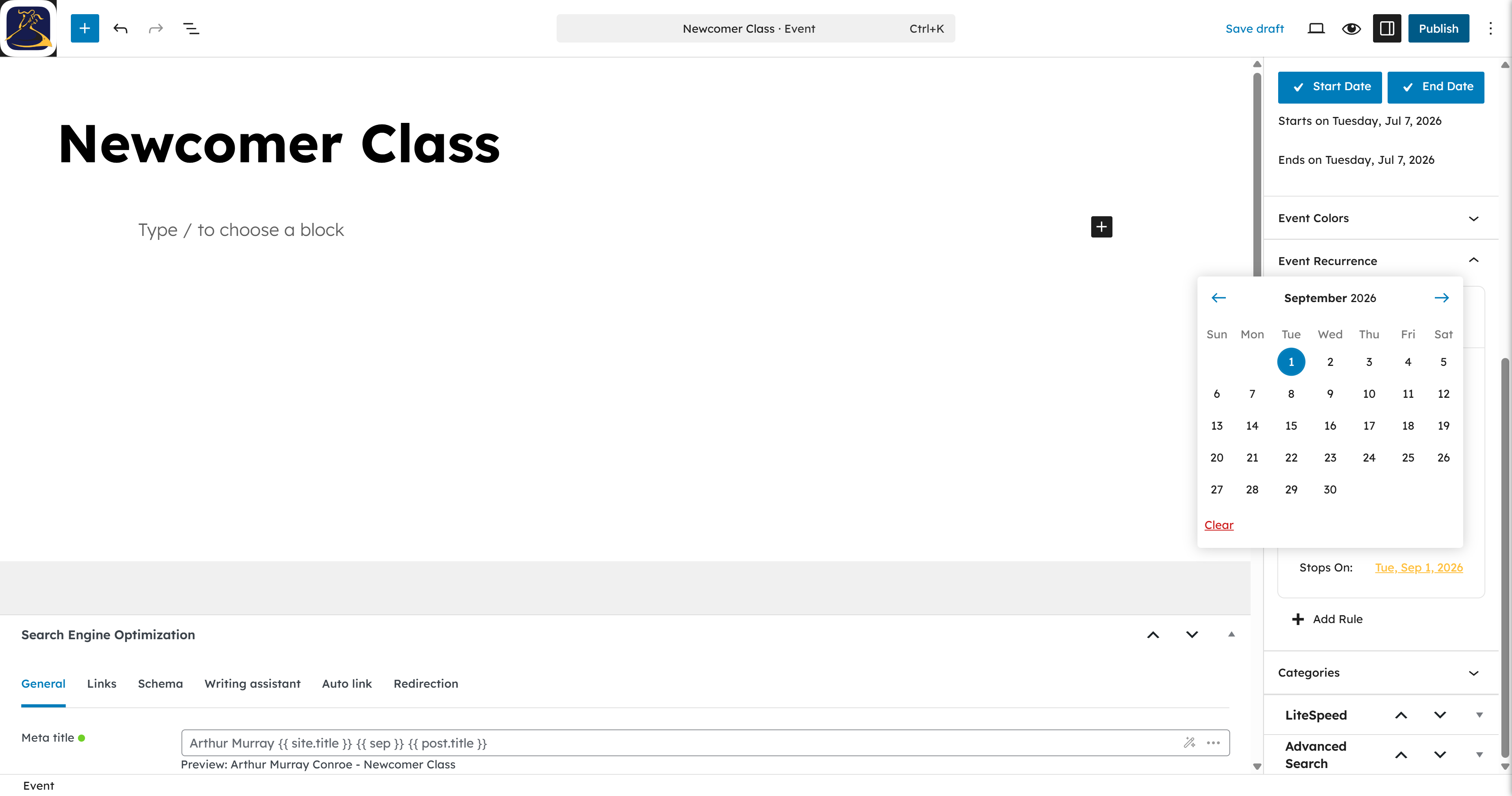
Step 18: Click Publish to save your new class. #
Click Publish to save your new class.
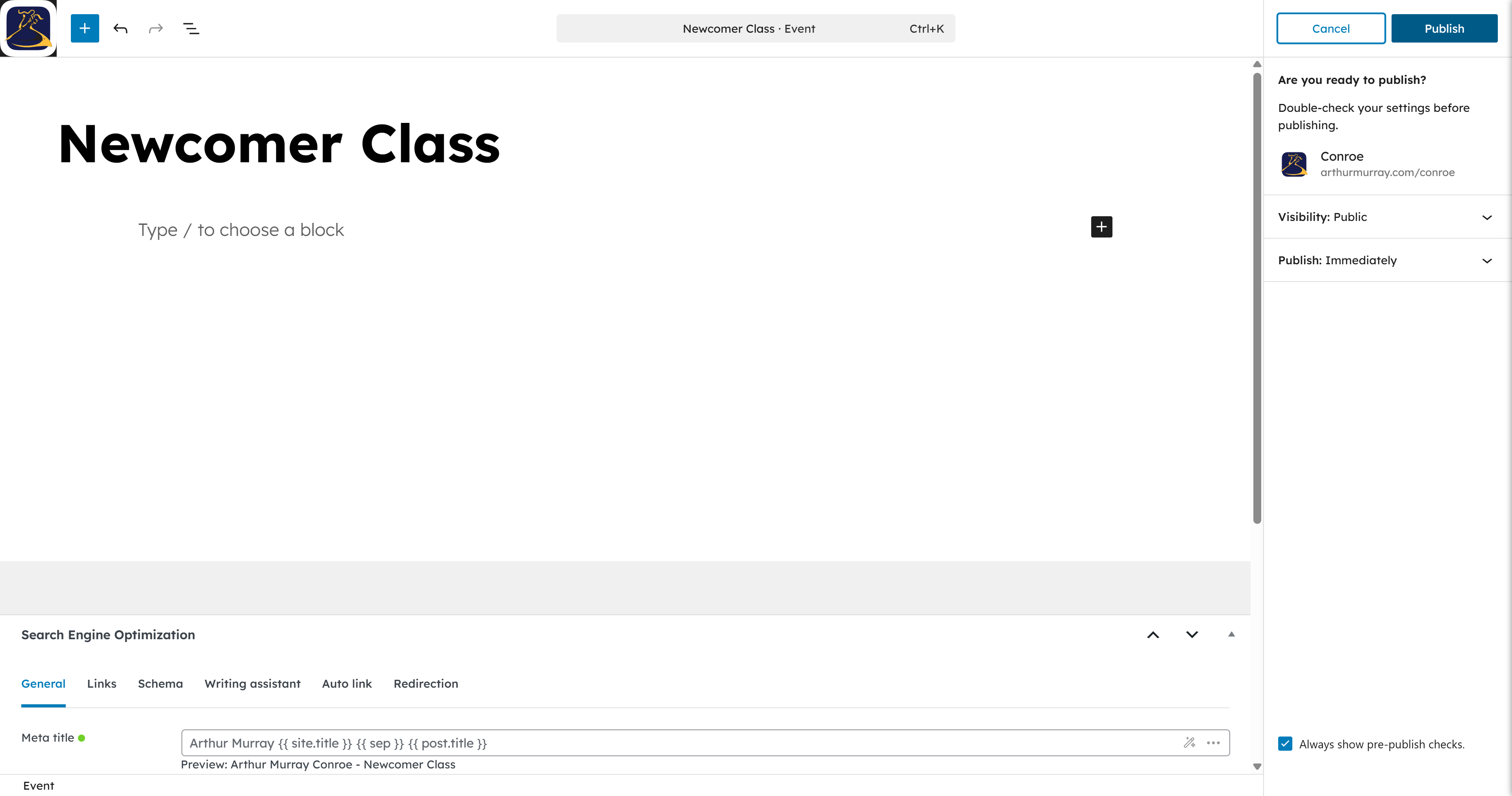
Step 19: Click Publish again to confirm your settings. #
Click Publish again to confirm your settings.
Step 20: Newcomer Class now showing at every recurring time on the calendar. #
Click the scheduled Newcomer Class on the calendar.